
Text translation
For copyable text, type or paste directly into Translation in the main window. Changes to input and language settings automatically start translation. This page requires Full and the translation extension enabled.
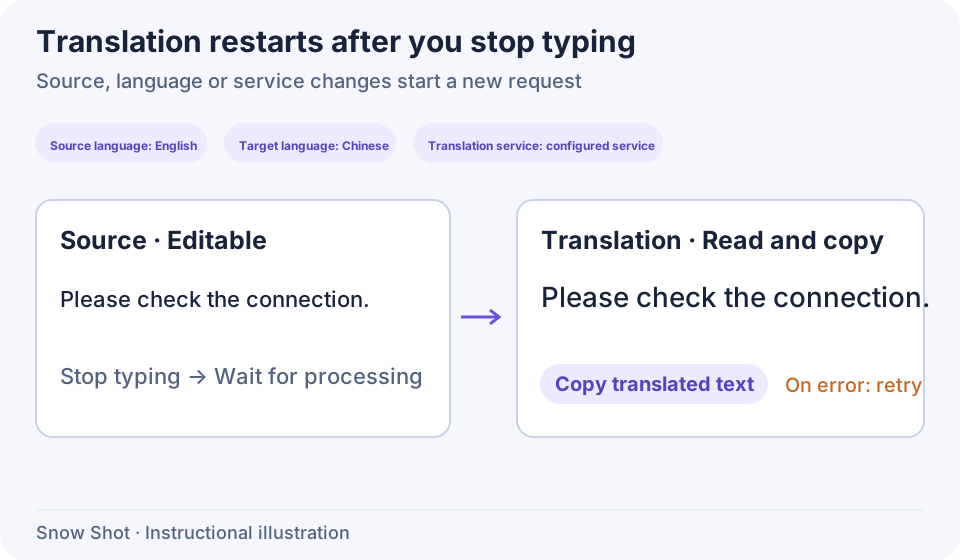
Instructional illustration. Edit the source; use the result area to read, select, and copy translations.
Open the translation page
- Open Settings → Text recognition & translation → Translation extensions in the main window.
- Enable Translation page, then enter Translation from the sidebar. This also enables the Translate selected text action. The initial configuration has it disabled.
- To send recognized screenshot text here, also enable Jump to translation page. Click that button in the recognition property bar to send the current text, including corrections, and end the screenshot.
If the page is absent, check that the switch is enabled and you are using Full. Configuring a service alone does not enable the page. Mini does not include this extension.
Enter text and change languages
- Select Source language, Target language, and Translation service at the top. Choose Auto-detect language if the source is uncertain.
- Type or paste complete sentences into Source text. Pause typing and wait for the result area's processing state and translation. There is no separate Start translation button to find.
- Correcting the source, changing the target, or changing the service triggers processing again. Wait for the current result to update before comparing it with the source.
- Swap languages exchanges only the source and target language choices. It leaves the source text unchanged and starts processing that text with the new pair. Swapping is unavailable with automatic source detection or identical source and target languages.
Finish composing input-method text before checking the translation; continuous typing delays the current request. The translation area displays results. To revise wording, change the source and translate again, or copy into your own editor.
The source area accepts up to 5000 characters and shows a count. After pasting a long passage, check its end is complete. Split longer material at paragraph boundaries and keep the original text separately.
Translate a result back into the original language
- Specify the first source and target languages, wait for the complete translation, then use Copy translated text. Changing languages clears the old result, so copy before swapping.
- Click Swap languages and check that the two language choices exchanged places. The source area still contains the first input; processing that unchanged input is not a back-translation of the old result.
- Click Source text, select all of its contents, and paste the translation you copied. This starts a new request automatically. Wait for the complete result, then compare it with the first source.
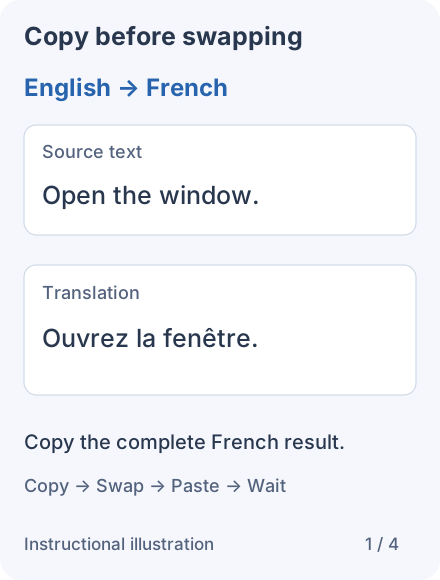
1. Copy the complete result — Copy the complete French result before changing languages.
- — Copy the complete French result before changing languages.
- — French and English exchange places. The English source remains unchanged.
- — Replace all source text with the French translation you copied.
- — Wait for the new English result, then compare with the initial English source.
If the result language differs from the selected target, also check the primary and secondary targets and detection threshold in Translation settings; see Language settings.
Copy and retry
Click Copy translated text after a result appears, then paste into the destination. For part of the source or translation, select text and use ordinary copying. With a selection, normal copying retains that range; without one, the page's copy shortcut retrieves the full translation.
The standalone translation window's action menu offers Copy and Copy and close, showing shortcuts for the current platform. Copy and close puts the translation on the clipboard and closes that window. Keep it open if you want to compare services.
For an error, read the result-area message, check configuration and connectivity, then click Retry. Re-entering text or changing languages or services also starts another request. Do not repeatedly clear a long source passage before resolving the error.
Leaving or closing the main translation page may clear the current session. Copy source text and translations into a document first if you need to keep them.
Continue with Selected-text translation, Screenshot translation, or Translation services and custom models.