
Screenshot and in-image translation
Use Text translation for foreign-language content in images. It recognizes text first, then calls a translation service. Original image translation places translated text at corresponding positions for reading an interface; text results are easier to copy. This requires Full, prepared OCR components, and an available translation service.
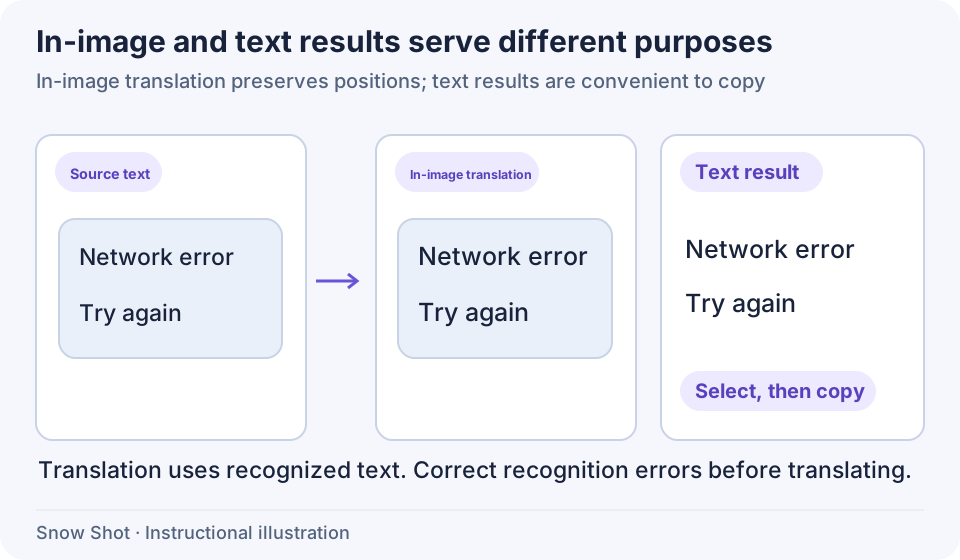
Instructional illustration. In-image translation changes the displayed result, not text in the captured application.
Translate part of the screen
- Display the content clearly and capture a complete sentence or paragraph—F1 on Windows or Control+1 on macOS by default. A single word may lack context; including adjacent explanations often helps.
- Choose Text translation in the screenshot toolbar. Snow Shot prepares or performs OCR before translation. Wait rather than repeatedly launching the same action.
- Check Target language and Translation service in the result property bar. Change either if needed, then wait for the new translation.
- Compare names, numbers, and negation with the source. Capture again if recognition is incorrect, or use the translation-page method below to translate manually corrected text.
You can also inspect the source in Text recognition before choosing Text translation in its property bar. This screenshot command uses the initial recognition result, not corrections typed in the text editor. To translate corrections, edit the recognized text and copy it into the enabled Text translation page. Alternatively, follow that tutorial to enable and click Jump to translation page, which sends the current text and ends the screenshot.
In-image translation and text results
Click Translation settings in the translation property bar and find Original image translation:
Click OK after switching, then check the current result. Dense text and small boxes can become difficult to read when the translation is longer. Enlarge the source application and capture again, or use text results.
Languages and translation settings
Translation settings includes source language, primary and secondary target languages, language detection confidence, service, and in-image translation. Click OK to apply your choices; Cancel discards unsaved changes.
- Source language: specify it when known; use automatic detection for mixed or uncertain input.
- Primary target language: the language you normally want.
- Secondary target language: used when local detection finds that the source already matches the primary target with sufficient confidence, supporting translation in both directions.
- Language detection confidence threshold: accepts 30%–100%. Switching requires a detected language that matches the primary target and confidence at or above this threshold. Raise the threshold and compare the same passage when short inputs are misclassified. To keep one target, choose the same primary and secondary target. Specifying the source language alone does not disable this target switch.
- Translation service: choose an available service. See Service configuration for custom services and models.
If the service list is empty or reports an error, use Retry in this window to reload services, then check Service configuration if needed. If clicking OK leaves a saving error visible, resolve configuration storage, retry, and reopen the settings to check the saved choices.
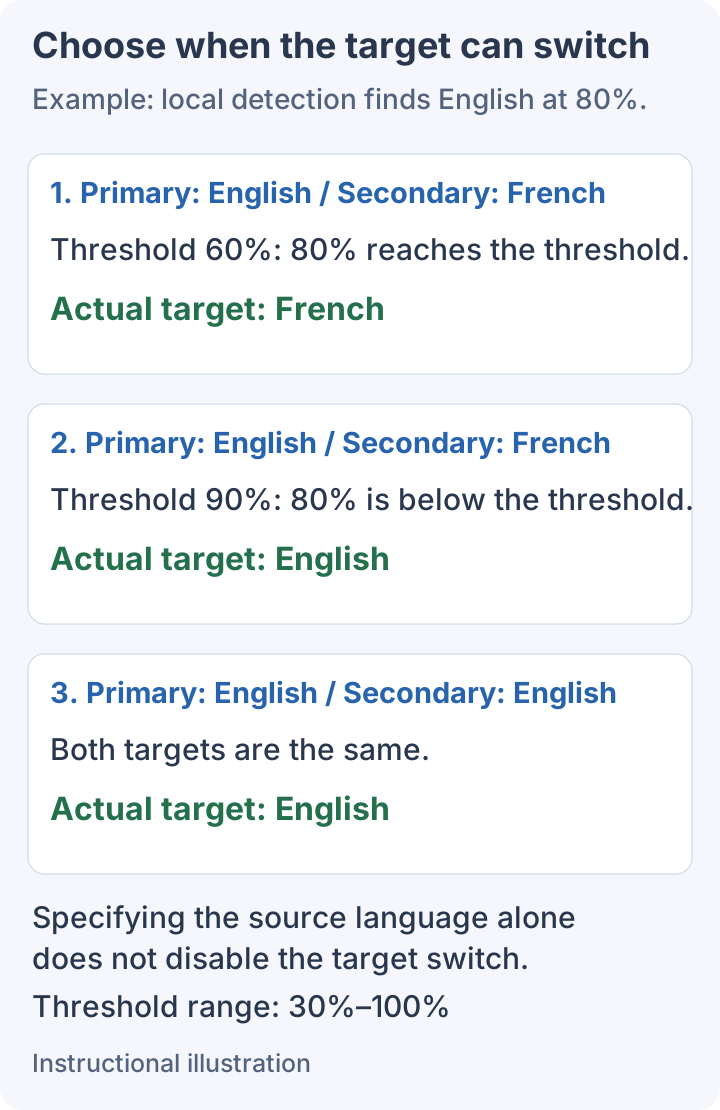
Instructional illustration. The detected source and confidence stay the same while target settings change. View full size.
Adjust common defaults under Settings → Text recognition & translation → Translation settings. In-image translation defaults to enabled; your saved settings determine the actual display.
Layout processing: smart merge or original
Under Settings → Text recognition & translation → Translation settings → Layout processing, choose how recognized text is organized before in-image translation:
- Smart merge groups lines into translation blocks based on layout relationships. It suits continuous paragraphs. Translate the same passage again and check sentence continuity and overlay boundaries.
- Original retains recognized line divisions and produces corresponding line-by-line translations. Compare it with Smart merge for interface buttons and short labels that need separate correspondence.
These options affect grouping, not source-image clarity. They are separate from the recognition result's Remove line breaks control. Run screenshot translation again after changing the option and compare paragraphs and labels with the original.
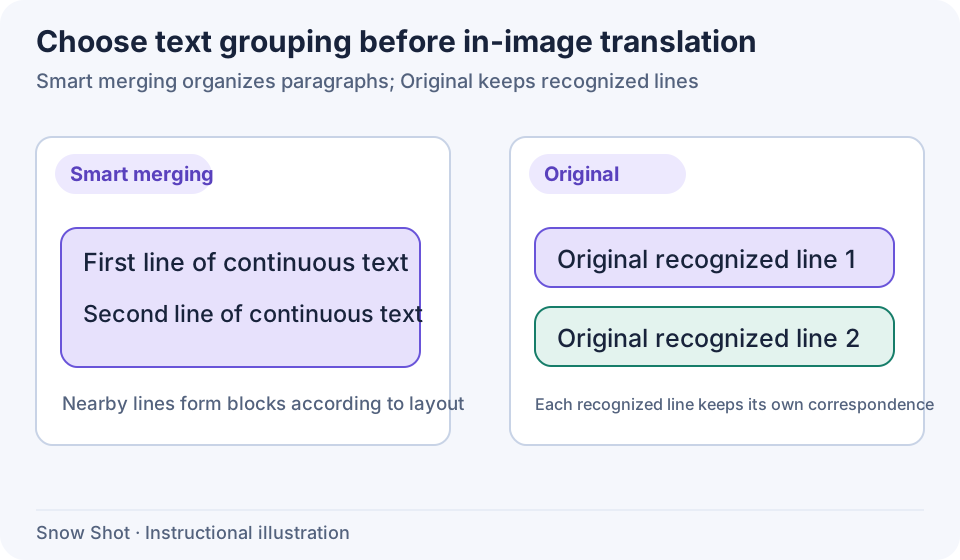
Instructional illustration. Each colored block represents a group of recognized text submitted for translation.
Copy, save, and retry
Select the paragraphs you need in text results and copy them. With no partial selection, copying retrieves the current result. For more editing room, enable Jump to translation page and send recognized text to Text translation.
To share an image containing the translation, check the in-image result first, then use screenshot saving. Output settings such as Save recognition results as an image and Copy translation results as an image affect whether you receive text or a rendered image. Paste once in the destination to confirm. For editable text, use and copy text results.
“Some text could not be translated” can appear alongside successful translations. Identify the failed area, check the network or service, and retry; a partial failure does not mean nothing was processed. Correct source-recognition errors separately from service-configuration errors.
Mini does not provide screenshot translation. Available local OCR does not mean translation services work offline.
Continue with Text translation, Selected-text translation, or Text recognition.