
Translate selected text
Translate selected text sends an existing selection from another application to Snow Shot, useful while reading a browser or document. It reads text selections; for unselectable text in images, use Screenshot translation. This feature requires Full.
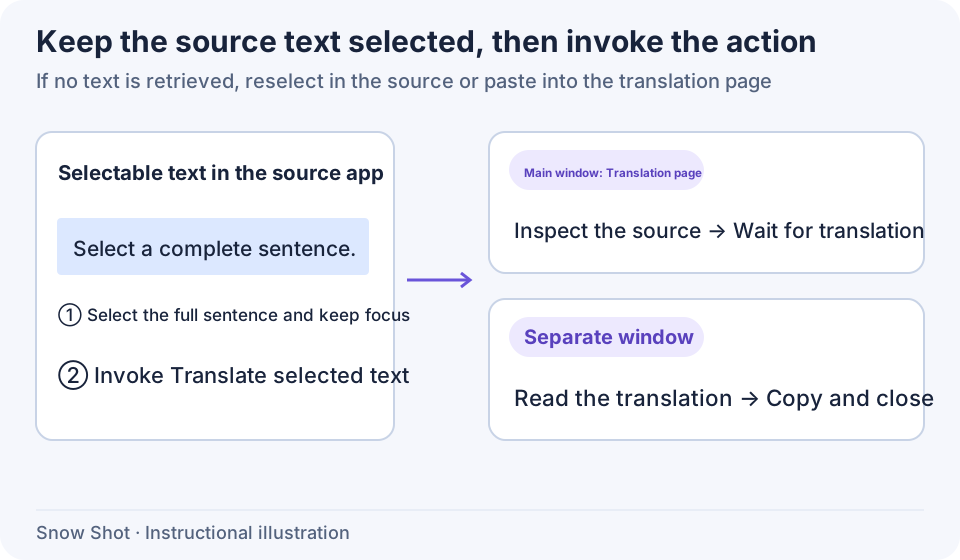
Instructional illustration. Retrieving text and translating it are successive steps; successful retrieval still needs an available service.
Enable the action
- Open Settings → Text recognition & translation → Translation extensions and enable Translation page. This switch controls both the page and selected-text action.
- Under Settings → Global shortcuts, find Translate selected text, assign a combination that does not conflict with other applications, and note the keys shown in settings.
- Return to an application with selectable text, select a short ordinary passage, and test the new shortcut. Confirm retrieval and translation work before using longer text.
Translate a selection
Select a complete sentence in the source application, keep its current text selection, and press the translation shortcut directly. Clicking Snow Shot's main window first may lose the source selection.
Retrieved text appears in the source area of the translation page or standalone window, then translates automatically. Check the source is complete before reading the result. For missing text, select again in the source application or manually copy the complete passage into the translation page.
In the destination, change the target language or service, or edit the source to translate again. Click Copy translated text when ready, or select and copy only the part you need.
Choose a standalone window
Enable Standalone translation window under Text recognition & translation → Translation extensions to send selections to a separate window. Disable it to use the main translation page. The standalone window still depends on the Translation page master switch.
The bottom of the standalone window offers Copy and close and Close. Wait for the complete translation, then use Copy and close to copy the current result and end the window. Close alone does not copy it. The action menu also provides Copy, Copy and close, and their current platform shortcuts.
Invoking selected-text translation for another passage updates the existing standalone window with the new source and starts translating again. Copy any previous text you need before replacing it.
If text cannot be retrieved
On macOS, native retrieval tries Accessibility first and uses a clipboard fallback where applicable. Grant Snow Shot the required Accessibility permission in System Settings, then select the source again. Permission does not guarantee every application exposes its text selection.
Other platforms attempt clipboard retrieval, so the source application must respond to ordinary text copying. Protected fields, specialized canvases, and images without real text selections may provide no content.
Continue with Text translation, Screenshot translation, or Translation services and custom models.