
Animated pins and frame-by-frame playback
An animated pin keeps a short action as a desktop reference, retaining its frame sequence for pausing, frame stepping, and speed changes. Unlike a live window pin, it plays existing animation rather than continuously capturing another application.
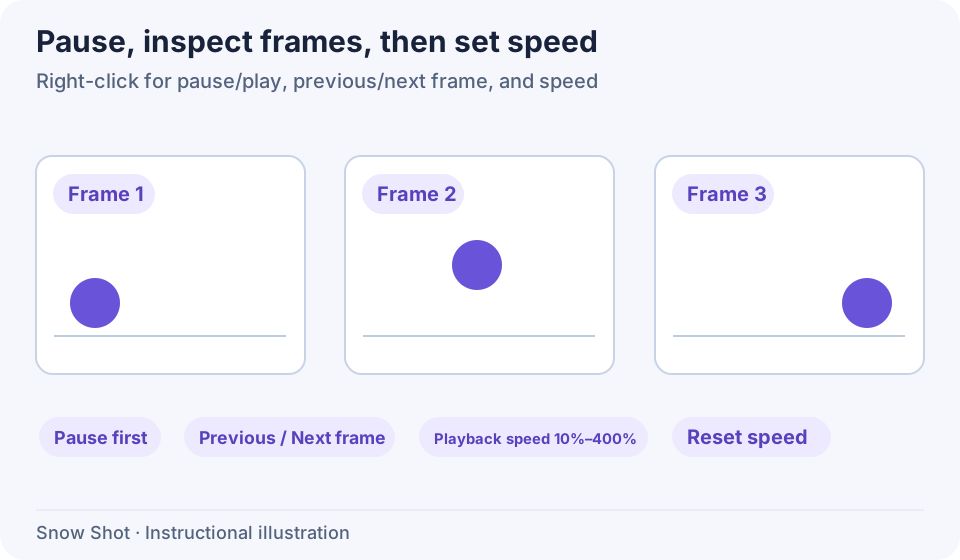
Instructional illustration. The sequence shows pausing, frame stepping, and playback speed.
Open an animation
- Copy a supported animated image file, such as a GIF, in the file manager.
- Invoke Pin clipboard content to screen—F3 on Windows or Control+3 on macOS by default—and wait for reading. A successfully loaded animation displays and plays its frames.
- Alternatively, right-click an ordinary pin and use Pin to screen management → Load new content → Image file to replace it with an animation.
- Look for Pause, Next frame, Previous frame, and Playback speed: … in the context menu. Their presence indicates animated content; ordinary static images do not have the same controls.
Copying only the frame currently displayed by a browser may place a static image on the clipboard. Use the actual animation file when you need its frames.
Pause, step frames, and adjust speed
Choose Pause to hold the current frame; the command becomes Play. Click Play to resume.
Choosing Next frame or Previous frame stops continuous playback and shows the adjacent frame. Stepping beyond the last or first frame wraps to the other end. Click Play to resume continuous playback.
Under Playback speed: …, choose Increase speed or Decrease speed. The submenu title shows the current percentage. The supported range is 10%–400%; Reset speed restores normal speed. This changes desktop playback, not the encoding of the original file.
Playback state adapts to thumbnail mode. Choosing Play leaves thumbnail mode before playing. You can also disable thumbnail mode first to return to the normal view.
Copying and saving
Copy to clipboard in ordinary image view retrieves the current frame, not the whole animation. Copy original content preserves the original source where possible, such as file URLs. Whether pasted files are accepted depends on the destination.
To save one frame as an image, pause on the frame, use Save as file, choose a folder, filename, and image format, and save. This exports a static image of the current frame, not the entire animation. To share the complete animation, copy its original file in the file manager. To paste one frame, pause and use Copy to clipboard.
Animated-window menus differ from static-image pins. To annotate a frame, obtain a static image first and use Image annotations.
If playback fails
For “The animation could not be played,” open the original in another image application to check integrity, then reload. If only the first frame appears, confirm the file contains multiple frames and you copied the file rather than its static preview. Check paused and thumbnail states too.
Rotation, flipping, or cropping may require preparing new display frames. Wait before continuing. Retain the original file for long-term use rather than relying solely on pin records.
Continue with Image and clipboard pins, Transforms and cropping, or Live window pins.