
Selection, transforms and stacking
Annotations remain editable after drawing. Choose Select elements to edit existing objects. If text input is active, press Esc to commit and finish input before switching tools.
Select one or several elements
- Choose Select elements in the main toolbar.
- Click an annotation border, stroke or text. Handles indicate selection.
- Drag a marquee from empty canvas to include the desired objects, then inspect the selection after release.
- Shift-click objects to add or remove them. Click empty canvas to clear the selection.
- Before moving or changing a style, check whether handles enclose one object or the whole group.
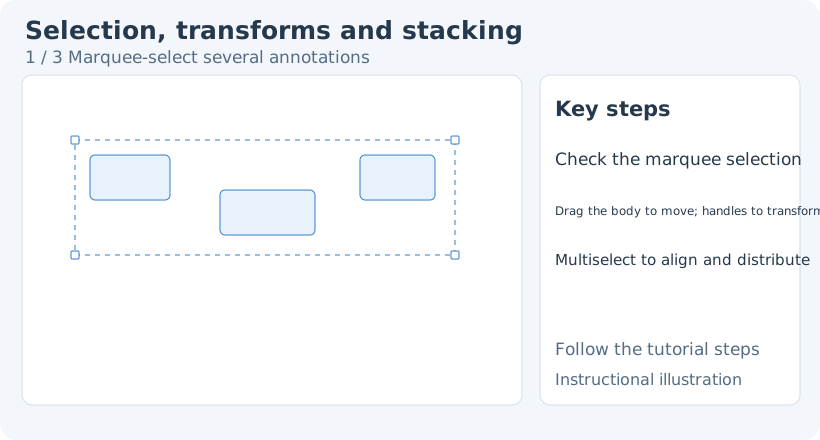
1. Marquee-select several annotations
Temporary right-button selection without switching tools
With a drawing tool active and no unfinished path or stroke, right-click an existing object of that type to select it. Hold the right button and drag to move it temporarily while keeping the drawing tool. This also works for Brush and Brush filter when left-click quick selection is disabled.
Temporary selection matches the active tool’s object type. Use Select elements for a mixed group. During drawing, right-click may finish or cancel a path instead, so check that the tool is idle first.
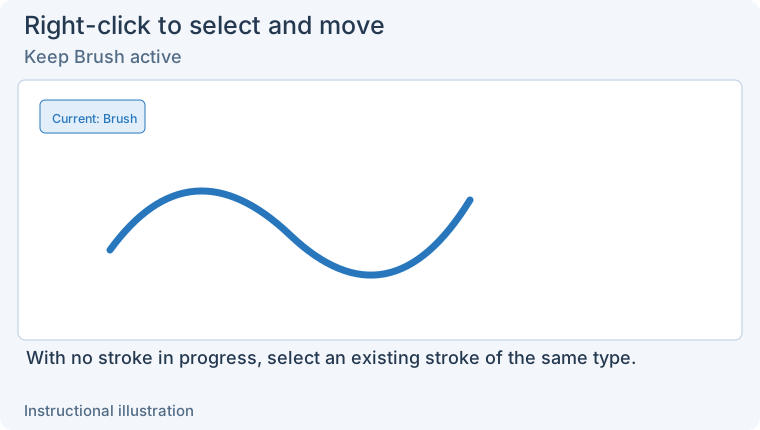
1. Keep Brush active — No stroke is currently being drawn. Prepare to select an existing stroke of the same type.
- — No stroke is currently being drawn. Prepare to select an existing stroke of the same type.
- — Right-click the stroke body to select it while keeping Brush active. No switch to Select elements is needed.
- — Hold the right button and drag to move the whole stroke. Release and continue with the original brush.
Move, resize and rotate
Drag a selected object’s body to move it. Corner and edge handles resize it; the rotation handle changes direction. Handles differ by object: arrows are best edited through endpoints and path points, and text must leave input mode first.
Moving text depends on its selection state. Press Esc to finish input, then V. Click empty canvas to deselect, then drag the unselected text directly. If text is already selected, drag its blank selection margin; clicking the letters re-enters editing and dragging then selects characters. See Moving and transforming text.
Hold Shift while rotating to snap to 15° increments. Hold Alt (Option on macOS) while resizing to scale from the center. These target handles, unlike the body-drag duplication gesture below.
Hold Alt and start dragging a movable object’s body to create and move a copy. This does not apply to empty canvas or resize handles. Drag a short distance first to confirm that the copy appears before finishing the move.
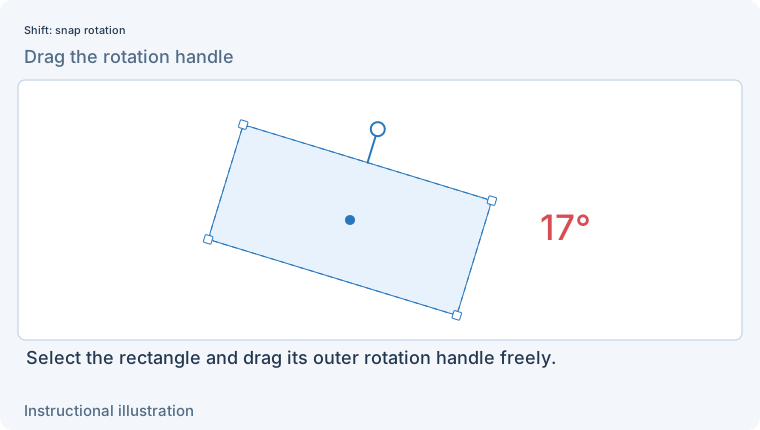
1. Drag the rotation handle — Select the rectangle and drag its outer rotation handle. Without modifiers, rotation is free.
- — Select the rectangle and drag its outer rotation handle. Without modifiers, rotation is free.
- — Keep dragging and hold Shift. The absolute angle snaps to 15° increments; this example changes 17° to 15°.
- — Release at the desired angle to keep the 15° rotation. Do not confuse rotation and resize handles.
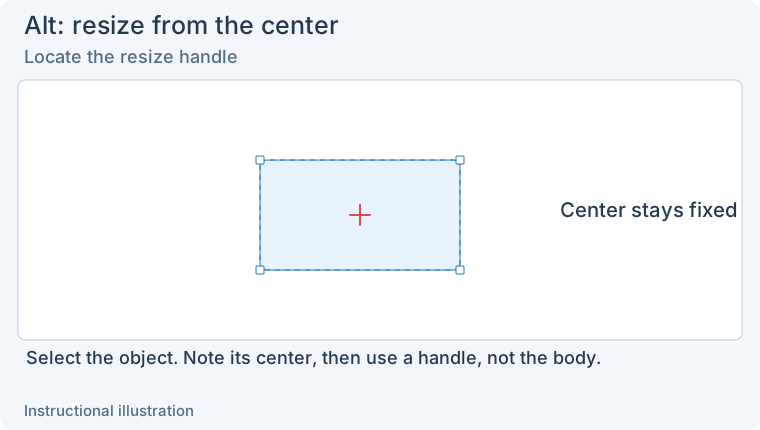
1. Locate the resize handle — Select the object and note its center cross. This gesture targets a handle, not the body.
- — Select the object and note its center cross. This gesture targets a handle, not the body.
- — Hold Alt and drag a corner outward. The center remains fixed as both sides expand.
- — The bounds are larger but the center has not moved. Alt-dragging the body duplicates and moves instead.
Duplicate and delete
Copy selected elements duplicates editable annotations within the canvas. Copy to clipboard exports the final image to other apps.
Select the target and confirm that its selection frame or handles are visible, then choose Delete selected elements or press Delete / Backspace. Reselect the object if Undo cleared the selection. During text input, Backspace deletes characters. Delete removes selected text or the next character only when Delete text after the cursor is enabled; with it disabled, Delete removes the entire text object and ends input. To delete an object deliberately, press Esc to finish input, then select the whole object again.
Stacking order
If a filled shape covers text, move the shape backward or bring the text to front. Stacking arranges annotations relative to one another; the original image remains the background.
Align and distribute
With at least two objects selected, use Align left, Center horizontally, Align right, Align top, Center vertically or Align bottom to match their edges or centers.
With at least three selected, Distribute horizontally and Distribute vertically arrange spacing. If a button is disabled, check the selection count; one object cannot be aligned with other objects. Inspect placement afterward so annotations with different meanings do not end up stacked together.
Opacity and mixed styles
Drag Opacity in the selection toolbar to change supported selected objects together. Objects with different colors or widths may show “mixed” values. A new value unifies that property, so check the selection before changing it.
To change only one arrow’s color, clear the group selection by clicking empty canvas, then select the arrow alone. Tools expose different properties; a mixed selection may not support a shared adjustment.
Undo reverses movement, transforms, duplication, deletion and styles; Redo restores the last undone edit. Check the final result and copy or save. Related: Annotation basics · Arrows · Annotation templates.