
Install, choose an edition, and update
Choose a package for your computer on the official download page. Start with the full edition for complete recognition features. Choose Mini for a smaller package and prepare components as needed.
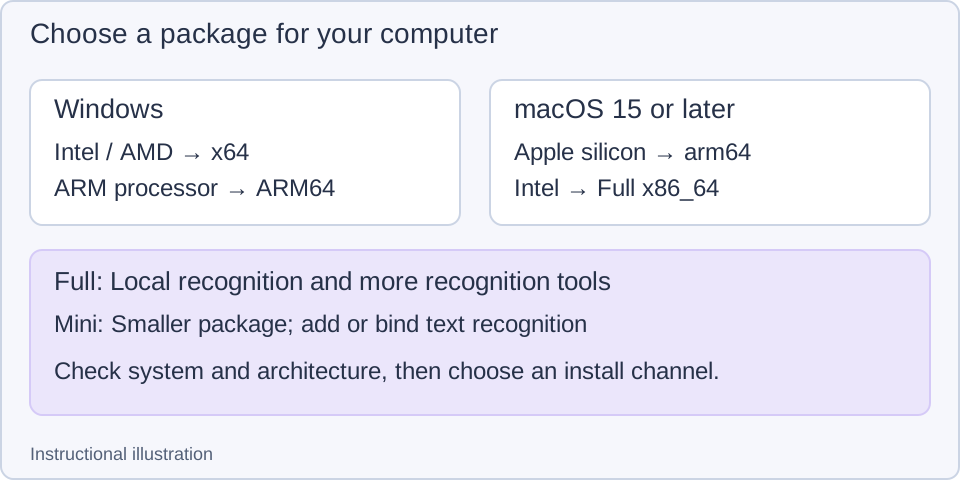
Instructional illustration: check your operating system and processor, then choose an edition.
Choose platform, architecture, and edition
- On Windows, check the system type in system settings. On Mac, open the Apple menu's About This Mac to check the chip or processor.
- On the download page, choose Windows or macOS, then the matching processor. Apple silicon uses
arm64; Intel Macs use the fullx86_64edition. macOS requires 15 or later. - Choose full or Mini. The download button follows platform, architecture, and edition selection. Check the filename again before downloading, especially Windows ARM64 versus x64.
Mini has no Intel Mac edition or Windows offline installer. Mini text recognition is available by adding a toolbar entry or binding its action. Table, barcode, formula, image conversion, and translation capabilities differ between editions; see recognition models and offline resources for entries and preparation. Offline recognition after a component download does not mean every service works offline.
Install and launch
For a Windows installer, follow the wizard and choose a directory. For a portable package, extract all files to a writable directory and run Snow Shot. Keep the same distribution channel when installing through a system store or package manager so updates can use that channel.
On Mac, open the DMG, drag Snow Shot into Applications, then launch it from Applications. Initial capture may open permission guidance. Follow macOS permissions, restart when requested after allowing access, and test a screenshot.
After launch, open the main window from the system tray or macOS menu-bar icon. Fresh defaults are Windows F1 and macOS Control+1 for capture. Use the Mac keyboard's Control key, rather than Command. Some Windows keyboards need Fn+F1. Existing configurations may retain other bindings. If nothing happens, check the capture action and its registration state under Global shortcuts, then follow shortcut troubleshooting.
Language, startup, and updates
Open Settings → General:
- Choose Simplified Chinese or another language under Language. Interface text updates according to the setting.
- Configure launch at login under Startup & updates. On macOS, also check Snow Shot in system Login Items if the system disabled it.
- Choose an update mode under Updates. Manual checks when requested; Check automatically checks for new releases. Windows also offers Download automatically and Auto-update on next launch. macOS does not offer these two automatic-installation modes; download and replace the app after an update is found.
Read the version and installation channel in an update prompt before continuing. Website downloads can update through the prompt or download page; store and package-manager installations should update through their own channel. Finish current screenshots and recordings first so an unexported result is not left in a window that must close.
Check and complete an update manually
- Open About in the main window's sidebar and click Check for updates in the update area. Wait while it shows Checking for updates…. Selecting Manual under Updates does not start a check immediately.
- You are up to date requires no download. If an update is found, follow the action shown and your original installation channel. If checking fails, check the connection or proxy settings, then click Check for updates to retry.
- A Windows copy downloaded from the official site: click Download update and wait for downloading and verification. Use Cancel download if needed, then inspect the returned state. Once Restart and update appears, save current work and stop recording before clicking it. After restart, open the main window and check that you launched the updated copy.
- Mac: Download from GitHub or Download from Gitee opens the corresponding release page. Choose a DMG matching your processor and existing edition, replace the Applications copy using the installation steps above, then launch it again.
- A Microsoft Store-managed copy: About shows Updates are managed by Microsoft Store. Use Open Microsoft Store to update there. Use the original channel for other package-manager installations. If it says Automatic updates are unavailable for this copy, obtain and install the update from the original channel.
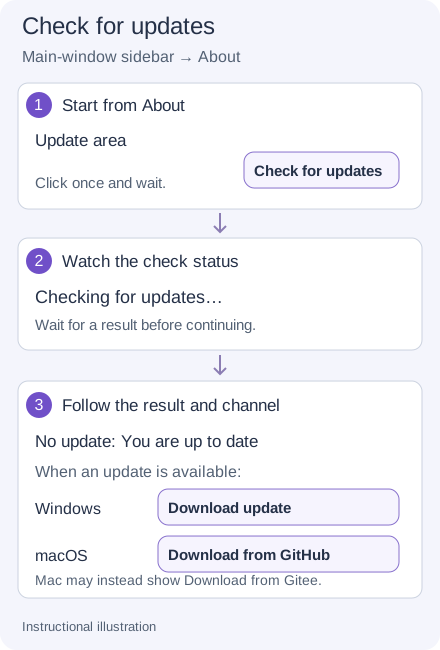
Instructional illustration. Start the check in About, then follow the result and installation channel.
Installation or update problems
The program is incompatible with the system. Check processor architecture and minimum macOS version, then download the matching package. Mini's smaller size does not change system requirements.
Offline recognition asks for a download. The app package, OCR models, and recording components are separate resources. Prepare required resources online, then test offline. See models and offline preparation and recording preparation.
The version number has not changed. Check that you launched the replaced app; exit the old process and reopen. Portable folders, installed copies, and the app inside a Mac DMG may coexist. Avoid launching an older copy.
Next: take your first screenshot · storage and configuration backups.