
Text and annotations in pins
Pins have two kinds of annotation: quick annotations on selected text follow text ranges, while annotation mode draws on the image canvas. Use the former for sentences and the latter for arrows, explanations, or masking image areas.
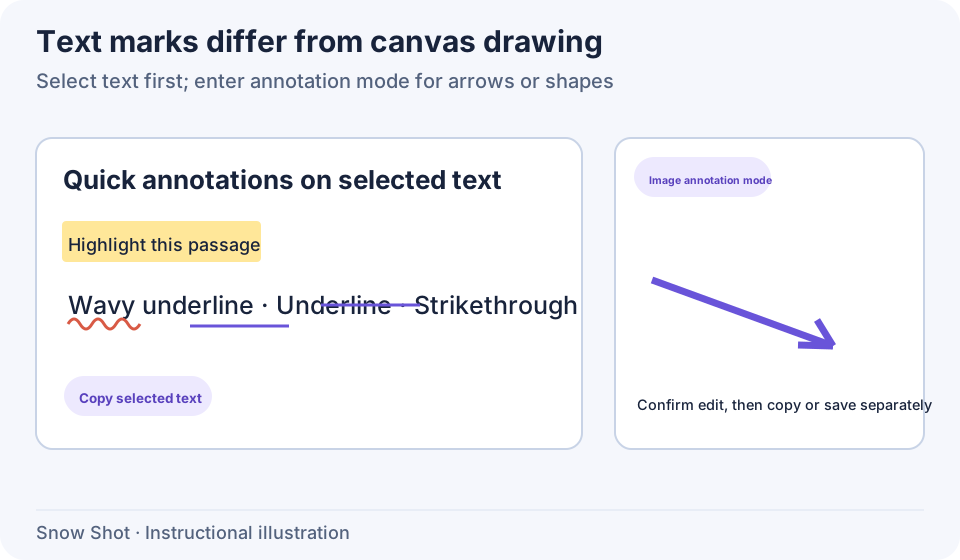
Instructional illustration. Text marking and canvas drawing use separate entries.
Default appearance of text pins
Copy text in its source application, then invoke the clipboard pin action—F3 on Windows or Control+3 on macOS by default. Plain text creates a text pin; rich-text sources retain formatting where possible.
Adjust defaults under Settings → Pin to screen → Text style, then create a new pin from plain text to check them:
These defaults do not reformat all existing pins. Explicit rich-text fonts and colors may take precedence. Reset the Text style section to restore theme text and background colors, then check a new plain-text pin.
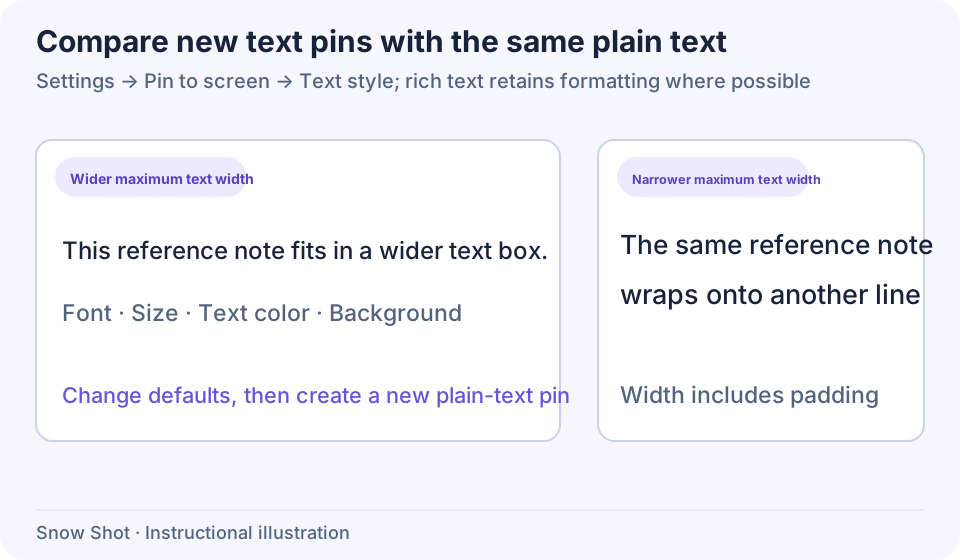
Instructional illustration. Distinguish source rich-text formatting from new-pin defaults.
A clipboard containing only a recognized color value may create a dedicated Color card, with HEX, RGB, and HSL copying.
Pin text, HTML, and Markdown files
Document pins support TXT, CSS, HTML/HTM, and MD/Markdown files. TXT and CSS display as plain text; HTML and Markdown use document formatting. This is not a general PDF, Word, or arbitrary-document viewer.
- Select a supported file in the file manager and use Pin selected files, or copy the file and invoke clipboard pinning.
- Wait for reading and layout, then check headings, paragraphs, code, and line breaks. HTML uses application document layout; it does not run a complete web page like a browser.
- To change the original, edit it in your text editor, then choose the supported file again through Load new content → Image file, or close and pin it again.
- Copy or save the pin image for its displayed appearance. Use Copy original content for source text or rich text, and paste into the destination to check formatting.
These files must be readable, nonempty, at most 1 MiB, and correctly decodable. If reading fails, inspect size and encoding in a text editor, then save a short UTF-8 example and retry. Clipboard rich text and file formats affect whether defaults override source formatting.
Recognize and copy text from an image
- Right-click an ordinary image pin and choose Show text. It shows “Recognizing text” during processing. Wait for results before selecting words.
- Select the needed recognized text and copy it. To copy the whole image, leave text-result mode first.
- If the image is too large for recognition, crop the target paragraph or capture a smaller image.
Enable Automatic text recognition under Settings → Pin to screen to prepare recognition when a pin is created. Text selection on recognition results offers Only when displayed and Always. The first permits selection when results are displayed; the second also permits selecting recognized text in applicable ordinary-image states.
Always does not extract text from arbitrary pixels without a recognition result. Wait for recognition first. If text cannot be retrieved, check image quality and OCR resources through Text recognition.
With selectable text, an ordinary left-drag selects words. To move the pin, finish text editing and unlock it, then hold Alt (Option on macOS) and left-drag its content. Release the left button at the new position.
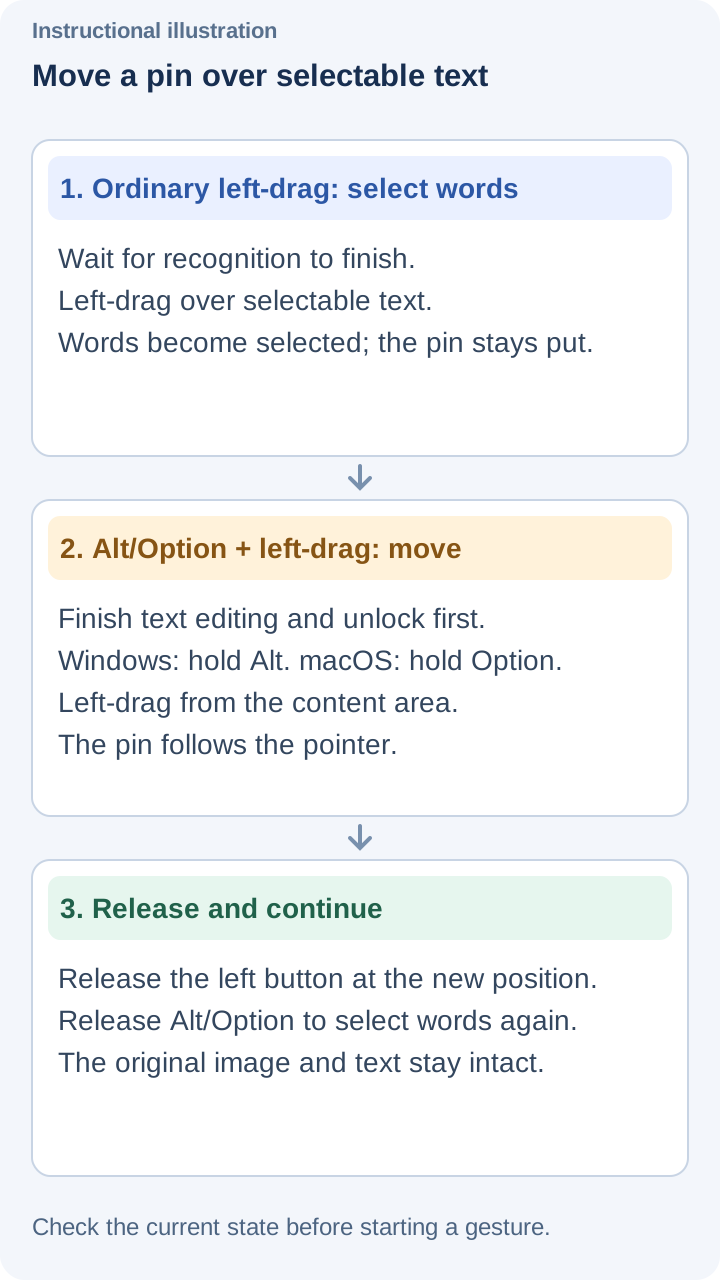
Instructional illustration. The modifier distinguishes selecting words from moving the window.
Mark selected text
- Under Settings → Pin to screen, set Text selection on recognition results to Always and enable Quick annotation for selected text.
- Return to an ordinary image pin whose recognition has finished. If Show text is checked in its context menu, uncheck it to return to the original image. Drag across the target words on the image; the quick-annotation toolbar appears beside the selection.
- Click Highlight, Wavy underline, Underline, or Strikethrough and inspect the mark. Applying the same mark to the same range again toggles it.
- Choose a color in the tool's style controls. Line marks also provide applicable width, line-style, or rendering-style controls. Highlight color and line styles serve different purposes; use controls shown for the current tool.
- Use Copy text in the quick toolbar to copy the selected range.
After recognizing again or replacing content, check the new text and make sure each mark still matches the words you want to emphasize.
Continue drawing on a pin
Right-click an ordinary image pin and enable Annotation mode, or click Enable annotation mode at the upper-right. Select a tool in the canvas toolbar and draw. See Annotation basics for creating and editing each tool.
Click Confirm edit when finished to return to the ordinary pin. This confirms pin editing; use Save as file for a file or copy for clipboard output.
With Exit annotation mode before closing enabled, a close action during annotation first exits annotation and keeps the window open. Close again from ordinary mode to close the whole pin. Otherwise, follow the actual close prompt.
Canvas Undo and Redo apply to image drawing. Recognition-text editing, pin cropping, and window transforms have separate state; one mode's Undo is not a universal rollback.
Translation and mode limits
In Full, Text type in the pin menu can select Recognition results or Translation results. Translation still requires an available service; Mini does not provide it. Use the active result's property bar for language, editing, and copying.
Animated and live-window menus differ from static images. If annotation mode is absent, obtain a static frame first; live windows offer Convert to image. Repeatedly changing animation playback will not reveal static-image tools.
Continue with Text recognition, Pin transforms and cropping, or Screenshot translation.