
Straight, curved and multipoint lines
Use lines for separators, outlines or connections without direction symbols. Use Arrows for arrowheads, or Brush for a freehand trajectory.
Start with a straight segment
- Click Line in the screenshot toolbar and choose Straight in the style toolbar.
- Set stroke color, width and line style. Start with a clearly visible solid stroke.
- Hold the left mouse button at the start and drag to the end. The preview follows the pointer; release to finish.
- Hold Shift during the drag to constrain the direction, including horizontal and vertical lines.
- Switch to Select elements, click the line and drag its endpoints to change length, or its body to move the whole line.
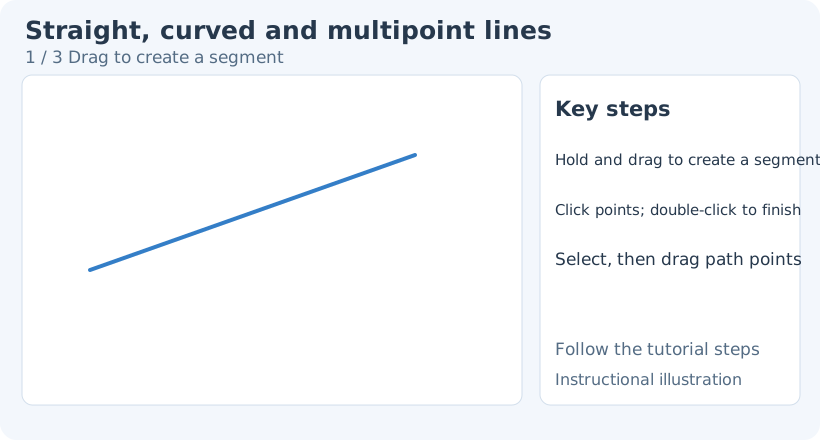
1. Drag to create a segment
To change an existing object’s tool-specific style, switch back to Line, then click the object to select it again. Select elements provides general transforms, stacking and opacity. Switching drawing tools clears the previous selection, so select the object again.
Create a path with successive clicks
Click the start and move the mouse to begin continuous drawing. Each click fixes another point. Double-click the final position to finish, or right-click to complete the current path. Right-click keeps only points already fixed by clicks; it does not add the preview endpoint currently following the pointer.
To discard the unfinished path while keeping other annotations, click Select elements, then return to Line and redraw. In screenshot capture, the default Esc cancels the whole capture, with a confirmation dialog first if enabled. In the image editor, Esc can discard the unfinished path while keeping completed annotations.
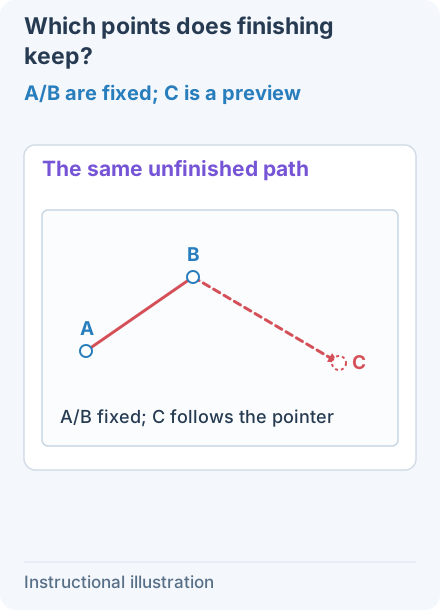
1. A/B are fixed; C is a preview — With a straight/curved arrow or Line, click A and B, then move to C without clicking. C is only the preview endpoint; dashes distinguish it in this illustration.
- — With a straight/curved arrow or Line, click A and B, then move to C without clicking. C is only the preview endpoint; dashes distinguish it in this illustration.
- — Right-click from frame 1. The result contains only A and B. C was not added; its gray mark is only a comparison reference here. In screenshot capture, right-click inside the selection.
- — Start again from the draft in frame 1 and double-click C. C is fixed before completion, so the result passes through A, B and C. Begin this comparison from frame 1 rather than the already finished path in frame 2.
See the cancellation comparison for switching tools versus Esc.
For a two-endpoint segment, dragging is the most direct method. If a line keeps following the pointer after a click, continuous drawing has not finished; the app is still responding.
Curve forms a smooth path through its points. Choose Curve before dragging or adding points. For an existing line, return to Line, click to select it and then switch modes. Straight mode directly joins adjacent points, useful for polylines and outlines.
Edit path points
Choose Select elements and click the line to reveal control points. Drag endpoints to change its start or end; drag an interior point to change adjacent segments. In a multipoint line, double-clicking a removable interior point deletes it and reconnects the remaining path. A minimal two-endpoint segment cannot keep losing points in the same way.
Closed paths support fill color and patterns. During continuous drawing, return the final point to the start, inspect the closing preview, finish and then set the fill. An open path is unsuitable for representing a complete filled region; use Shapes for regular geometry.
Line appearance
Set stroke color, width and solid/dashed/dotted patterns. Drawing styles include Architect, Artist and Cartoonist. Fill applies to paths that form an area; transparent fill keeps the image underneath visible.
Line and Arrow retain separate styles. For a connection without endpoint symbols, use Line directly instead of repeatedly clearing arrowheads.
Undo an incorrect line, or select and delete just that object. Finish with Copy to clipboard or Save as file to export the whole image. Continue with Brush, Highlight or Element editing.