
Element, rectangle and brush erasers
Erasers clean up annotations. Decide whether to remove an entire element or restore only a local area, then choose a mode in Eraser.
Remove a whole incorrect annotation
- Open Eraser in the screenshot toolbar and choose Element eraser.
- Move over the incorrect line, shape or text and press the left mouse button. Hold and drag across several annotations to remove the objects you hit.
- Release, then check whether neighboring annotations were also removed.
- Use Undo to restore objects removed by the last erasing gesture, then try a narrower gesture.
Element eraser deletes objects. Hitting a small part of a stroke can remove the entire stroke. Use Brush or Rectangle eraser when you want to preserve the rest.
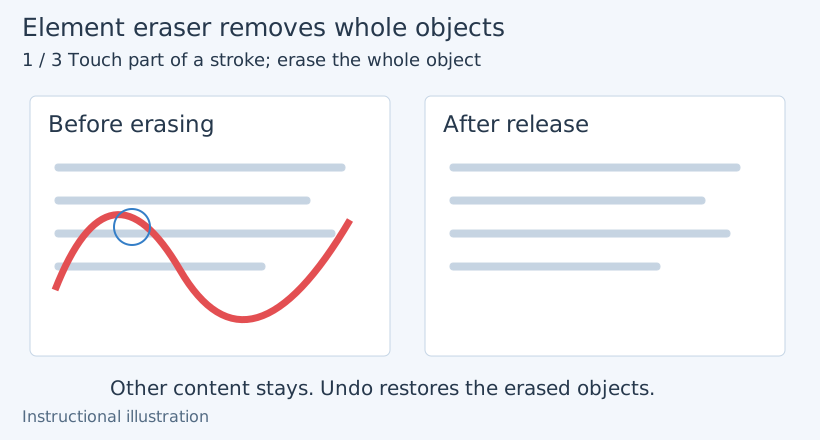
1. Element eraser removes a whole stroke
Restore a rectangular area
Choose Rectangle eraser and drag from one corner to the opposite corner. On release, the annotated area within the rectangle returns to the background. This suits a horizontal explanation or annotations in a larger area.
This restores background beneath current annotations. It does not understand and remove buttons, text or people contained in the original screenshot. To change source-image content, see Filters and Smart erase.
Erase locally with a brush
- Choose Brush eraser and set its width, starting narrow.
- Hold the left mouse button and trace the area to restore. Annotations under the brush are erased locally.
- Release to finish the stroke, inspect what remains and add another stroke for missed areas.
- If too much was erased, undo, reduce width and try again.
Width determines the area affected in each pass. Canvas zoom helps inspect edges; it does not change the configured eraser width or turn it into another tool.
Continue editing after erasing
Use Undo first when you want to remove a background-restoration range or reverse erasure, rather than covering it again and creating more layers. Element deletion and local restoration behave differently; check the mode before continuing.
Original text cannot be erased: it belongs to source pixels. Element eraser targets editable elements. Use filters, Smart erase or a solid-filled shape instead.
An entire line disappears: Element eraser is active. Undo and use Brush eraser for local cleanup.
Deselect, inspect the restored area and copy or save the image. Related: Brush · Filters · Element editing.