
OCR models and offline preparation
OCR waiting time includes component preparation, model loading, and recognition. Prepare resources first, then choose a model according to speed and detail needs. These settings apply to local text recognition; tables, formulas, and translation have separate service requirements.
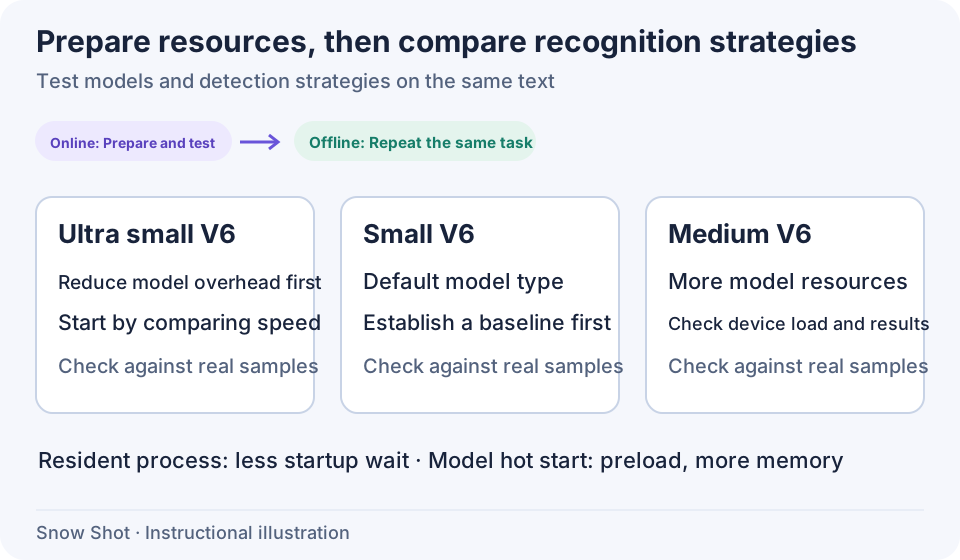
Instructional illustration. Model size alone does not establish whether your sample will be recognized correctly.
Prepare before going offline
To add the Mini toolbar entry, open Settings → Screenshots → Action toolbar → Screenshot toolbar settings and drag Text recognition from “Hidden tools” to a visible position. Alternatively, assign a separate Text recognition action under Global shortcuts. Capture again to confirm the toolbar button appears.
You do not need to assign keys just to try OCR. Search for “Text recognition” in the main window's Search function, select the result to locate the Global shortcuts row, then click the action title or empty area. The “Not set” button configures keys. Confirming the screenshot selection starts recognition.
Before switching to a different model size, select it while online and run recognition once. Wait for preparation to finish, then disconnect and repeat the same task. Successful ordinary screenshots do not prove OCR resources are ready.
For ordinary preparation errors, reconnect, check the proxy under Settings → Network & connections, end the current screenshot, and enter Text recognition again. If the message says the bundled runtime is damaged or incompatible with this Mac, reinstall the Snow Shot package for this Mac. If it asks you to repair the Microsoft Store installation, repair or reinstall through that channel. Restoring the network alone does not repair those installations. Do not delete unfamiliar data directories as a repair attempt.
Mini names the corresponding settings page Text recognition; its model and output settings work in the same way.
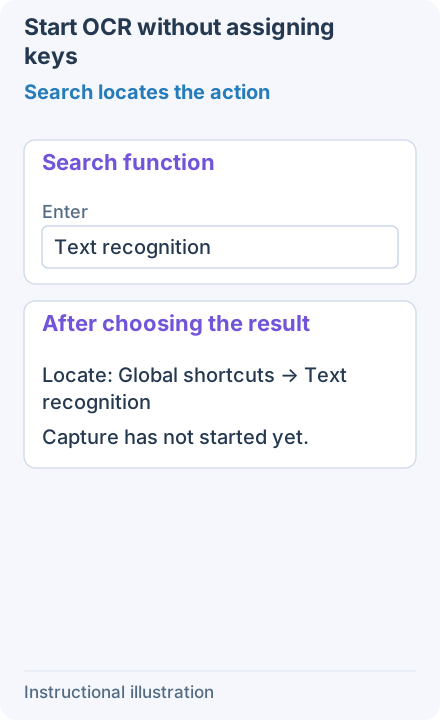
1. Search locates the action — Search for Text recognition in the main window and choose the result. This locates its Global shortcuts action row; selecting the search result does not immediately capture.
- — Search for Text recognition in the main window and choose the result. This locates its Global shortcuts action row; selecting the search result does not immediately capture.
- — Click the Text recognition row title or its blank area to capture, then confirm the selection to recognize it. Not set on the right records a shortcut; it is not needed just to try OCR.
- — To reveal Mini's hidden Text recognition button, edit the screenshot toolbar for screenshots and the Pin to screen toolbar for the image editor. Drag it from Hidden tools to a visible position; the layouts are separate.
Choose a model
- Open Settings → Text recognition & translation in the main window and expand OCR models & performance.
- Under Model type, choose Ultra small V6, Small V6, or Medium V6. Small V6 is the default configuration.
- The setting is saved without a separate Save action. End the current screenshot, select the same area of the same original image again, then recognize it, record waiting time, and check the text. Start a fresh screenshot-recognition task after each model change so an existing result or a changed selection does not distort the comparison.
Smaller models can reduce computation; larger models require more resources. Judge the fonts, sizes, and layouts you commonly use. Changing models does not guarantee that a particular error will be corrected.
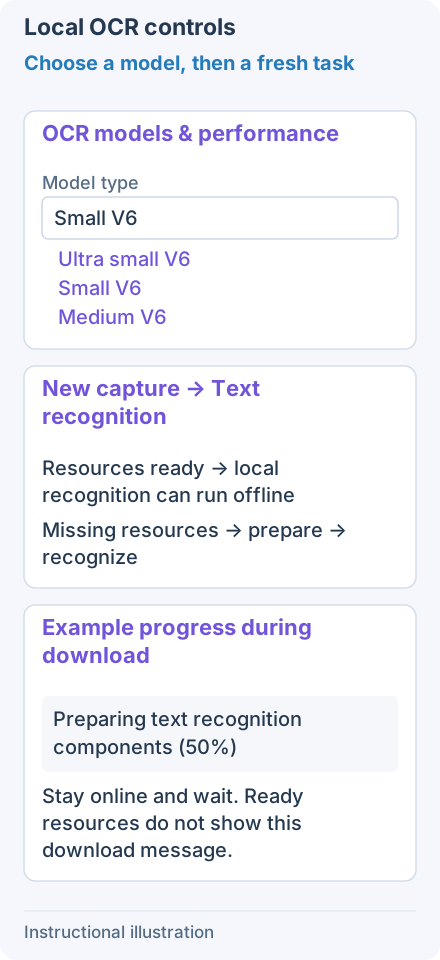
Choose a model, then launch a fresh screenshot-recognition task.
Detection and processing
Text detection scaling controls image resizing before recognition:
- Limit long side (faster) limits the longer edge to reduce processing. For tiny text, enlarge it in the source application before capturing.
- Enlarge short side (more detail) enlarges the shorter edge and may find smaller text, at additional processing cost.
Text detection processing offers Accuracy first and Speed first. Speed first reduces some short-text computation and may change results. New configurations default to Limit long side (faster) and Accuracy first. Capture and recognize the same passage again after changing a rule, checking for omissions. Choose the preceding rule again to restore your comparison baseline.
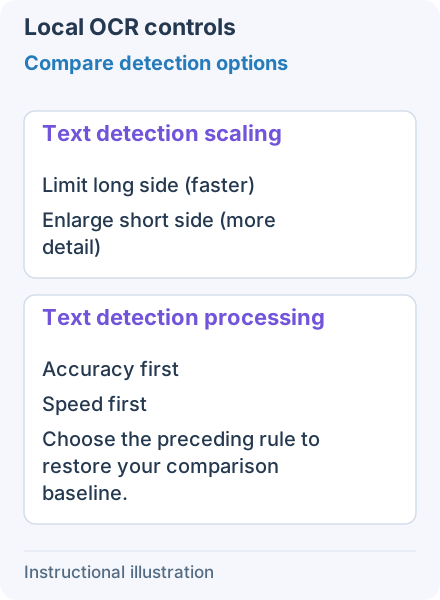
Change one option at a time and check a new recognition result.
Reduce waiting time
New configurations disable Hardware acceleration and Model hot start. Resident recognition process is enabled by default in Full and disabled in Mini. If Model hot start is unavailable, enable Resident recognition process first to make its switch available.
For occasional recognition, you can disable the resident process and hot start; for frequent use, measure their benefit. Change one option at a time, start fresh recognition tasks, and compare first and subsequent requests. If acceleration misbehaves, disable it and check whether a new CPU recognition task succeeds.
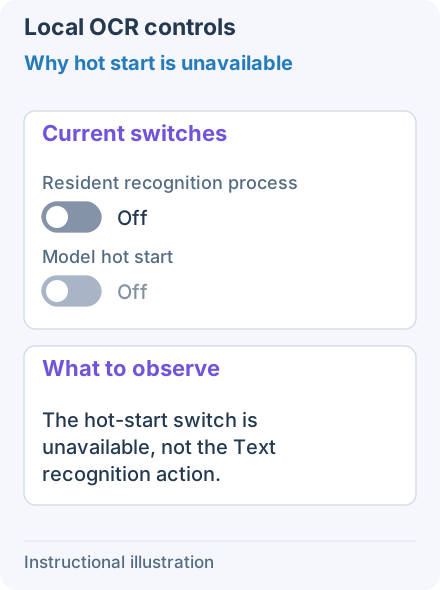
1. Why hot start is unavailable — Model hot start is unavailable while the resident process is off. New Mini configurations disable residency; ordinary text recognition still works.
- — Model hot start is unavailable while the resident process is off. New Mini configurations disable residency; ordinary text recognition still works.
- — Enable Resident recognition process to make Model hot start available. Hot start preloads the selected model and uses more memory. Disable hot start or residency when unnecessary.
- — When acceleration is enabled, an available GPU can be used; otherwise recognition uses the CPU. If it misbehaves, disable the option and try a fresh CPU recognition task.
Local OCR and online features
Once local text recognition completes, you can organize and copy text without a network connection. Text translation, online table services or vision models, formula recognition, and image conversion each require their own service conditions. Recognized text does not establish that those online services are ready.
Continue with Text recognition, Table recognition, or Translation services and custom models.