
Color cards and color format conversion
A color card displays a desktop swatch with HEX, RGB, and HSL values for visual comparison and format conversion. Full and Mini can create one from the clipboard. It reads color text rather than sampling screen pixels. To obtain a screen color first, use Screen color picking.
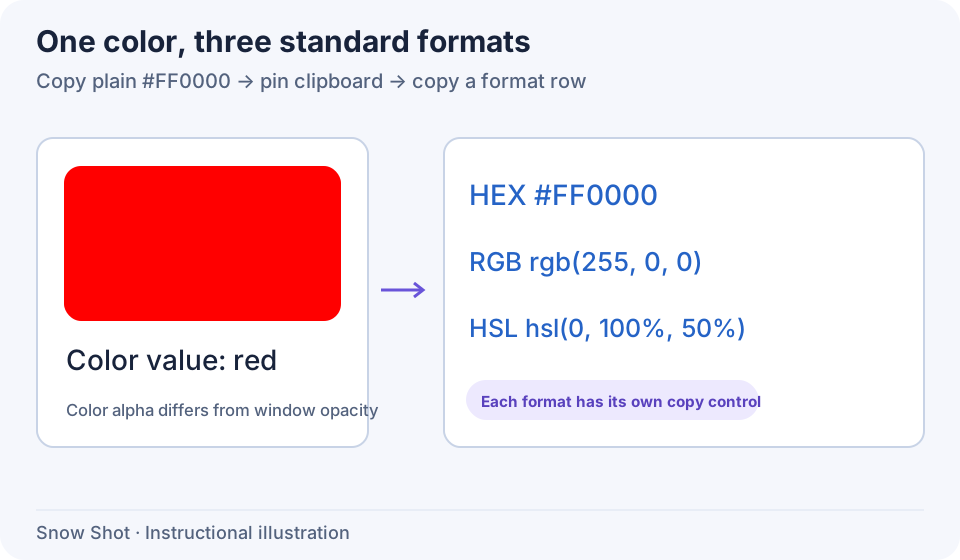
Instructional illustration. Red demonstrates three representations of the same color.
Create your first color card
- Enter a complete value such as
#FF0000in a plain-text editor and copy only that text. Use plain text first to avoid rich text or images selecting a different pin flow. - Invoke Pin clipboard content to screen—F3 on Windows or Control+3 on macOS in a new configuration. Use the configured binding if changed.
- A valid value produces a desktop card with a swatch and HEX, RGB, and HSL values. Check the swatch before using conversions.
- Move the window beside your work like an ordinary pin. For a card image, right-click Save as file, choose its name, folder, and image format, then open the result to check the swatch and values. To copy color text, use the format-row controls below.
Accepted input formats
Copy a complete color expression. Multiline explanations, color: ... declarations, and names such as red are not treated as standalone values in these formats. Unparseable content falls back to ordinary text; copy a valid value again.
Copy another format
Point at a format row and use its copy control:
- Copy HEX color produces HEX with
#. - Copy RGB color produces
rgb(...), orrgba(...)when transparent. - Copy HSL color produces
hsl(...), orhsla(...)when transparent.
Paste into a plain-text editor to check units, parentheses, and alpha for the destination. Copying updates clipboard color text while leaving the card displayed.
Color alpha belongs to the color value. Window opacity in the pin context menu affects the entire window; they are different controls. Use Copy original content for the original input. For a card image, use Copy to clipboard or Save as file in ordinary image view.
Change colors and troubleshoot
Copy a new color and invoke clipboard pinning again to create or bring back its card according to duplicate-content rules. To replace an existing card, use Pin to screen management → Load new content → Clipboard in its context menu.
If no card appears, paste into a plain-text editor and check that the clipboard contains only the complete value, without labels or code. Copy through plain text if the source supplies rich formatting. If the color is correct but appears faint, check both its alpha and the window's opacity.
Continue with Image and clipboard pins, Text-pin appearance, or Transforms and click-through.