
Screen color picker and color formats
Use screen color picking to reuse an interface color, inspect a pixel or match an annotation to a background. The screen picker reads image pixels; the style bar's color control chooses a drawing property.
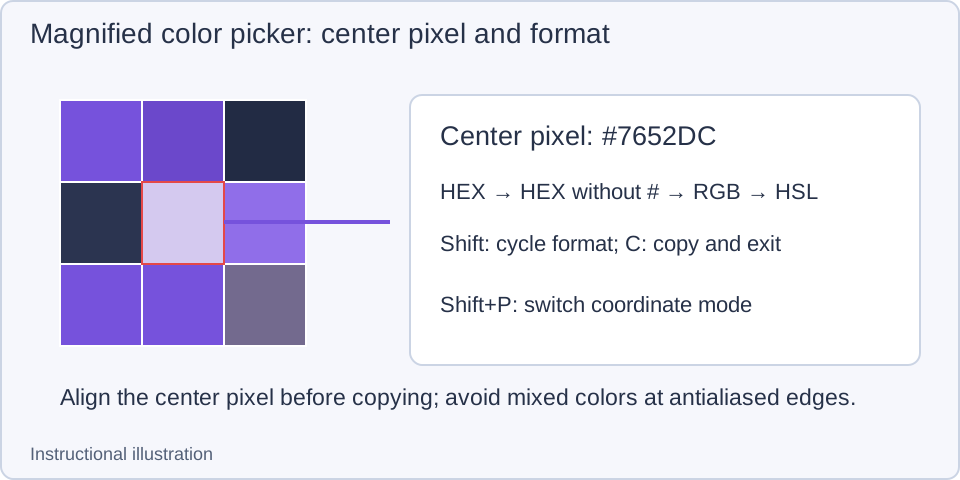
Instructional illustration: the center of the magnified grid is the sample point. Neighboring cells help distinguish edges and nearby colors.
Read and copy a pixel color
- Start a capture with the screenshot shortcut (F1 on Windows or Control+1 on macOS by default). Keep Move or selection operations active and point at the desired pixel.
- Inspect the magnified grid near the pointer and place its center inside the color area. Text and rounded edges may contain antialiased mixed colors. Use a larger solid area when you want the main color.
- Press Shift once on its own to cycle HEX with # → HEX without # → RGB → HSL. The displayed color text changes immediately; the sampled pixel does not.
- Press the default C key to copy the color. The value goes to the clipboard and the screenshot closes. Paste it into a text editor or design tool to check it.
Here Shift is a standalone key in an idle color-picking state. Holding Shift while dragging a selection constrains its ratio instead of cycling color formats. While editing text, C is text input rather than a global color-picking action.
Precise pointer movement and coordinates
The default arrow keys or W/A/S/D move the pointer one pixel at a time, making it easier to sample a narrow edge. They move the pointer, rather than resizing the selection. Default Shift+P switches global and relative coordinates. Relative coordinates use the current selection’s upper-left corner as the origin: readings near that corner approach X: 0, Y: 0, and positions outside the selection can be negative. Without a selection, the display falls back to global coordinates; creating one restores relative readings. Switching coordinate display does not change the sampled color.
For the magnified grid's visibility and center guides, look under Settings → Screenshots. Restore a hidden picker before concluding that no color was captured. Guide colors help locate the sample; they do not recolor the original pixels.
Sample from an editing canvas
When an image is open or you are annotating, use Pick color from canvas in the style color popup:
- Choose the target drawing tool. To recolor an existing object, click it again in that tool and confirm its handles appear. Open the color control and choose Pick color from canvas.
- Once the pointer enters sampling mode, click the desired canvas position. The sampled color returns to the relevant style control.
- Inspect the style bar and selected object for the change. Keep the target selected in its corresponding tool. With no object selected, the style applies to annotations created afterward.
Press Esc or right-click to cancel unfinished sampling. This produces a different result from pressing C: canvas sampling changes an annotation color, while C copies color text to the clipboard.
An unexpected color
Check that the center cell lies on the correct pixel, that the selected format suits your destination, and whether a translucent overlay or mixed edge affects the screen color. A screenshot reads pixels in the captured image; an antialiased display color cannot reveal the exact original design-file value.
To include a color note in your screenshot, use text annotations. For annotation color adjustments, see annotation basics.