
Delayed, direct and repeat captures
Menus, hover hints and full-screen content call for different capture actions. First decide whether you need to edit, then choose an action. Not every action has a default global key.
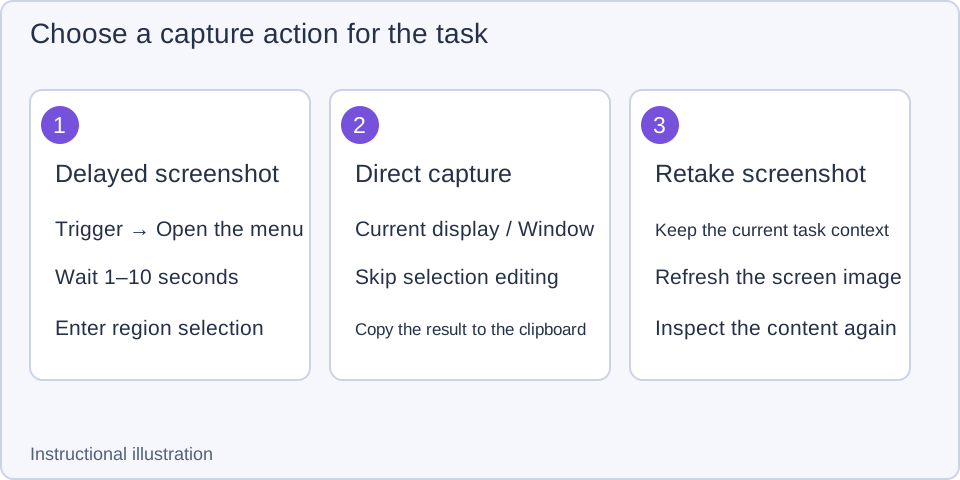
Instructional illustration: delayed capture waits before selection; direct capture skips selection editing; retaking refreshes the current capture.
Wait before capturing a menu or hint
- In the Snow Shot main window, open Global shortcuts → Screenshot and find the delayed screenshot action. Its current delay is displayed and adjustable from 1–10 seconds, with a default of 3 seconds.
- Assign a convenient global shortcut, or trigger the delayed screenshot from the tray menu. Immediately return to the target app and open the menu or hover hint.
- When the wait ends, the capture interface appears. Select a region normally, then annotate, copy or save. The delay changes when the screen is captured; it does not automatically select the popup menu for you.
Increase the delay if you need more preparation time. If the menu has already closed in the captured image, prepare it again and trigger a new capture. You cannot reopen the source app's menu inside the frozen screenshot.
Capture the current display or focused window directly
Find the Current monitor and Focused window actions under Global shortcuts and assign keys. For a display capture, move the pointer to that screen. For a window capture, focus the target window before invoking the action.
These actions skip the selection editor and copy the capture directly to the clipboard. Paste into a chat, document or image editor to inspect it. Whether a file is also saved depends on whether Settings → Export and storage includes that capture method among its automatic save actions; see copying and saving.
Direct window capture differs from using Smart Selection during an ordinary screenshot. The former quickly captures the whole window; the latter allows region adjustments and annotations. If a focused window, screen permission or target app prevents a useful direct capture, compare it with an ordinary screenshot.
Perform an action immediately after selecting
Global actions can enter workflows that select and then copy, save, quick-save, pin, recognize text or start scrolling capture. For Copy to clipboard, the defaults are Ctrl+F1 on Windows and Control+2 on macOS. Selecting a region performs the copy without another click on the ordinary screenshot toolbar.
Use an ordinary screenshot (F1 on Windows or Control+1 on macOS by default) when you need to draw an arrow before export. Choose a dedicated global action when region selection should lead straight to output. You can also click the action row's title or empty area under Global shortcuts without assigning a key; the key button on the right edits the binding. Configure a global shortcut when you want to invoke the action by key while another app is in front.
Reuse a region or retake the screen
For repeated captures at the same position, use the previous selection or a preset while Move is active, or load a saved region in Resize selection. Default R / Shift+R switches previous selections in a single-region context. In multiple-region mode, R duplicates the most recent region; see multiple regions.
If the screenshot shows old content, use Recapture (Alt+R on Windows or Option+R on macOS by default) to refresh the screen and continue the task. Retaking changes the base image, so recheck annotation targets. It does not save the old image under another filename. Use history to revisit older captures.
Additional capture controls
Toggle Show cursor in the Move style bar to include or omit the cursor image captured at the start. The default backtick key toggles its visibility in the current capture. If the session has no captured cursor image, this switch cannot create a new pointer.
For an inaccurate region, return to basic capture. If a full-screen app blocks screenshot shortcuts, check global shortcut disable rules.