
Brush and pressure-sensitive strokes
Brush records continuous pointer movement for handwriting, circling and freehand outlines. Unlike a point-by-point Line, one press-to-release gesture creates one stroke.
Draw your first stroke
- Click Brush in the screenshot toolbar to show stroke color, width and brush mode.
- Choose Regular brush and set color and width. A dark color on a light background helps distinguish the stroke from the original image.
- Hold the left mouse button and move continuously. The stroke appears as you move; release to finish it.
- Move elsewhere before pressing again for the next stroke. Holding the button while moving across an unwanted area leaves a connecting mark.
- Deselect and inspect the result, then copy or save.
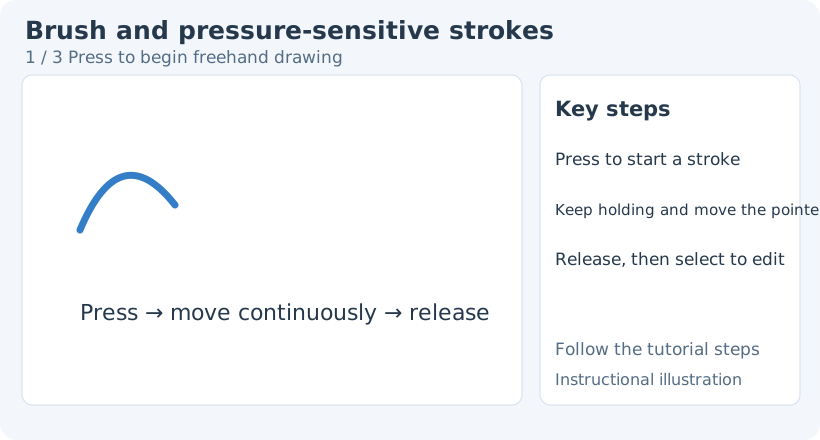
1. Press to begin freehand drawing
To change an existing stroke’s color or width, return to Brush and right-click the target while no unfinished stroke is active. Confirm its handles appear before adjusting the style. Select elements provides general transforms, stacking and opacity. Switching drawing tools clears the previous selection, so select the object again.
Normal and pressure modes
Regular brush keeps a fairly consistent width, useful for simple outlines and circling points of interest. Pressure-sensitive brush varies stroke width for a more natural handwriting effect.
Pressure-capable input devices supply actual pressure data. For a mouse or another device without native pressure, the app simulates width variation from movement, so a pen tablet is not required to see variation. Different speeds and trajectories can produce different results. Return to Regular brush for consistent thickness.
Brush width sets the base thickness. Try a short stroke on empty canvas and check readability. If it is too thick, undo and reduce the width; changing canvas zoom does not replace changing stroke width.
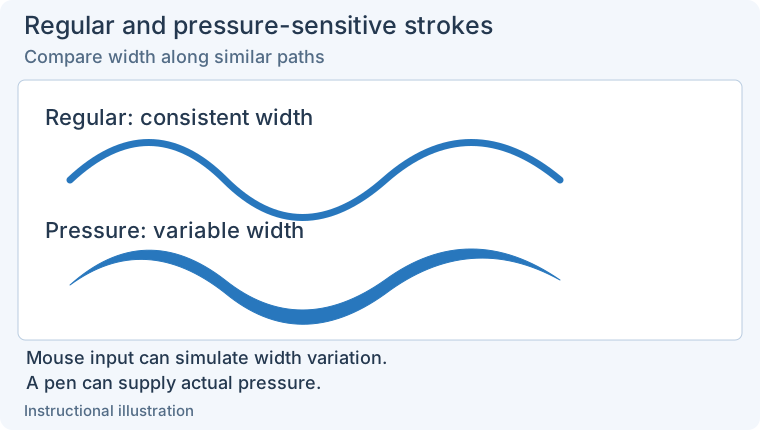
This compares modes without assigning fixed pressure values. Mouse input can simulate thickness; pressure-capable devices can use native pressure. Enlarge the comparison.
Straight sections and continuing a stroke
Hold Shift while drawing to preview the current section as a straight segment. Release Shift to resume freehand movement. This adds a straight edge within a freehand outline; inspect the preview before releasing the mouse to finish.
Keep Brush active and move near the start or end of an open stroke. When endpoint feedback appears, press and drag to continue from that end. On release, the extension joins the original stroke. Start away from old endpoints to create a separate stroke.
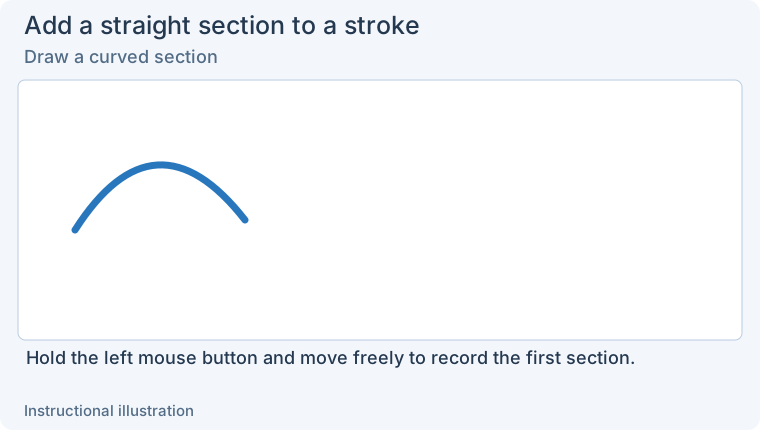
1. Draw a curved section — Hold the left mouse button and move freely to record the first section.
- — Hold the left mouse button and move freely to record the first section.
- — Keep the mouse button held, press Shift and move to another position. The current new section becomes straight.
- — Release Shift, continue moving freely, then release the mouse. The curved and straight sections belong to the same stroke.
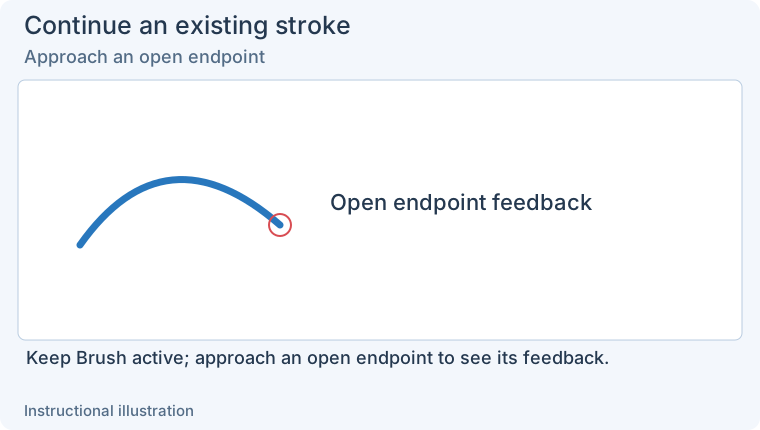
1. Approach an open endpoint — Keep Brush active and approach the start or end of an open stroke to see endpoint feedback.
- — Keep Brush active and approach the start or end of an open stroke to see endpoint feedback.
- — Hold the left mouse button at the indicated endpoint and move outward to extend the existing stroke.
- — Release to merge the extension into the original stroke. Selection shows one object, not a separate new stroke.
Edit and clean up existing strokes
Switch to Select elements, click a stroke and move, resize or rotate it as a whole. To change color or width, return to Brush and, with no unfinished stroke active, right-click the existing stroke to select it. Alternatively, remove Brush from Tools that forbid quick selection of same-type elements in Settings and then select with a left click. Without a selection, style changes affect future strokes.
To remove a whole incorrect stroke, use Element eraser or select and delete it. To restore only part of the background, use Rectangle or Brush eraser; see Erasers. Undo reverses the last stroke or edit; Redo restores it.
Common situations
An unwanted connecting line appears: movement is continuous while the button stays down. Undo and redraw as separate press–move–release strokes.
Pressure variation is excessive: choose Regular brush, or test at a consistent speed before deciding whether to use pressure effects.
Dragging an old stroke draws another one: switch to Select elements before moving an existing object. With Brush active, dragging on empty canvas creates a new stroke.
Continue with Highlight, Erasers or Element editing.