
Annotation templates
Annotation templates save groups of editable elements for repeated arrow explanations, step layouts and consistent callouts. They store annotation combinations. For tiled text templates, see Watermarks.
Create a template from selected annotations
- Finish a group of annotations in a screenshot or image-editing canvas and check its text, colors and stacking.
- Switch to Select elements. Marquee-select objects or Shift-click them individually; exclude temporary marks you do not need.
- Open Annotation templates in the selection toolbar and click Add template.
- Enter a descriptive name, such as “Blue bidirectional dimension callout,” and click Add. The name must not be empty. A saved template appears in the list.
- If the app cannot capture the selected elements, close the dialog, confirm that editable objects are selected and try again.
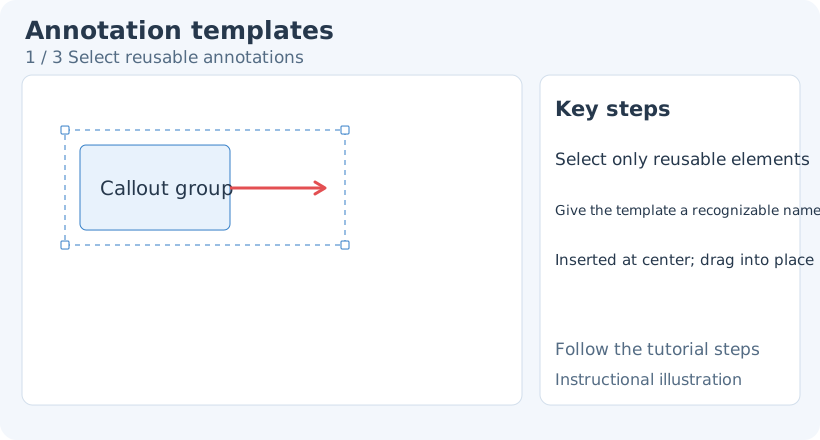
1. Select reusable annotations
Use it on another image
Open another screenshot or image, choose Select elements and open the annotation-template dropdown. Search by name and choose a template. It inserts immediately at the current selection or canvas center as editable objects. Check its initial position, then drag it to the target.
Select the inserted group, move it into place and scale it for the new image. Edit its text and arrow targets individually. Reusing a template does not replace content checking: old text and directions may not fit the new image.
If a template is missing, clear the search first. “No matching templates” usually means the filter has no matches; “No templates yet” means you need to create one.
Edit instances and manage templates
Inserted objects are editable like ordinary annotations; see Element editing. To reuse a different combination, edit the group, select it again and save under a distinct template name.
To delete a template, choose its delete action in the list, check the name and confirm. The prompt warns that deletion cannot be undone; canvas Undo is not a template-library recovery tool. An existing canvas instance and its library template are separate targets, so check which one you are changing.
Check before saving
Include only necessary elements, reusable text and correct stacking. A template is not screenshot history and does not guarantee inclusion of the background picture. Save a file for a complete finished image.
If saving fails, keep the canvas open, check the name and selected objects, then retry. Related: Element editing · Text · Watermark templates.