
Spotlight
Spotlight keeps important content clear while covering its surroundings with a dimming mask. Use it to demonstrate a panel or button. Its effect differs from Highlight, which adds color over content.
Emphasize a region
- Finish a screenshot and click Spotlight in the main toolbar.
- Choose a region shape, such as Rectangle, and set mask color and Opacity.
- Hold the left mouse button at one corner of the target and drag to the opposite corner. Inspect the region and surrounding-mask preview.
- Release to finish. Switch to Select elements, select the region and adjust its size so the boundary does not cover important text.
- Deselect, inspect the whole image, then copy or save.
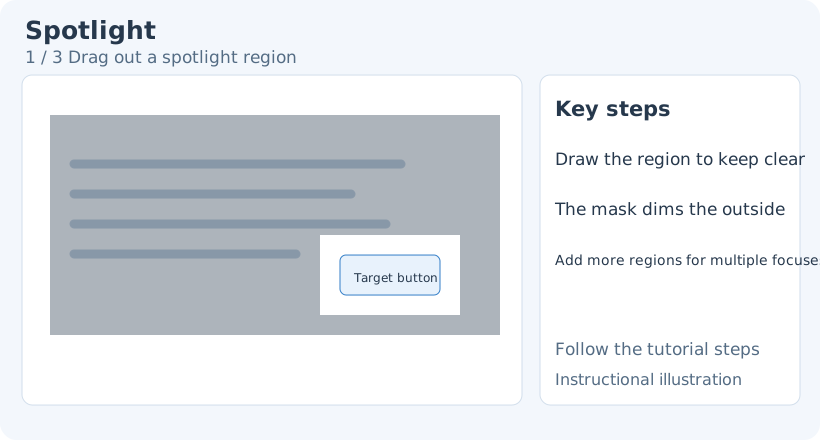
1. Drag out a spotlight region
To change an existing object’s tool-specific style, switch back to Spotlight, then click the object to select it again. Select elements provides general transforms, stacking and opacity. Switching drawing tools clears the previous selection, so select the object again.
Shape and mask
Choose Rectangle, Ellipse or Diamond in the style toolbar; rectangles support rounded corners. To modify an existing region, return to Spotlight, click to select the region and then change its shape.
Mask color controls the overlay outside the region. Higher opacity makes the original surroundings less visible. Dark masks suit bright pictures; other colors can complement the presentation. Judge the separation between the focus and background.
The mask is applied outside the spotlight. If the whole picture looks dark, check for a region that is too small or misplaced. If there is little contrast, check mask opacity.
Multiple focuses and later edits
Draw another spotlight to keep several regions clear at once. They share the mask effect. Decide whether all regions need simultaneous emphasis so the image retains a clear hierarchy.
Switch to Select elements and drag the body to move a region or its handles to resize it. Check the selection before deleting a region, and Undo accidental deletion. Undo is quicker than recapturing when only the last spotlight is unwanted.
Spotlight does not enlarge content. Use Magnifier for small details, or Arrows to indicate a target.