
Screenshot history and bulk actions
Screenshot history retrieves previously output captures. It differs from pinned-window management: history organizes screenshot records, while pinned-window management also handles window state and restoration.
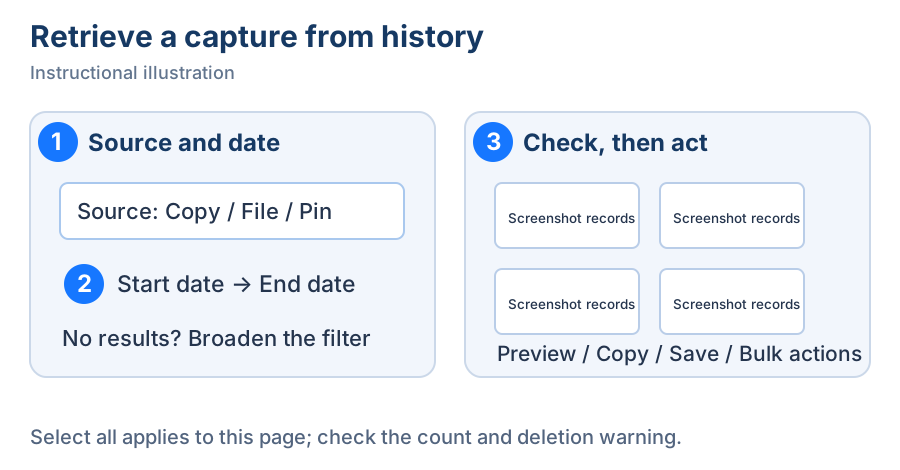
Instructional illustration. ① Narrow the source, ② limit the date, ③ check records before acting.
Find an earlier capture
- Open Screenshot history in the main window, or execute Open screenshot history on the Global shortcuts page. Records and thumbnails load. Click Refresh history if a new record has not appeared.
- In the source filter, choose Copy to clipboard, Save as file, Pin to screen, Current monitor, or Focused window. Clear the filter or return to all sources to see everything.
- Set the beginning and end of the date range. The list shows records matching both source and date. For no results, broaden the dates, restore all sources, and check whether records have already been cleaned up.
- Switch pages and click a thumbnail to preview it. A record can contain different images such as Screenshot result and Screenshot display. Use carousel arrows when several previews exist and inspect the actual content.
- Click Copy to copy the screenshot result. Click Edit, or double-click the record, to reopen its editing workflow. To save a new file, use Save as file in the restored editor.
- Open More for Pin to screen, Image stitching, Image splitting, Image editing, copying the image path, revealing it in the system file manager, or deletion. Actions requiring a screenshot result are disabled if none exists; check whether the record contains only the display image.
Middle-click a record to copy its screenshot result when available. Edit restores the history workflow; Image editing opens the image editor. Check the window that opens. Copying an image path produces text rather than image content; paste into a text editor to inspect it.
History offers source and date filters, rather than full-text search through arbitrary text inside screenshots. Open an image and use recognition when you need its text.
Pin, stitch, or delete several records
- Select records on the current page or click Select all. Select all applies to the current page, and existing selections remain when you change pages. Check the total selected count across pages. Changing the source or date filter clears the selection, so select the records again.
- Open Batch actions. Pin to screen opens the selected images as pinned windows. Image stitching opens the stitching workflow, where you can adjust layout and save.
- Use Deselect all and select again if needed. Check the count before deletion.
- Click Delete, read the count and irreversible-action warning, and confirm. The records disappear from history. Cancel the dialog to stop.
Delete all history removes every screenshot-history record, regardless of the current page. It differs from deleting selected records. Save any important images as independent files first.
Enable history and set retention
Manage these options under Settings → Export & storage → Screenshot history:
Fresh defaults are 7 days, 100 entries, and 1024 MiB. Use your displayed values after customization. Check these limits when older records are missing. Disabling history and clearing existing history are separate operations.
Retention for pinned records is under Pin to screen management on the same page. Limits affect closed windows only; retained windows are protected. See pinned-window management.
Records fail to load
Reset source and date filters for an empty list. If records are still missing after refreshing, check whether history is enabled and whether age or disk limits were reached. If Data storage is unavailable or read-only, resolve its location and permissions so new records can persist.
Continue with copying and saving, image stitching, or cleanup and logs.