
Bracket annotations
Brackets group several text lines, buttons or shapes. Add separate text beside a bracket to name the group.
Drag out a bracket
- Choose Bracket annotation and set color and width.
- Hold the left mouse button beside the group and drag diagonally, creating both height and width.
- Inspect its top-to-bottom span and middle guide, then release. A purely horizontal or vertical drag without valid width and height may not create a bracket.
- Switch to Select elements, click the bracket and drag its points to align the ends with the group.
- Add a group name with Text, deselect to check the result, then copy or save.
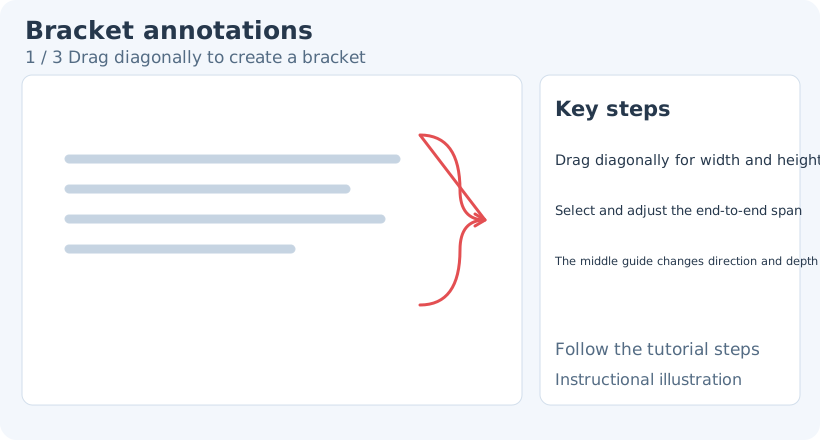
1. Drag diagonally to create a bracket
To change an existing object’s tool-specific style, switch back to Bracket annotation, then click the object to select it again. Select elements provides general transforms, stacking and opacity. Switching drawing tools clears the previous selection, so select the object again.
Span and direction
Drag endpoint handles to change the bracket’s coverage. Drag the middle guide point to change its opening direction and depth. Align the ends with the group first, then position the middle guide; large simultaneous changes are harder to judge.
Dragging the bracket body moves the whole object. To change one end, hit its handle. A multiselection operation affects the entire selected group.
Style and accompanying text
Set color and width in the bracket style toolbar. Thin brackets suit body text; thicker ones suit large presentation images. Keep their weight consistent with nearby text or shapes.
Enter the description separately with Text. To move the group, multiselect the bracket and text and move them together. Independently placed text is not automatically bound to the bracket.
Missing or misplaced brackets
Nothing appears after release: drag again with both horizontal and vertical distance, large enough to show a preview.
The whole bracket moves: you dragged the line body. Undo, then select the intended control point.
Esc or right-click cancels unfinished creation. Undo a finished bracket, or select and delete it. Related: Distance · Angles · Text.