
Barcode and QR code recognition
Barcode recognition reads barcode and QR code content from the screen, such as URLs or identifiers in images. Reading content does not establish its authenticity; check an address before opening it. This tool is available in Full, not Mini.
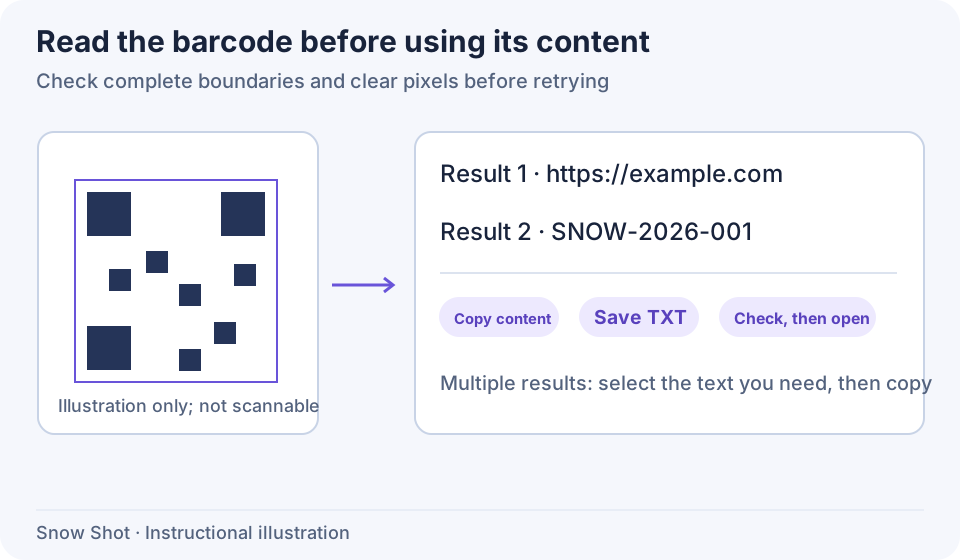
Instructional illustration. The blocks explain the input area and are not a scannable QR code.
Recognize and retrieve content
For practice, open an original image below in your image viewer and keep its complete white border in the capture. The text QR encodes Snow Shot guide fixture; the URL QR encodes https://example.com/snow-shot-guide-fixture; the EAN-13 encodes 1234567890128.
Text QR practice image · URL QR practice image · EAN-13 practice image
- Display the entire code. Start a screenshot—F1 on Windows or Control+1 on macOS by default—and include the whole code with a little surrounding whitespace. Do not capture only part of its blocks or bars.
- Expand the table/barcode tool group and choose Barcode recognition. Its group button shows the current or last-used tool, so identify it by its label rather than position alone.
- Wait for completion. The result area displays decoded text. If the selection contains several readable codes, inspect each result and identify the one you need.
- All decoded content is initially selected. To use only one result, select its text and right-click Copy. For all content, use Select all, then copy. Paste into a text editor and check the content.
If the same selection contains QR codes and one-dimensional barcodes, QR results take priority; both kinds are not necessarily returned together. Capture only the one-dimensional barcode to read it separately. Recognition runs locally and does not use text OCR models or online translation services.
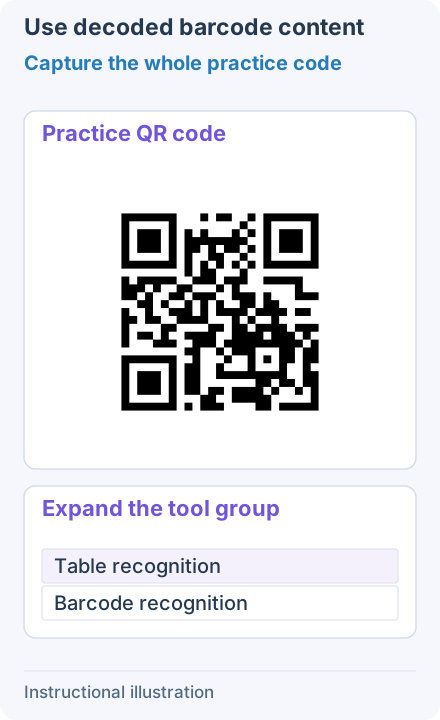
1. Capture the whole practice code — Use the original practice image from this page and keep its complete white border. Expand the table/barcode group and choose Barcode recognition; the group may show the last-used table tool.
- — Use the original practice image from this page and keep its complete white border. Expand the table/barcode group and choose Barcode recognition; the group may show the last-used table tool.
- — Results start fully selected. These two QR payloads illustrate scope: select only the second and right-click Copy for that item. Select all again to copy everything.
Automatic QR detection and markers
Full can also discover QR codes automatically after you confirm a screenshot selection:
- Enable Auto-recognize QR code in Settings → Screenshots interaction settings. Capture again and confirm a selection containing complete QR codes.
- Keep the Move tool active and wait for circular markers on readable codes. Click a marker to open its text bubble; inspect multiple codes individually.
- Click Copy text in the bubble to copy selected text, or the whole code's content if there is no partial selection, and end the screenshot. Valid URLs also offer Open link. Successful opening ends the screenshot; a failed opening shows an error in the bubble.
- To remove markers from view, click Show QR code in the Move tool's property bar to toggle their visibility.
Show QR code controls detected markers; it does not generate QR codes. If markers do not appear, check automatic recognition, the active tool, and image clarity, or use manual Barcode recognition above.
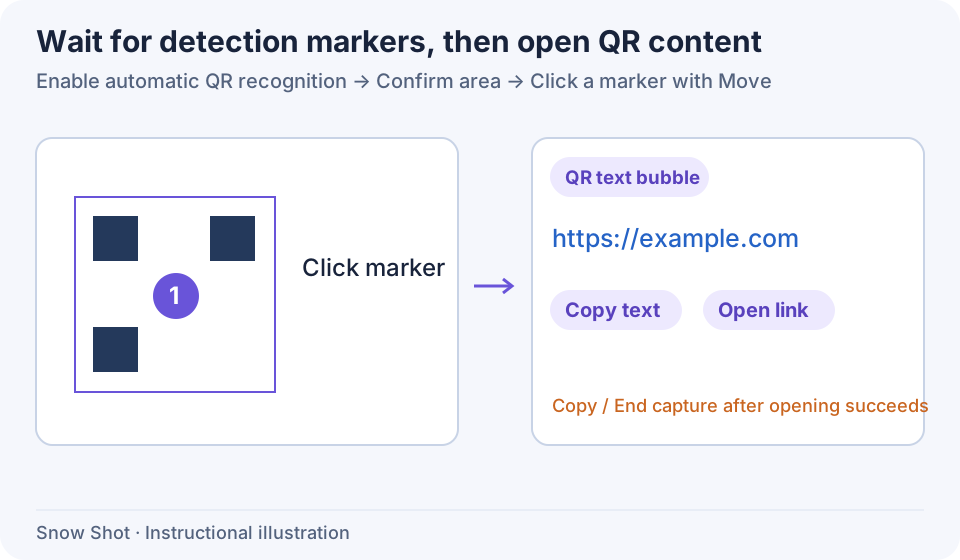
Instructional illustration. Circular markers open detection results; successful copy or open actions end the current screenshot.
Copy and open links
- Copy content: right-click Copy in the result, then paste into a text editor. Check for content from multiple codes or extra line breaks.
- Save results: use Save as file, choose a location, and save .txt text containing all decoded content, separated by line breaks. A partial text selection does not restrict the file. Canceling keeps the current result; successful saving ends the screenshot. Reopen the TXT in a text editor to check it. It is not a QR code image.
- Open links: a complete result that becomes a valid http:// or https:// URL after trimming surrounding whitespace can be clicked to open the default browser. Ordinary identifiers, other protocols, and addresses embedded in explanatory text do not automatically become these links; copy them into a text editor to inspect them.
- Keep the code image: leave recognition results and save the original using screenshot output. TXT is not an image file.
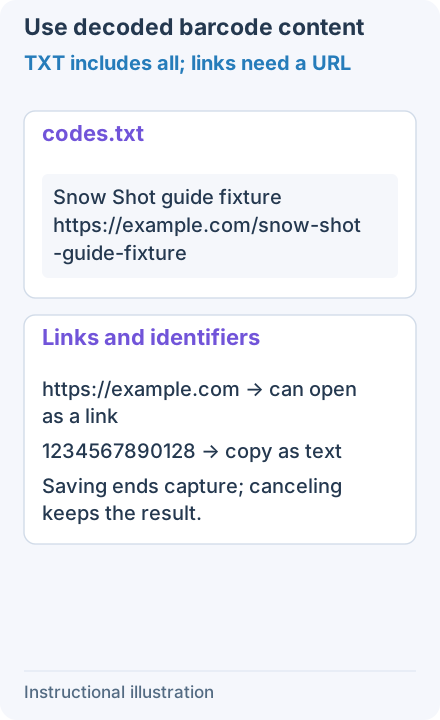
Save as file includes all payloads separated by line breaks, regardless of a partial selection. Only a complete valid HTTP(S) URL is clickable; copy identifiers as text.
When no result is found
For “No barcode was recognized,” check complete boundaries and whether compression, blur, obstruction, or strong perspective affects the image. Enlarge the code in its source application and capture again.
For many codes, first capture one and confirm it can be read, then expand the area. Enlarging a screenshot cannot recover details already absent from the source.
When nothing is recognized, use Cancel screenshot, adjust the source, capture a new area, and choose Barcode recognition again. Switching away and back may still show the same empty result. Start a new screenshot after a request failure as well. If barcode components are missing or damaged, repair or reinstall Full before trying again. Changing text OCR models or translation APIs does not supply barcode components.
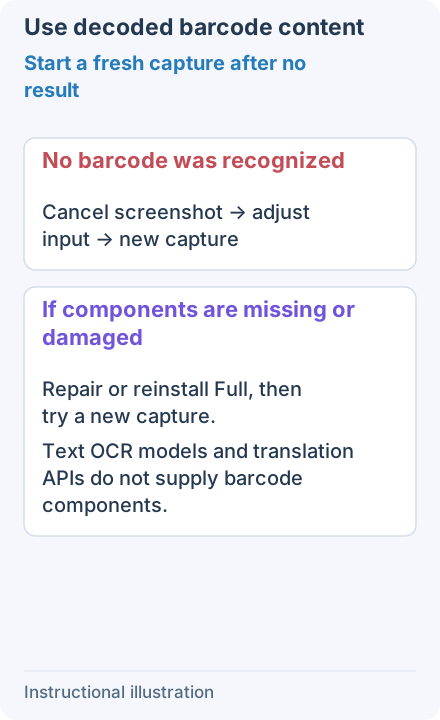
For no result, cancel the screenshot, enlarge the source or capture only one code, then enter Barcode recognition again. There is no generic result Retry button; switching away and back may retain the empty result.
Continue with Table recognition, Text recognition, or Image and clipboard pins.