
Watermarks and date templates
A watermark repeats text across the current image to indicate its purpose or source. It is an image-level configuration; you do not draw each repeated label individually.
Add a watermark
- Finish a screenshot or open an image, then click Watermark in the annotation toolbar.
- Enter a purpose such as “Internal review” in Watermark text and inspect the tiled preview across the image.
- Choose a font, size and color, then set Opacity so the original image remains readable.
- Adjust Angle and Spacing, checking the edges and center of the image.
- Use Copy to clipboard or Save as file. The watermark is saved with the image.
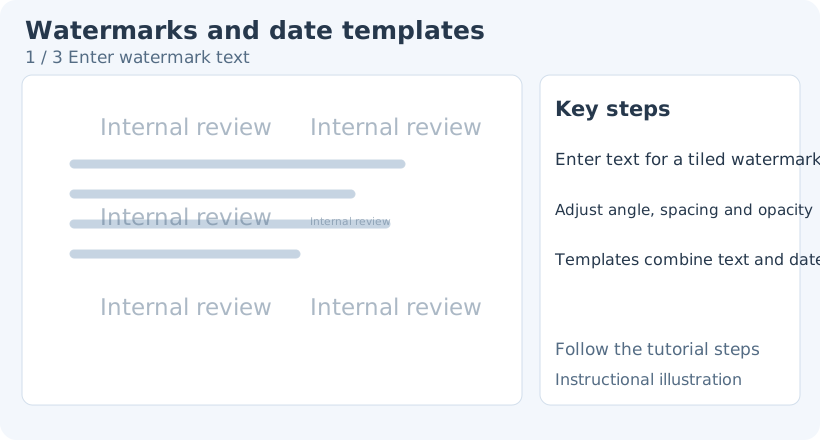
1. Enter watermark text
Angle, spacing and opacity
- Angle determines text orientation. Near-horizontal text suits orderly content; diagonal layouts often cover more positions.
- Spacing controls gaps between repeated watermarks. Large gaps can leave content unmarked; small gaps can impair reading.
- Font size controls each label’s size. At the same spacing, longer text comes closer to neighboring labels.
- Opacity controls blending with the background. Check both light and dark areas so the watermark is recognizable where required.
Inspect the canvas after changing values. Image dimensions and text length affect the apparent density.
Create a watermark template
A watermark Template reuses a rule for composing text. Open Add in the template dropdown, enter a template name and value, then click Add to save.
In a template value, {text} represents the current watermark text. Use a time format shown by the interface, such as {YYYY-MM-DD_HH-mm-ss}. For example, {text} · {YYYY-MM-DD} combines the current watermark text with the date when applied.
Test the template on a screenshot and check the actual date and text before using it for final material. A template stores a rule: inspect the preview after switching templates rather than treating placeholder text as the final watermark.
Delete an unused template from its options and confirm the prompt. Canvas Undo cannot restore a deleted template, so verify the selected template first.
Modify and remove
Open Watermark again to change its text or arrangement. To remove it, clear the watermark text and check whether the template still generates content. Alternatively, set watermark opacity to 0 to hide the layer. A date template can generate content on its own, so remove its effect as well when necessary.
Do not erase tiled labels individually with Element eraser: the watermark is one configuration, not independent text boxes. Correct input directly, adjust layout parameters and inspect the exported result.
Related: Text · Annotation templates · Saving and copying. Watermark templates and annotation templates are separate features.