
Live window pins
Pin window to screen continuously displays a source window in an independent pin for side-by-side work. The source must continue to exist. Convert its current frame to an image when you need to retain one state.
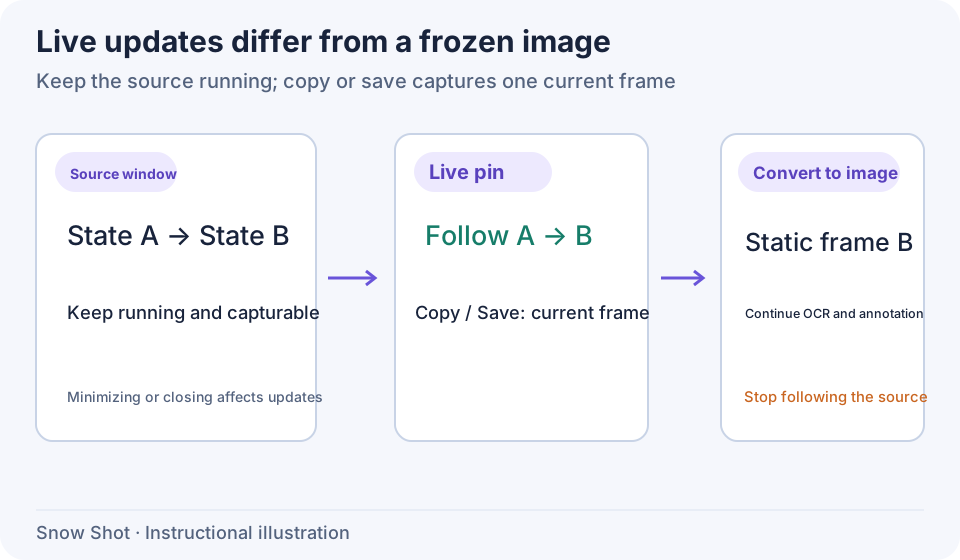
Instructional illustration. Live display, saving one frame, and video recording produce different results.
Pin a live window
- Open the source window and keep it visible. On macOS, grant Snow Shot the required screen-recording permission in System Settings and follow application permission prompts before retrying.
- Start a screenshot—F1 on Windows or Control+1 on macOS by default—and select within the target window's content. The selection should correspond to a capturable window; avoid centering it on the desktop, blank toolbar space, or an overlapping window.
- Click Pin window to screen and wait for initialization. It is a separate action from ordinary Pin to screen.
- Change source content and check that the live pin updates. Position the pin while keeping the source running.
For “No capturable window found in the selection,” exit, fully display the source, and select again. For initialization failure, check capture permissions and that the target still exists, then retry.
Adjust the view and freeze it
Process image in the live pin's context menu provides zoom, opacity, rotation, and flipping. Where cropping is available, right-drag the desired view and choose Apply crop as needed; see Transforms and cropping. These change the observation area, not content inside the source application.
When Convert to image is available, click it to capture the currently available frame and turn the window into a static image. You can then use ordinary image recognition and annotation. It stops following updates; invoke Pin window to screen again for a new live connection.
Copy to clipboard and Save as file also retrieve an available current frame to share one moment. They do not generate video. Use Screen recording for continuous changes.
To process one frame in a separate window, right-click Process image → Image editing or Process image → Image splitting. They send a captured current frame to that window while the live pin continues following its source. Inspect the input, then follow Image editing or Image splitting and save the result. Convert to image instead changes this live pin itself into a static image.
When a frame is temporarily unavailable, commands requiring one—copy, save, Convert to image, image editing, and image splitting—may be unavailable. Restore the source window first.
When updates stop
Live menus omit some ordinary-image features, including loading new clipboard content, thumbnails, hide at top, and static-canvas annotation. Convert to an image first when you need those operations.
After the source closes or the application exits, static-image recovery in management should not be interpreted as reconnecting the original live window. Copy or save important states explicitly.
Continue with Ordinary image pins, Text and annotations, or Groups and recovery.