
LaTeX formula recognition
Use LaTeX formula recognition to turn a formula in a paper or slide into source for a LaTeX-capable editor. A preview helps you check scripts, fractions, and brackets. This feature requires Full and an available recognition service.
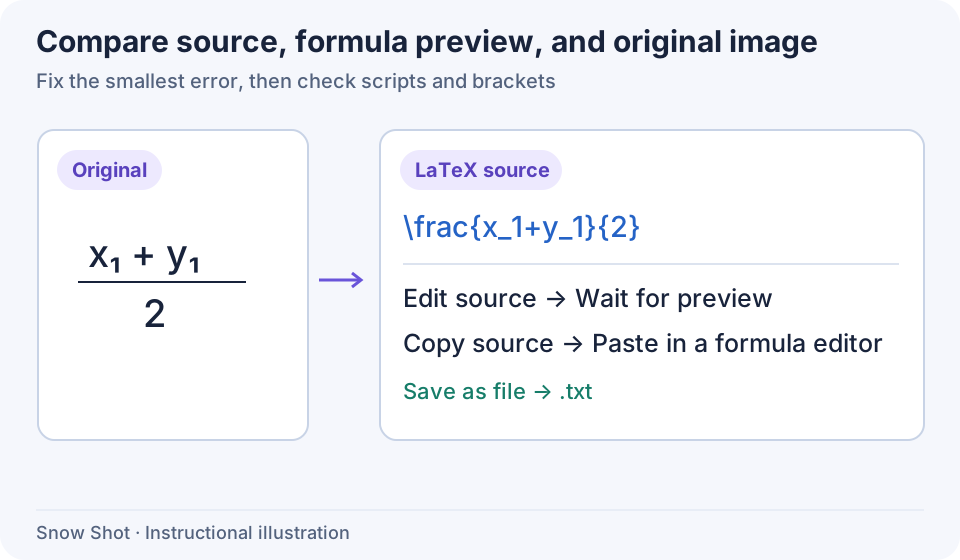
Instructional illustration. Source and preview represent the same result. Check which syntax your destination expects.
Obtain formula source
- Capture one complete formula—F1 on Windows or Control+1 on macOS by default. Include scripts, fraction bars, integral limits, and brackets at both ends.
- Choose LaTeX formula recognition in the screenshot toolbar and wait for processing.
- Under Recognition model, choose the default LaTeX-specific model or an available Snow Shot vision model. For your own service, prepare a model that actually accepts images under Service configuration. Selection takes effect immediately. Returning to a previously used model may show its existing result and source edits; edits for different models remain separate.
- Compare the returned source and formula preview with the original. If the dedicated model reports an input larger than 4K, capture a single formula or a smaller area.
Correct and preview
Vision models may display source progressively. It remains read-only during generation; wait until recognition finishes and the source accepts input before editing. A preview error differs from a recognition-service error: once source is available, you can correct or copy it without immediately resubmitting the image.
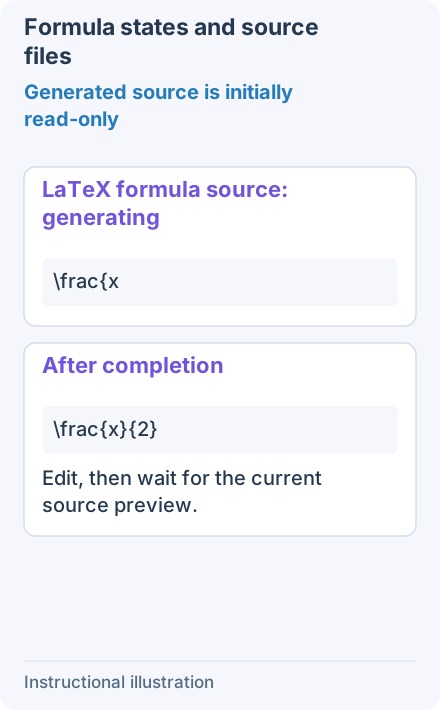
Wait while the vision model streams content. Source that is still being generated is read-only. Start correcting only after recognition finishes and editing becomes available.
Edit the LaTeX formula source area; the preview renders again after content changes. Find the smallest error first—for example, x_1 recognized as x_l, or a missing brace—and change that part to make the effect easier to assess.
- Wait for recognition to finish, then click the LaTeX formula source area. Compare it with the original to find the wrong character; for example, the original subscript is the digit
1, but the source has the letterl. - Select only the
linx_land type1. Wait for the formula preview to update, then check that its subscript is also the digit1. Keep the surrounding braces and commands intact. - To compare the edit, use Undo and Redo in the toolbar, waiting for the preview to follow the current source each time. Copy or save after the formula is correct.
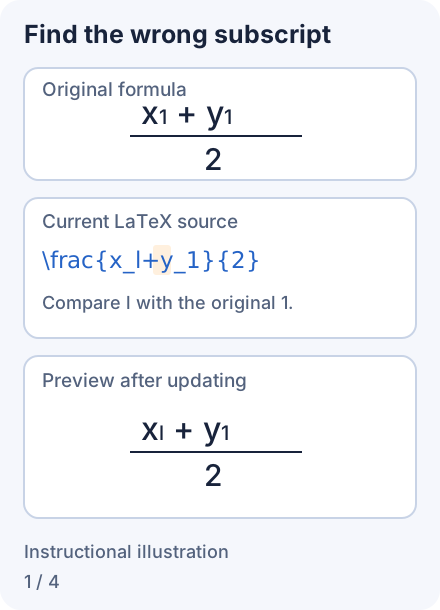
1. Find the error in context — The original subscript is the digit 1. Compare the source and preview to find the mistaken l.
- — The original subscript is the digit 1. Compare the source and preview to find the mistaken l.
- — Select only l in the formula source and type 1. Wait for the preview to update, then compare it with the original.
- — Click Undo to restore l in the source and preview. This does not recognize the image again.
- — Click Redo to restore 1. Once the formula is correct, copy or save its current source as described below.
- Incorrect fractions: check both brace groups in
\frac{...}{...}. - Incorrect script ranges: enclose content that belongs together after
_or^in braces. - Correct recognition but an unexpected preview: read the preview message. The built-in renderer may differ from your destination LaTeX editor; copy the source there to check.
Undo and Redo restore source edits without resubmitting the image for recognition. Click Show original image to inspect the input temporarily, then click again to return to the source. The formula preview checks the current source.
Copy and save
- To use the whole formula, clear partial selections and click Copy to clipboard. For a subexpression, select its source and copy it.
- Paste into the inline or display-math environment required by the destination. A correct Snow Shot preview does not put that application into formula mode.
- Use Save as file to retain a .txt file containing the complete current formula source, regardless of a partial text selection. Choose a folder and name. Canceling preserves your source edits; successful saving ends the screenshot. Reopen TXT in a text editor and check the corrected characters and commands before using it in the destination formula environment.
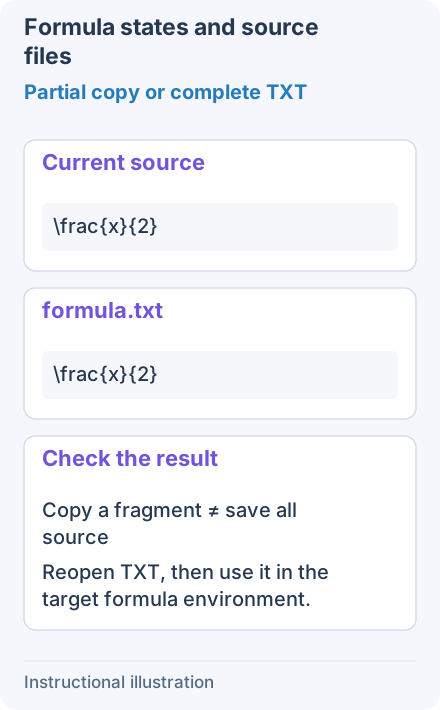
Select source to copy only an expression. TXT saving includes the entire current source regardless of selection. Cancel keeps edits; success ends capture. Reopen the file and check its commands.
Troubleshooting
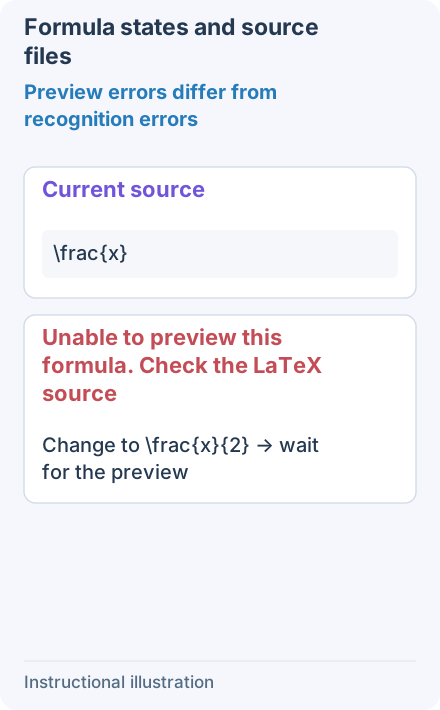
This example lacks a denominator argument, so preview fails. Add the argument or undo the recent edit; available source does not need another recognition request just to repair its preview.
Use Cancel screenshot to stop recognition or discard the current result. For a mistaken source edit, use Undo first rather than exiting and recognizing again.
Continue with Table recognition, Image conversion, or Translation services and custom models.