
Convert images to Markdown and HTML
Use Convert to Markdown or Convert to HTML to reorganize image content containing headings, paragraphs, lists, and tables. A vision model generates the result; check its text and structure before using it in a finished document. Both tools are available in Full, not Mini.
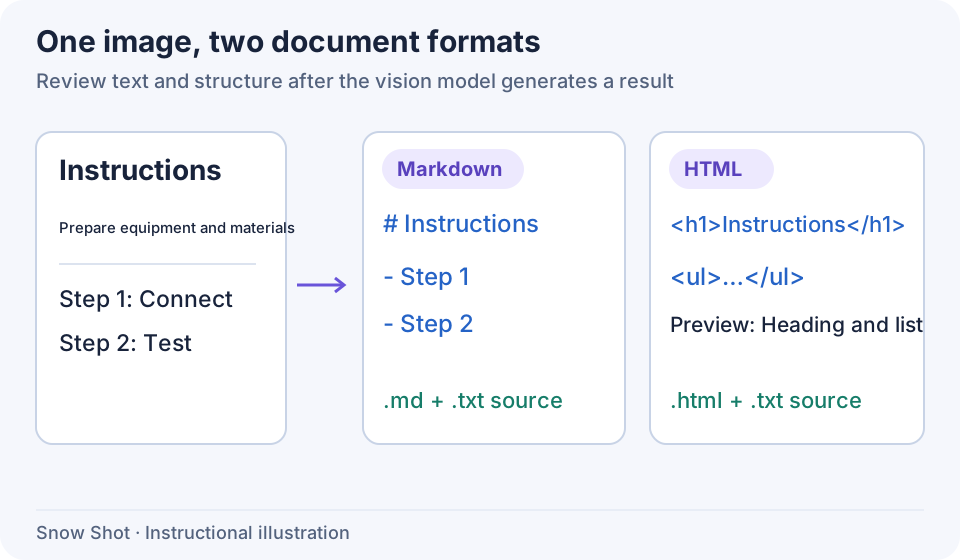
Instructional illustration. The example compares formats; models do not necessarily preserve the entire original layout.
Prepare a vision model
Use an available Snow Shot vision model or your own model service. For your own service, configure a model under Settings → Network & connections → Custom AI models, enable Vision support, and confirm that the actual server model accepts images. Enabling the option makes a model selectable for relevant features; it does not change the remote model itself. See Translation services and custom models for individual fields.
Conversion sends the selected image to the chosen model service. Make sure that service is reachable. Image conversion works separately from local OCR and needs its own model-service setup.
Run a conversion
- Capture the document area—F1 on Windows or Control+1 on macOS by default. Include complete paragraphs and table boundaries; exclude nearby navigation, advertising, and other articles.
- Choose Convert to Markdown or Convert to HTML in the screenshot toolbar. Markdown suits notes and repository documentation; HTML suits web-document structure.
- To change models, click Settings in the result property bar, choose an available model under Image conversion settings → Vision model, and click OK. Return to the result and wait for that model's content. Cancel keeps the preceding choice. If this settings window cannot load the model list, check the service and network, then click Retry in that window to refresh the list. An available model is required before confirming. Without another selection, conversion starts with an available vision model.
- Watch content appear progressively and wait for processing to finish. When no error remains, compare heading levels, list order, table contents, and numbers with the original. Conversion can reformat content; the preview is not an exact copy of the source image.
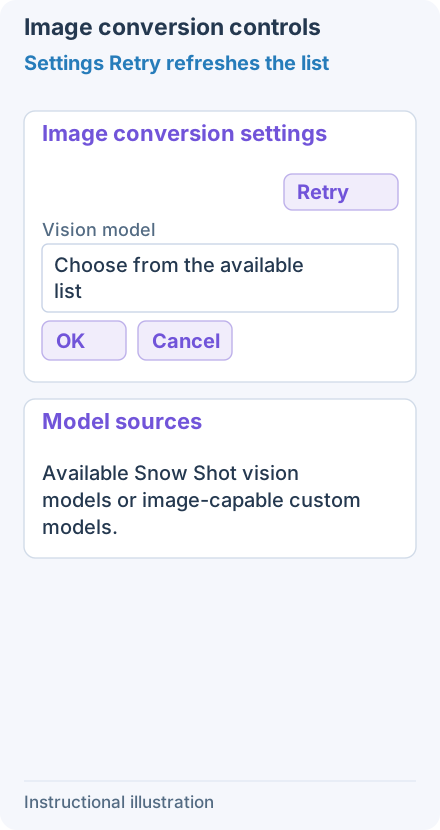
Open Image conversion settings from Settings in the property bar. If the list fails to load, check the connection and Retry in this window. Choose an available vision model and OK; Cancel discards the choice.
Preview, copy, and save
The result area previews the document for checking paragraphs and structure. It is not a source editor. Copy or save the result to your destination editor to correct the generated document.
- Copy a selection: select text in the preview and right-click Copy. This copies the selected visible content, not a matching Markdown or HTML source fragment. Paste into the destination to check the range.
- Copy complete source: use Copy to clipboard in the toolbar to copy all generated source regardless of a partial preview selection. Markdown includes heading/list syntax. HTML also supplies an HTML clipboard format, so a destination may paste formatted content. Paste into a plain-text editor to inspect source. Right-clicking Copy in the preview with no partial selection also retrieves complete source.
- Save the document: click Save as file and choose a folder and name to save the complete generated document, regardless of a preview selection. Markdown uses .md; HTML uses .html. Canceling keeps the current result; successful saving ends the screenshot.
- Keep generated source: saving also creates a matching .txt companion file. Open the document in its destination editor and TXT in a text editor to check the source. Confirming replacement overwrites the listed existing files; Cancel leaves them unchanged.
To copy and save, first right-click in the preview to copy the content you need, then save the document. Continue corrections in the destination editor.
For precise spreadsheet cell editing, use Table recognition and export XLSX. For plain text, use Text recognition.
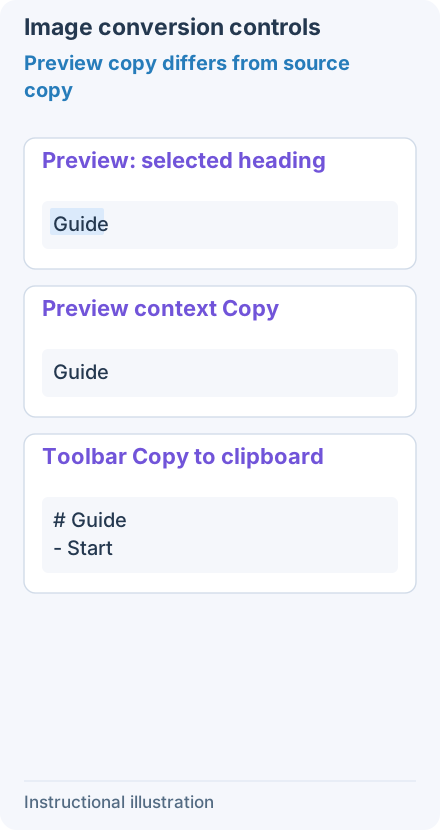
Select the preview heading and right-click Copy for the visible text Guide. Toolbar Copy to clipboard retrieves all Markdown source even with that selection. HTML also supplies an HTML clipboard format.
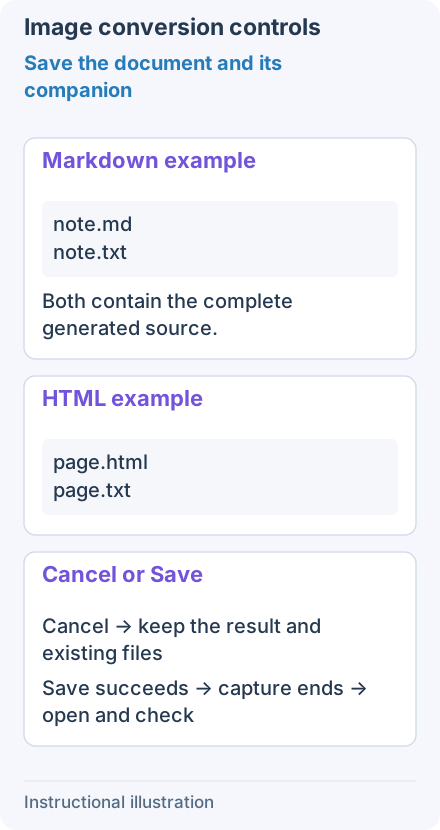
Markdown outputs .md plus a matching .txt; HTML outputs .html plus a matching .txt. Saving includes all source, not the preview selection. Cancel does not replace files; success ends capture. Reopen both outputs to check.
Retry after a failure
If no vision model is selectable, return to configuration and check Vision support and whether the model still exists. A name in the list does not prove that the server accepts image input.
For network, authentication, or model errors, check the selected service. For a custom model, also check its API address, key, and model ID; check the proxy for connection problems. Incomplete result means conversion did not finish even if some content remains visible. To keep it, right-click in the preview to copy it before clicking Retry in the result. Retry clears the generated content and starts again with the same image. For incomplete input, capture a smaller single-document area. Repeated requests for the same unclear image may not improve the result.
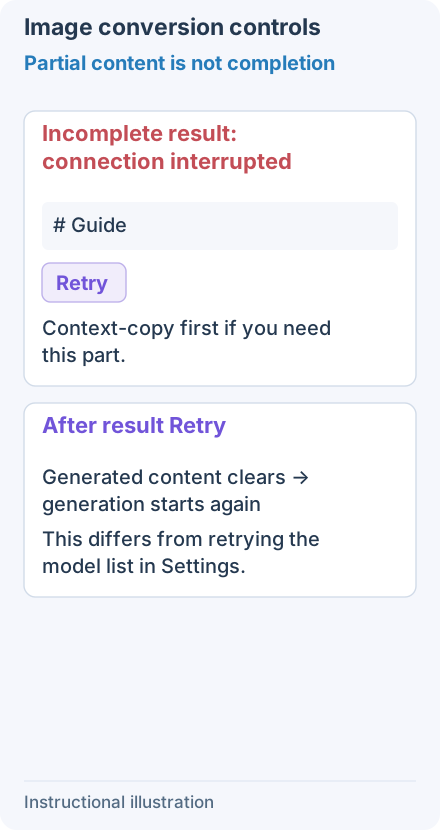
For Incomplete result, first use preview context Copy if you want to retain the visible content. Retry in the result clears generated content and starts again with the same image.
Use Cancel screenshot to leave the session. Copy or save existing content before exiting if you need it.
Continue with Text recognition, LaTeX recognition, or Translation services and custom models.