
Shortcuts and global mouse actions
Global shortcuts work while another application is in front. Application shortcuts work in the relevant Snow Shot editor or window. Global mouse actions turn a modifier-key drag into a capture, recognition, pinning, or recording operation.
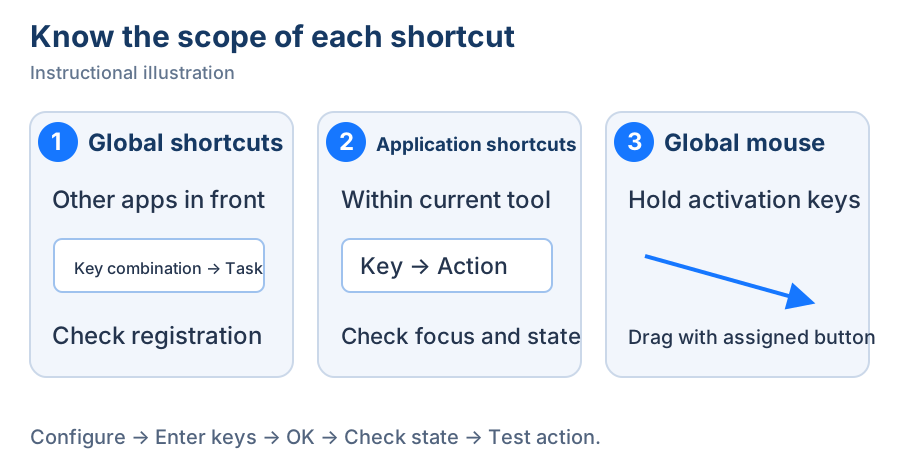
Instructional illustration. ① Entry from other apps, ② actions in the current tool, ③ drag while holding activation keys.
Change a global shortcut
- Open Global shortcuts in the main window and find the task, such as capture, pinning, text recognition, recording, or opening history. Click the key-configuration button on the right of that row to open its configuration window.
- To replace a binding, click the key block displaying its current combination. To keep it and add an alternative, click Add key configuration to open a new row. Each global action supports up to 2 bindings; the Add button disappears at that limit.
- When Please press a key appears, press the combination you want. During recording, Tab, Esc, and Enter are captured as candidate keys rather than moving focus, canceling the window, or saving. To abandon your changes, click Cancel with the mouse.
- Check the candidate shown in the key block. A valid candidate enables the row's green check and the window's OK button. If a conflict or unsupported-key message appears, press another combination. Repeatedly confirming cannot resolve a duplicate binding; release the binding from another action or application if necessary.
- To keep editing the list, click the green check icon at the end of the row to finish recording. You can then add an alternative; Add remains disabled while recording. After recording ends, the row-end control becomes a red delete icon, which removes that row from this draft.
- Check the complete list, then click OK at the bottom of the window to save. For one valid change, you can skip the row check and click the outer OK button directly; it also confirms the pending candidate. Only the outer OK saves bindings. The row check and delete icon change only the current draft.
- To discard your changes, click Cancel or close the configuration window. This discards the entire draft, including rows you have checked, added, or deleted, and keeps the previous configuration.
- After saving, check the registration state in the main list, then test from another application. After canceling, check that the original binding remains.
To learn the recording process while keeping your current shortcut, follow this sequence and choose Cancel at the end. The example briefly records Tab as a candidate, then discards the draft.
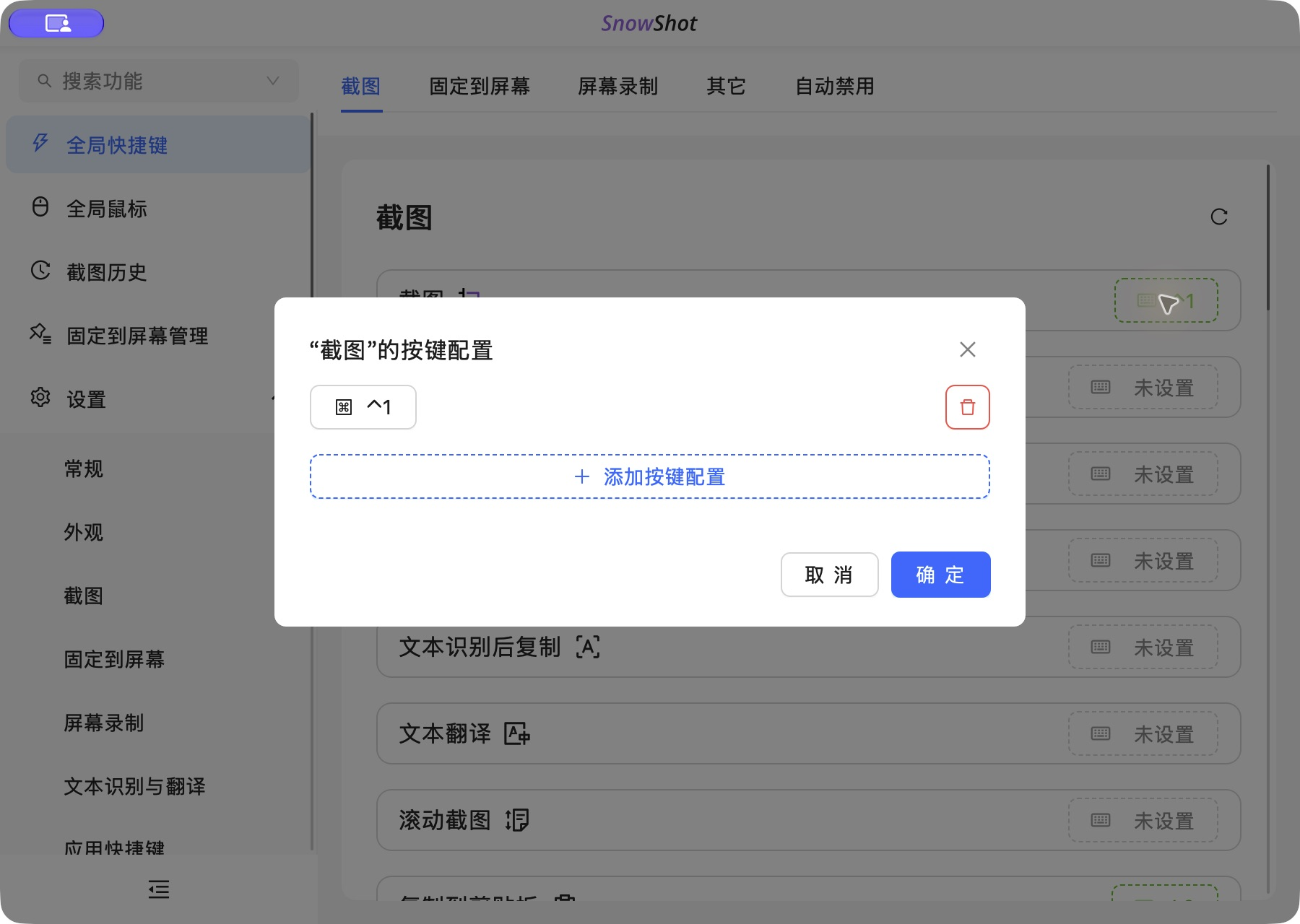
1. Identify the existing binding — The existing combination is ⌃1 (Control+1). Click its key block to replace it, or use Add key configuration to keep it and add an alternative.
- — The existing combination is ⌃1 (Control+1). Click its key block to replace it, or use Add key configuration to keep it and add an alternative.
- — Enter a combination after Please press a key appears. Recording is active; Add and OK are temporarily unavailable.
- — A valid candidate enables the green check. Click it to finish recording this row; the binding is still only a draft. For this exercise, click Cancel at the bottom of the dialog next (shown in the first frame).
- — Cancel discards the whole draft. Reopen configuration to see that the original ⌃1 is retained.
The configuration window temporarily releases relevant global keys so entering a new combination does not trigger the old action. Test invocation after saving and closing the window.
Application shortcuts and action state
Open Settings → Application shortcuts and use the capture, annotation, pinning, screen-recording, or image-recognition sections. Click the action's binding configuration, press the combination, and confirm, as above.
These keys also depend on the current window and editing state. Recording start/pause/resume responds to the recording state; annotation shortcuts apply in the editing area. A focused text field may use some keys for typing first. Check the current tool's tooltip for your binding.
Windows also offers a Windows context menu access key: one unmodified letter A–Z or digit 0–9. It selects an item while the classic context menu is open; it is not another global key combination.
Configure global mouse dragging
- Open Global mouse in the main window. Find an action such as Copy to clipboard or Pin to screen, then click its mouse-configuration button on the right.
- Select at least one Activation keys modifier. Windows offers Windows/Ctrl/Alt/Shift; macOS offers Command/Control/Option/Shift.
- Under Mouse button, choose a left-, right-, middle-, side-button 1 (Back), or side-button 2 (Forward) drag. Click OK to display the combination in the list. To remove it, choose None under Mouse button, then click OK. Cancel keeps the previous configuration.
- Return to the content to capture. Hold the activation keys first, drag with the configured mouse button to select an area, then release and check the action's result. Test on an unimportant area to confirm the action and scope.
Two actions cannot use the same combination. Change the modifiers or mouse button if prompted. macOS global mouse actions require the relevant system permissions. If the combination is displayed but unresponsive, check app permissions and whether your mouse actually supplies that side button.
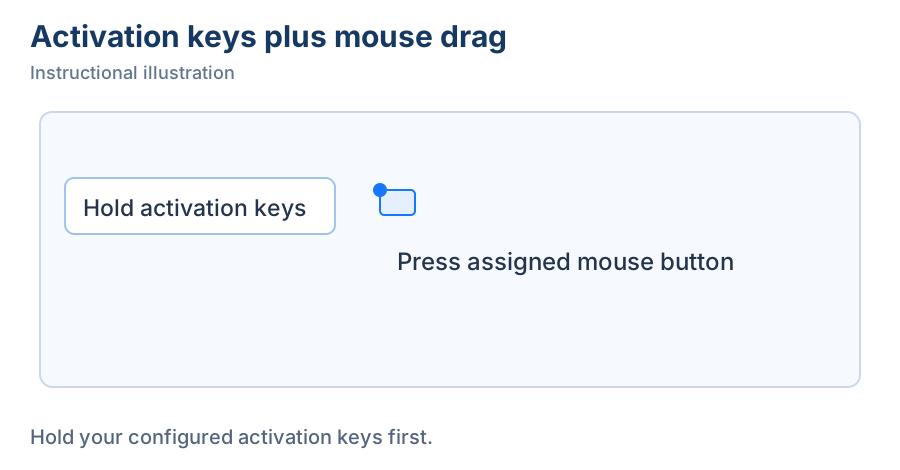
1. Hold the combination — Hold your activation keys first, then press the configured mouse button.
- — Hold your activation keys first, then press the configured mouse button.
- — Keep the activation keys held while dragging the area to process.
- — Release to run the assigned action. This example pins an image; your combination uses its own configured task.
Automatic disabling in fullscreen and manual recovery
The automatic-disabling area on Global shortcuts can disable shortcuts while a fullscreen window is in front, with choices for applicable fullscreen-window types. If a shortcut fails in a game or fullscreen application, leave fullscreen or inspect this rule first.
Enabling/disabling global shortcuts is itself an action available from the main interface or tray. The tray icon's disabled marker and each configuration row's state help identify deliberate disabling. For Temporarily disabled, re-enable first instead of repeatedly changing keys, then investigate actual conflicts.
Related: toolbars and tray, macOS permissions, and recording states.