
Black Screenshots on macOS? Check App Permissions
If Snow Shot captures a black or blank image on macOS 15 or later, check screen recording permission and which app copy is running. Global mouse actions and microphone recording require different permissions. Test an ordinary non-sensitive window first to separate permission problems from protected content or shortcut conflicts.
Start in the app's permission page
Open Settings → App permissions, or search for that page in the main window. Read the task description and current status before opening the relevant system setting. The screenshot below shows four permission groups as granted. Check each status on your own machine.
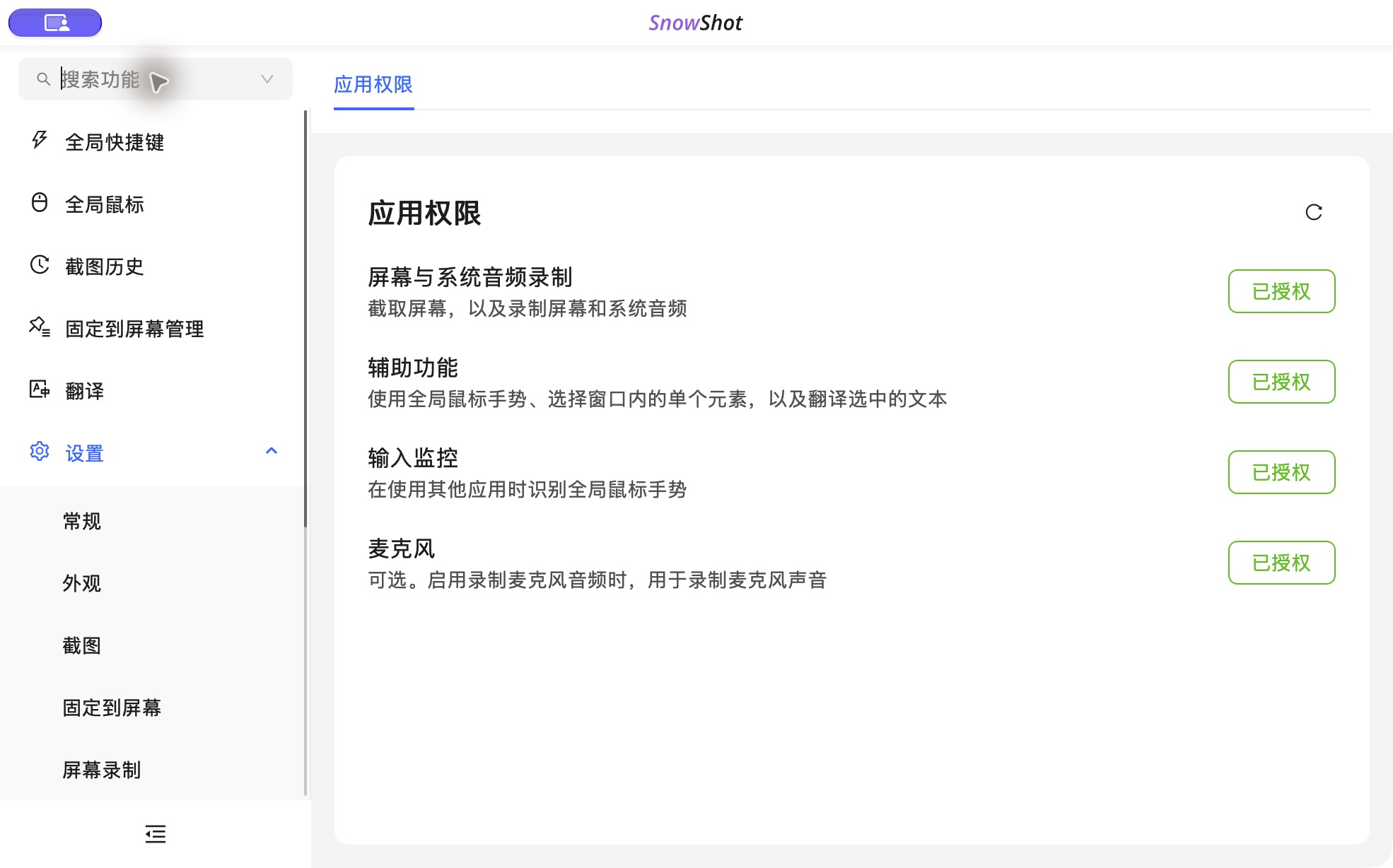
App screenshot, Chinese interface. Check the status corresponding to your task.
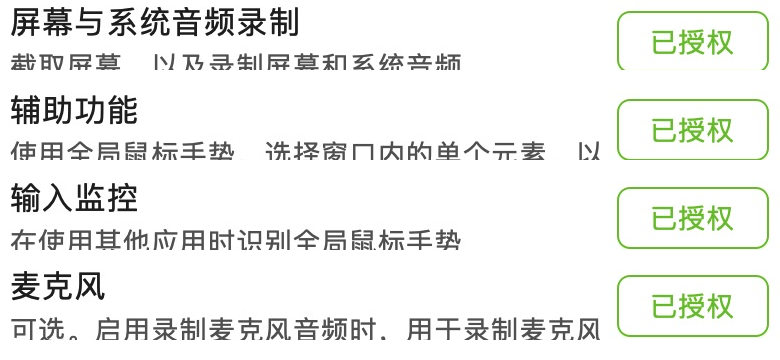
Permission details. Match each permission to a task, then check the actual result.
Check the permissions your task needs
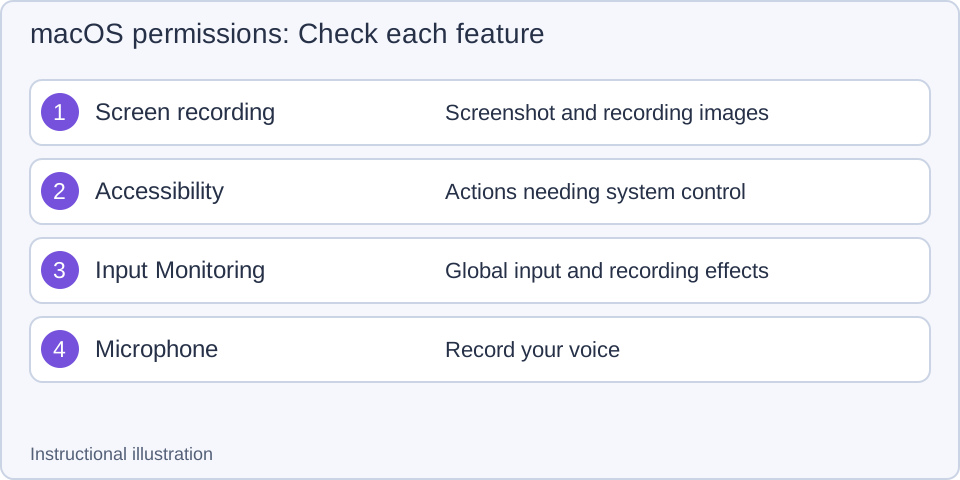
Teaching diagram. One permission does not grant the others; microphone access does not prove system audio was recorded.
Camera permission is relevant when you enable camera features. Camera, microphone and system audio are separate inputs; see audio and camera.
Match the system entry to the running app
- Open the relevant section of System Settings → Privacy & Security from the app. Labels can vary with macOS version.
- Verify which Snow Shot copy is running. Applications, a mounted DMG and test folders can contain different copies with the same display name.
- Allow the required item as instructed by macOS. If it requests quit-and-reopen, finish editing or recording before restarting the correct copy.
- Read the app's status again and perform the task. Updated status and successful operation are separate checks.
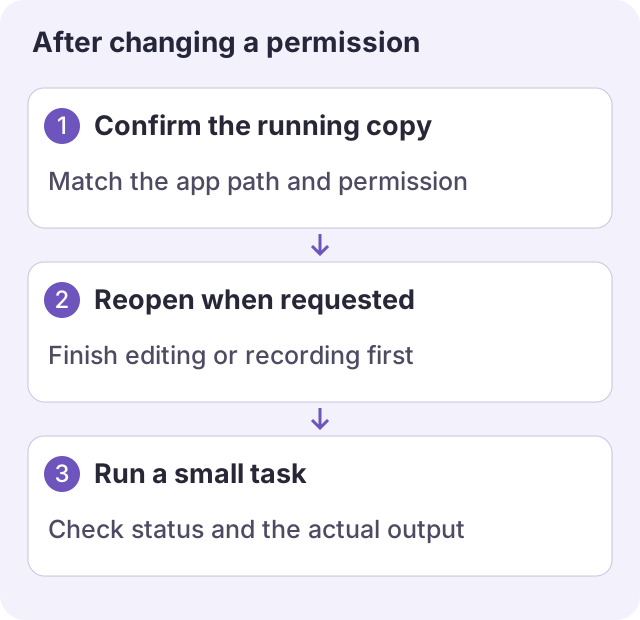
Teaching diagram. Repeat the task after restarting; a switch alone is not an operational result.
Avoid disabling other apps' permissions or deleting whole system permission records. With multiple copies, quit the unnecessary copy, launch your intended version from Applications and test again.
Use a minimal test to separate causes
Capture part of an ordinary window. New configurations use Control+1, not Command+1; direct invocation from the main action row also rules out the key binding. Save a PNG, reopen it and verify it is the new file.
- Direct action works but the shortcut fails: check binding, registration and fullscreen rules.
- Ordinary windows work but a specific video/app is blank: retain that comparison. Protected content may not be capturable; repeated authorization cannot guarantee a fix.
- Permission looks granted but all capture still fails after restarting: check the running path and system version, record the error and try one small ordinary region.
- The image is fine but audio is missing: check recording devices, mute state and relevant permissions. A screenshot cannot verify audio.
For a report, include macOS/app version, chip architecture, Full/Mini, app path, failed action, permission states and ordinary-window comparison. Review an archive from the diagnostics guide before sharing it through official Issues. Permission manual · Download · Changelog.