
Where Are My Screenshots? Copy, Save and Export
Snow Shot sends screenshots to the clipboard, a folder you choose, or the preset Quick save folder, depending on the action. If you cannot find an image, start by identifying that action, then paste it or open the saved file. The steps below cover image output on Windows and macOS; OCR text and recordings use different output paths.
Identify the action you used
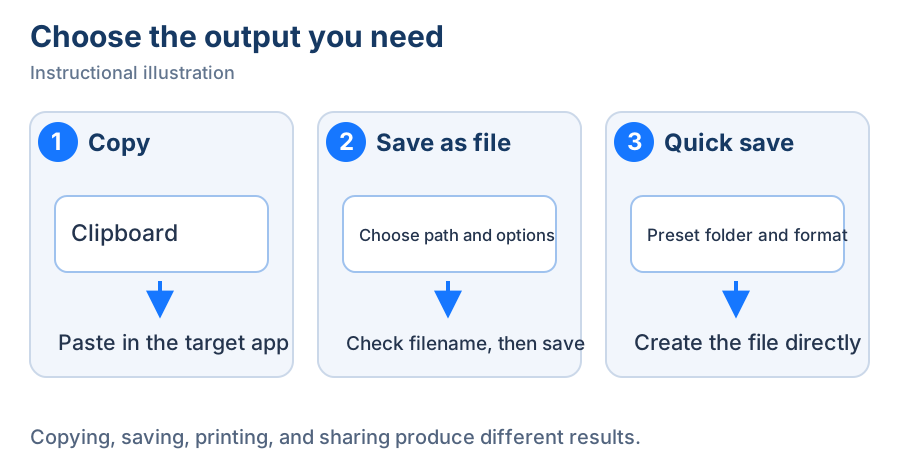
Teaching diagram. Clipboard content and a persistent file need separate checks.
After copy, first paste into your target chat, document or image app. Do not assume a file was written to Downloads. If you get text or a path, check whether OCR text is selected and which clipboard types the destination accepts.
Obtain a separate file with Save as file
- Finish the region or annotation and click Save as file. New configurations use the system dialog.
- Choose a writable, recognizable folder and a new name. Start with a PNG containing text so lossy compression does not complicate the check.
- If a file already exists, inspect it before replacing it. Cancel and choose another name to keep both.
- Reopen the saved file and inspect text, edges and pixel dimensions. Canceling does not create a substitute file elsewhere.
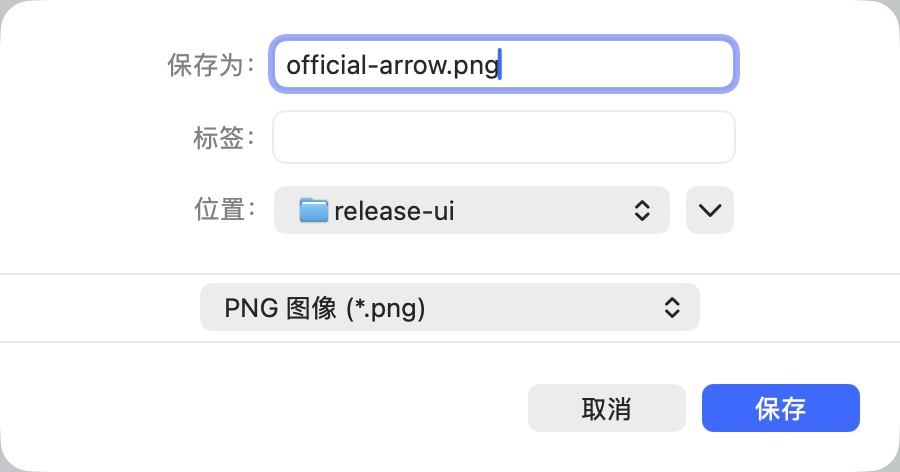
Check folder, name and format together before confirming. The screenshot uses a Chinese system dialog.
For resizing and advanced encoding, choose the Snow Shot dialog under Settings → Export & storage → Image export → Save as file dialog. Its controls differ from the system dialog. Choose pixels or percent, lock the aspect ratio when needed and inspect the preview. PNG, JPEG, WebP, JPEG XL, AVIF, TIFF and PDF expose different options and have different recipient compatibility. See the output manual.
Use Quick save with a known folder
Under Settings → Export & storage → Image export, check the image folder, format, quality/compression and automatic filename pattern. Set a clear writable location, then run Quick save once. Sort the folder by modification time and inspect the new file, not an older one with a similar name.
Auto-save after action can separately save copies of screenshots, scrolling captures and pins. Copy writes an additional file only when its relevant scenario is selected. Copy image file to clipboard provides file data as well as image data; the destination still decides which type it accepts.
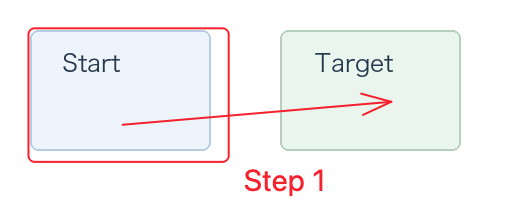
Actual exported result. Check the arrow, rectangle and label for completeness.
Viewing scale and output dimensions differ. The editor's 100%/Fit controls change the view; width and height in export change output dimensions. A chat preview displaying an image smaller does not establish that the local file lost pixels.
If saving, pasting or finding the result fails
If the local PNG is correct but a chat preview is wrong, retain the original and compare attaching the file with pasting. Avoid repeatedly lowering the original's quality to troubleshoot a recipient preview. For editable text use OCR to TXT; for retained captures see history.
A useful report includes version, OS, action, dialog type, format, dimensions, error and whether a small PNG can be saved. Share a sanitized sample rather than private paths. Download · Changelog · Export logs.