
Full or Mini? Choose the Right Installer
Choose a Snow Shot installer by operating system, processor and the features you need. This guide compares Full and Mini, online and offline packages, then checks capture and OCR after installation. Mini is smaller, but its available features and resource preparation differ from Full.
First: identify the system and processor
On Windows, check Settings → System → About for x64 or ARM64. On a Mac, use Apple menu → About This Mac: Apple silicon uses arm64 and Intel uses x86_64. macOS requires 15 or later. There is no Intel Mac Mini package.
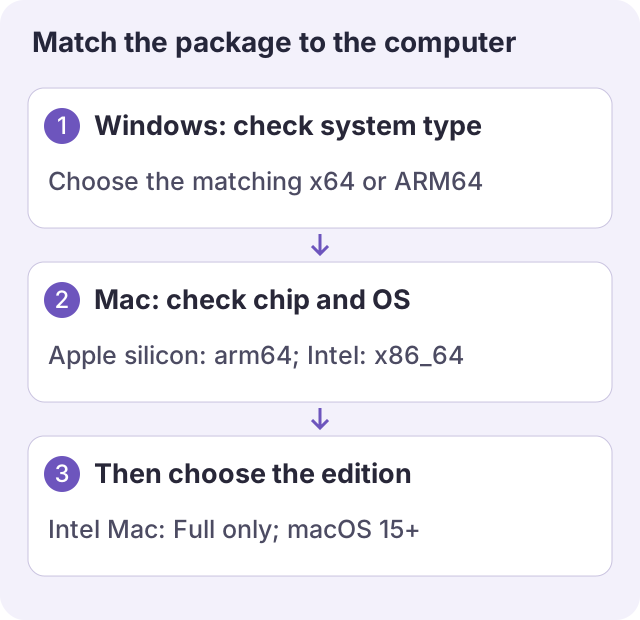
Teaching diagram. Establish architecture before choosing Full or Mini, so incompatibility is not mistaken for a broken installer.
Open Download, select OS, processor and edition, then verify the filename. Look for windows-x64, windows-arm64, macos-arm64 or macos-x86_64. File size alone is not a compatibility check.
Second: choose the edition for your tasks
Mini may hide OCR from the default screenshot toolbar. Use its main action or add Text recognition to the toolbar. A missing icon does not establish that ordinary OCR is unavailable. Conversely, local OCR working does not verify online translation or other conversion services; see OCR troubleshooting.
Third: choose the installation format
For ordinary Windows use, choose an online installer matching your processor. Before entering an offline environment that needs default OCR resources, choose the Full offline installer. Mini has no Windows offline installer; prepare and test its OCR while connected. Extract an entire portable ZIP to a writable folder rather than pulling out only the executable.
On a Mac, open the DMG, drag the app into Applications and start it there. Apple silicon offers Full and Mini; Intel offers Full. Ordinary manual installation does not mean opening -update.zip, .json, .sha256 or -homebrew.tar.gz as installers.
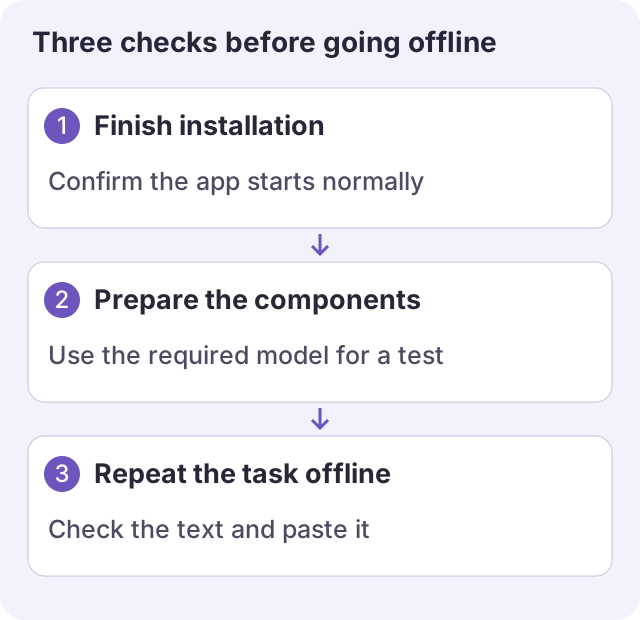
Teaching diagram. An offline installer and a verified offline task are different checks.
Fourth: run two small checks after starting
- Open the main window from the tray or macOS menu bar and find Screenshot. New defaults are F1 on Windows and Control+1 on macOS. If the key fails, invoke the row directly, then follow shortcut checks.
- Capture a small non-sensitive ordinary window, paste it into a document or save a PNG, and check content and boundaries. On macOS, follow permission guidance.
- For OCR, recognize a few clear lines, finish component preparation, inspect and copy the text. Before relying on offline use, disconnect and repeat that task. A screenshot cannot substitute for a recognition test.
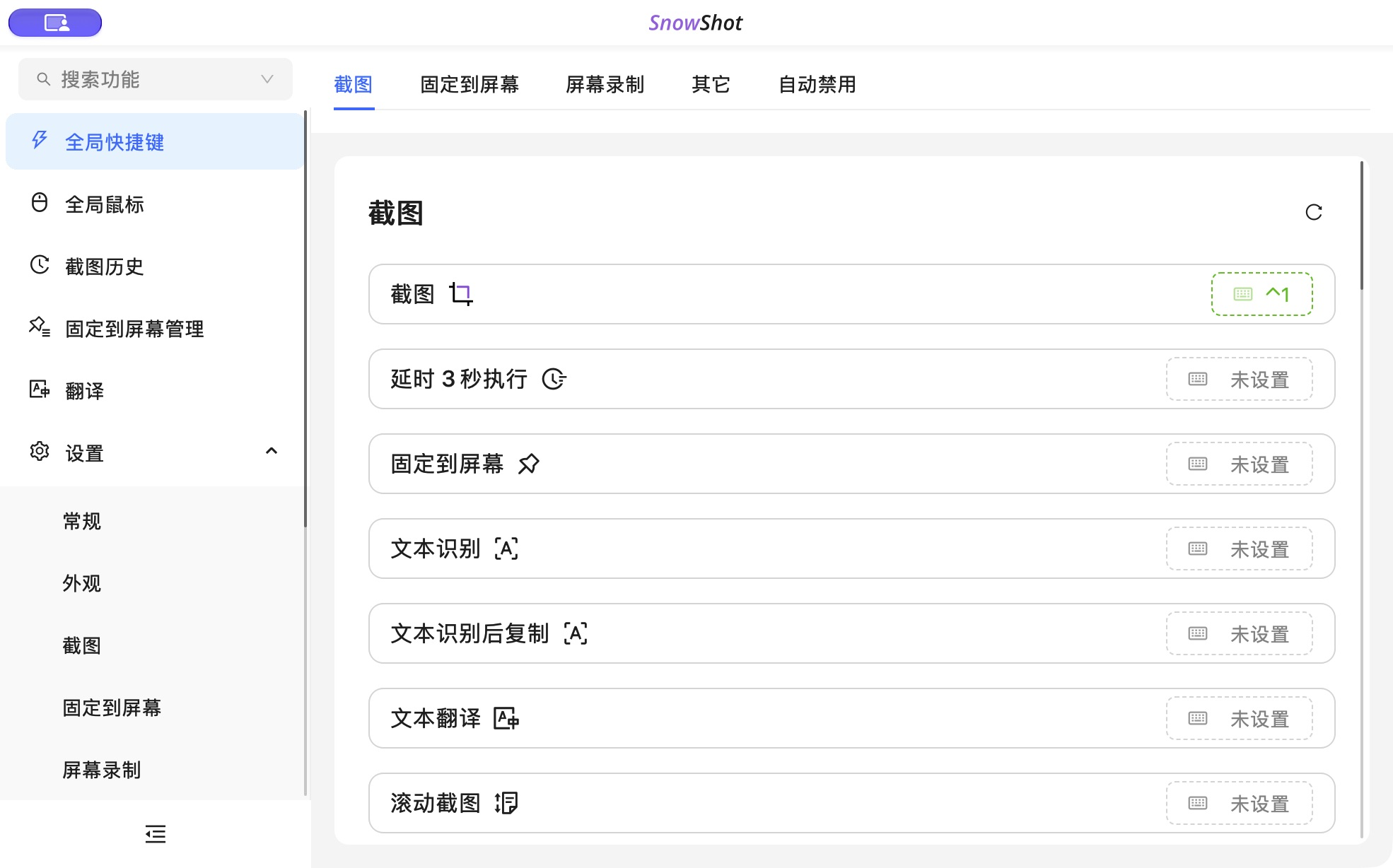
App screenshot, Chinese interface. The title invokes the action; the key button configures it. Interface language is adjustable in Settings.

App detail. The title runs the action; the button configures its key.
Prepare any other OCR model or recording component while connected too. Default OCR resources do not establish that every model, recording input or online service is ready.
If the installed app still behaves unexpectedly
For incompatibility, recheck system information and architecture. If the version appears unchanged, check for an old portable folder or DMG copy. With multiple copies, quit the old process and launch the intended location.
Before updating, finish editing or recording and save important outputs. Website installations update through the app's prompt or download page. Keep App Store/package-manager installations on their original channel. On macOS, automatic update checking does not mean the app is silently replaced in the background. See installation and updates.
For installation reports, include OS, processor, Full/Mini, complete filename, channel and error. Recognition reports also need model and preparation state. Download · Changelog · Logs and storage.