
Screenshot Shortcut Not Working? Troubleshooting
If a Snow Shot screenshot shortcut does not respond on Windows or macOS, try the same action from the main window first. If it runs, check the key binding, registration, focus and automatic disable rules below. Global shortcuts, app shortcuts and global mouse actions have different entry conditions.
First: run the action without its shortcut
Search the main window for Screenshot or Text recognition, select the result, then click the action row's title or empty area. The key button on the right configures a binding. If direct invocation works, investigate the binding. If both fail, check the action's permissions, components and input requirements first.
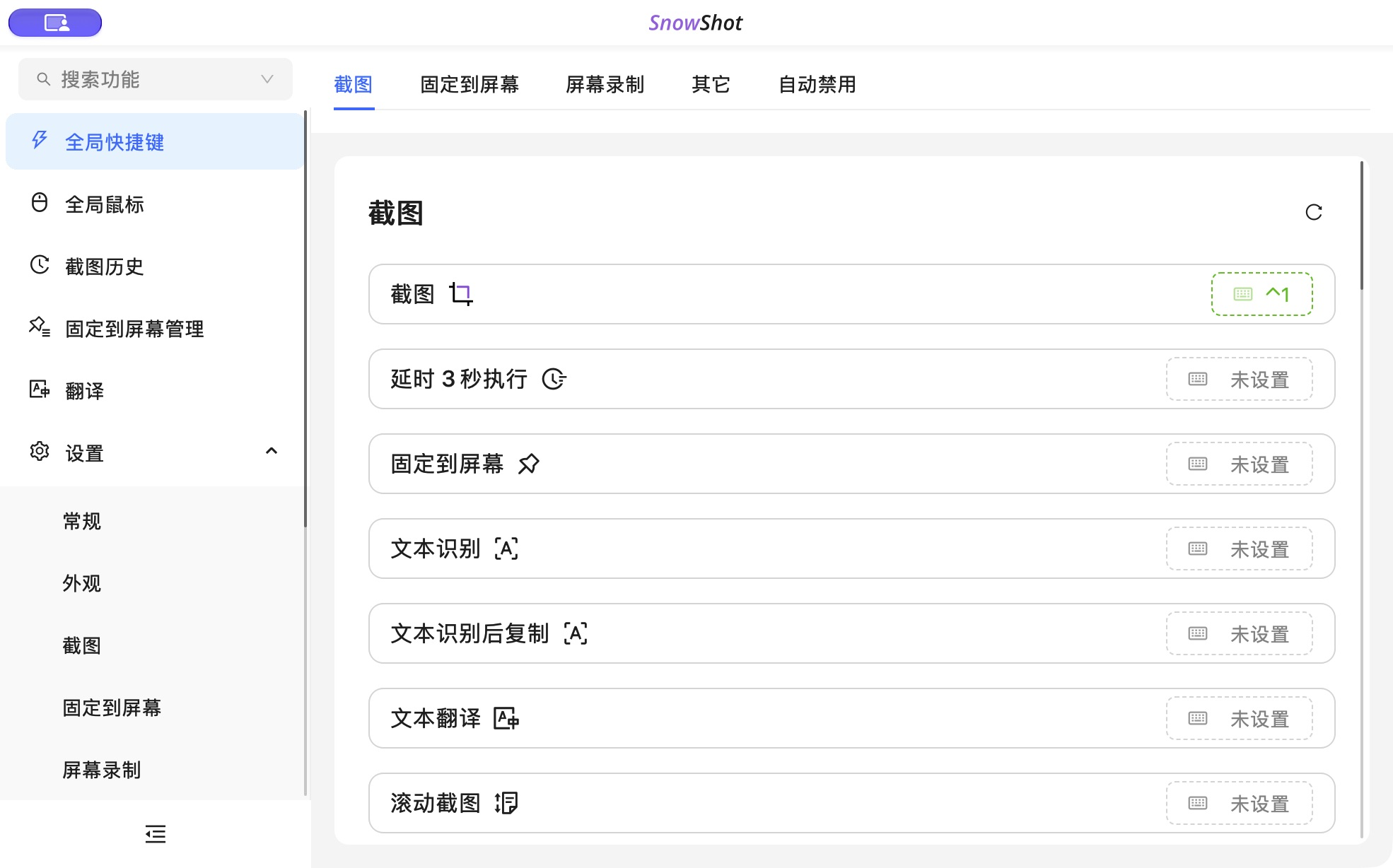
The action title invokes the task; the key button configures it. Screenshot is 截图 in this Chinese interface.

App detail. The title runs the action; the button configures its key.
These are common defaults for new configurations; your settings take precedence:
Control and Command differ on macOS. If a Windows keyboard sends a hardware function instead of F1, check whether Fn is needed. An alternative test combination can avoid changing the keyboard's overall mode.
Second: verify registration
- Open Global shortcuts, find the exact action and click its key button.
- Select the key entry and press the intended combination. Change it if the dialog reports a conflict or unsupported key.
- Click OK, close configuration and inspect the row's status. Cancel discards the draft.
- Switch to an ordinary app and test whether the capture, text result or pin appears.
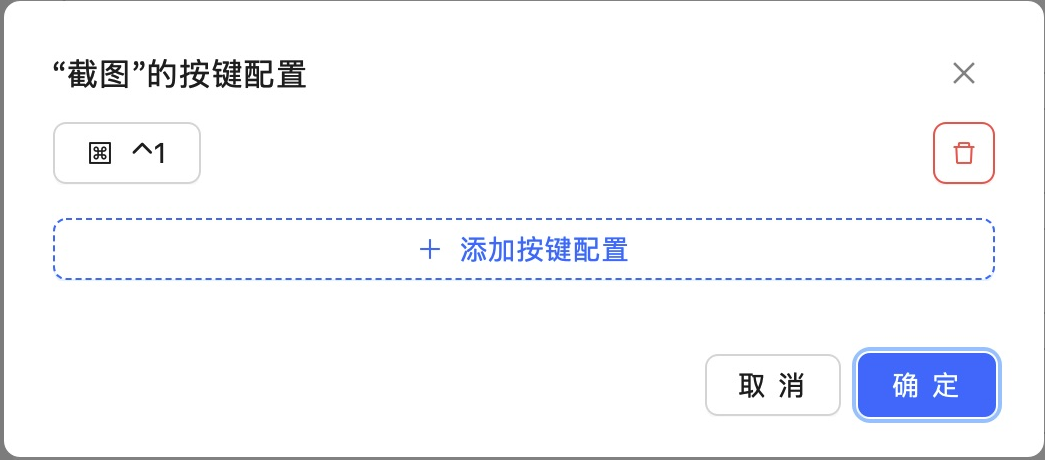
Actual app screenshot. Related global keys are temporarily released while configuration is open; test after closing it.
Registered means the OS accepted the binding. Partially registered means some combinations failed. Registration failed calls for inspecting conflicts or rejection. Not configured needs a binding; Temporarily disabled needs re-enabling. If another capture tool uses the combination, release it there or change Snow Shot's key; uninstalling an app is unnecessary for this test.
Third: check the intended window and input focus
Keys under Settings → App shortcuts depend on the window and state. L inside a capture opens scrolling capture; it is not a system-wide entry. Assign a separate binding to the global Scrolling screenshot action to invoke it from another app.
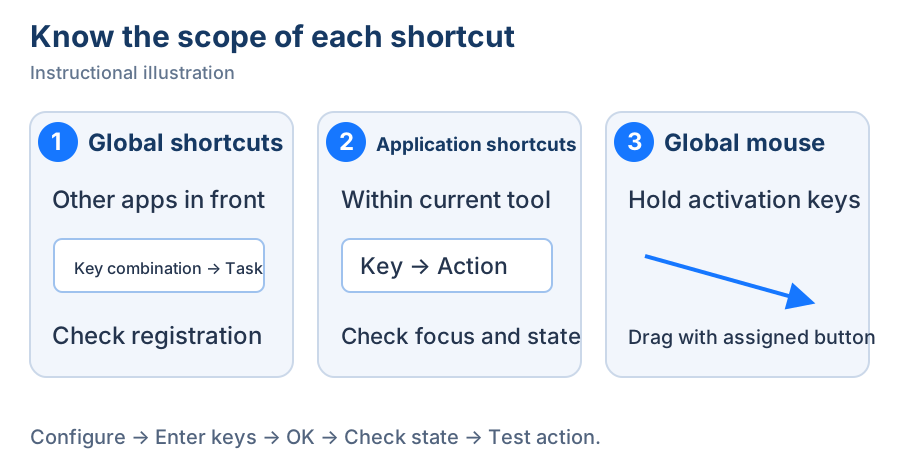
Teaching diagram. Establish scope before checking focus and permissions.
With a text field focused, letter keys may enter text. Finish input and try the tool button. If the button works but a single key does not, inspect the active window and tool state. Recording start/pause/resume also depends on recording state; the same key does not imply the same next result.
Fourth: rule out disabling rules and system conditions
Leave a fullscreen game or app and test again. If that restores the shortcut, inspect fullscreen rules under Global shortcuts → Auto disable. Check the tray and action status for deliberate disabling, then re-enable. Repeatedly rebinding a temporarily disabled action misses the cause.
macOS global mouse actions need relevant permissions; some input effects have additional conditions. Follow the permissions checks for the task you need. A local text-tool key failing does not justify granting every permission again.
If it still fails, record OS/version, exact keys (including Control/Command and Fn), action name, registration status, foreground app, fullscreen state and whether direct row invocation works. Compare one unused combination, then attach logs to an official issue. See the shortcut manual, Changelog and Download.