
Fix Repeated or Missing Lines in Scrolling Screenshots
For repeated headers, misaligned text or missing lines in a Snow Shot scrolling screenshot, first exclude fixed controls and try a short, slow capture. These checks apply on Windows and macOS. Scrolling capture matches overlapping images; loading content, shifting layout or an incorrect selection can prevent a clean stitch. Inspect a short result before capturing more.
Distinguish stitching from viewing scale
Enlarge the saved image and locate the first bad seam. If the file is complete but a chat preview is too small, use long-image splitting. If the file itself has repeated or missing lines, recapture in the following order. Keep the original as a comparison rather than repeatedly cropping your only copy.
1. Select only the scrolling content
Let images and asynchronous content settle, then return to your starting point. Start a capture (new configurations use F1 on Windows and Control+1 on macOS), select the article or list, and exclude fixed headers, sidebars, chat input and scrollbars. Click Scrolling screenshot, or press the default local L while capturing.
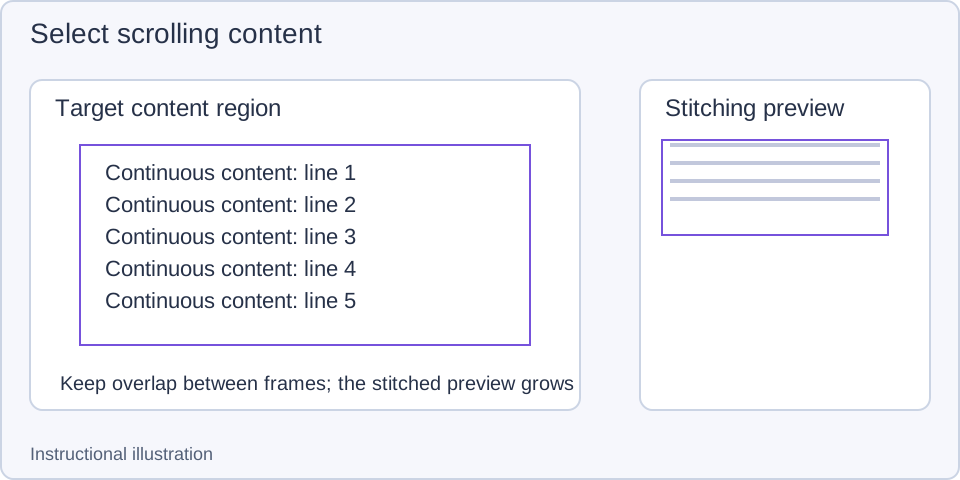
Teaching diagram. Fixed content repeats in every frame and can interfere with seam matching.
For a system-wide entry, assign a combination to Scrolling screenshot under Global shortcuts. This differs from L inside a capture. A search result locates the row; clicking the action title runs it.
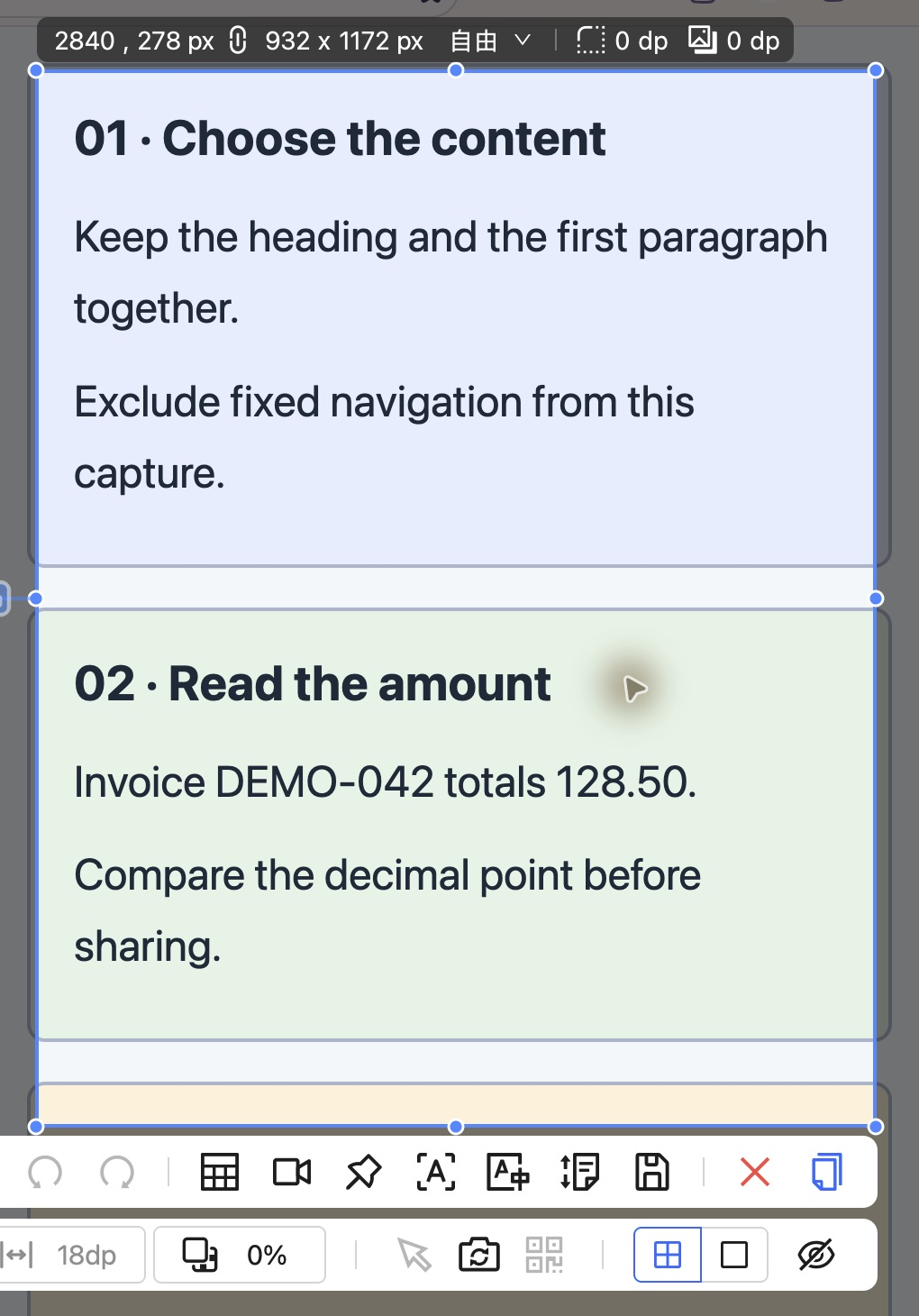
App screenshot. Check that the region contains the intended content before entering scrolling mode.
2. Test small manual scrolls before automation
Choose Vertical scrolling or Horizontal scrolling, place the pointer inside the target content and scroll gently in small steps. Retain some common content between frames. Inspect two or three additions: new lines should join the previous ending continuously.
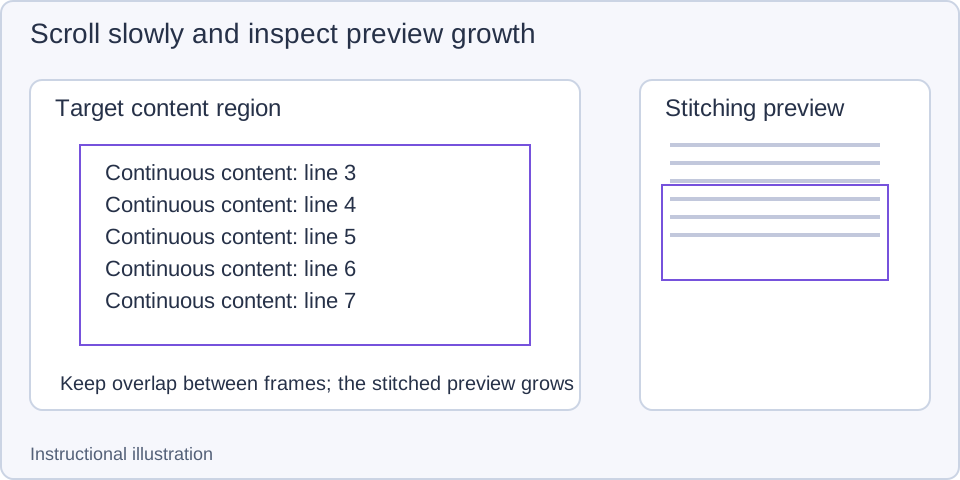
Teaching diagram. Confirm the correct panel moves before extending the capture.
Once the manual test is stable, try Auto scroll. Click it again to stop automated input and inspect the retained result. Auto-scroll interval supports 128–1000 ms, defaults to 200 ms, and resets when clicked. Increase it for slowly updating content. The interval changes input timing, not image quality or which panel receives input.
A wide table must actually move horizontally in its host app. Check that app's horizontal scrolling method if your mouse lacks a horizontal wheel. Start a fresh short test after changing direction or substantially moving the selection.
3. Match the remedy to the symptom
Change one condition and compare from the same starting point. Virtual lists replace visible content; videos and animation change pixels continuously. If a short test remains unstable, use ordered ordinary captures in pieces rather than treating an unchecked long image as a complete record.
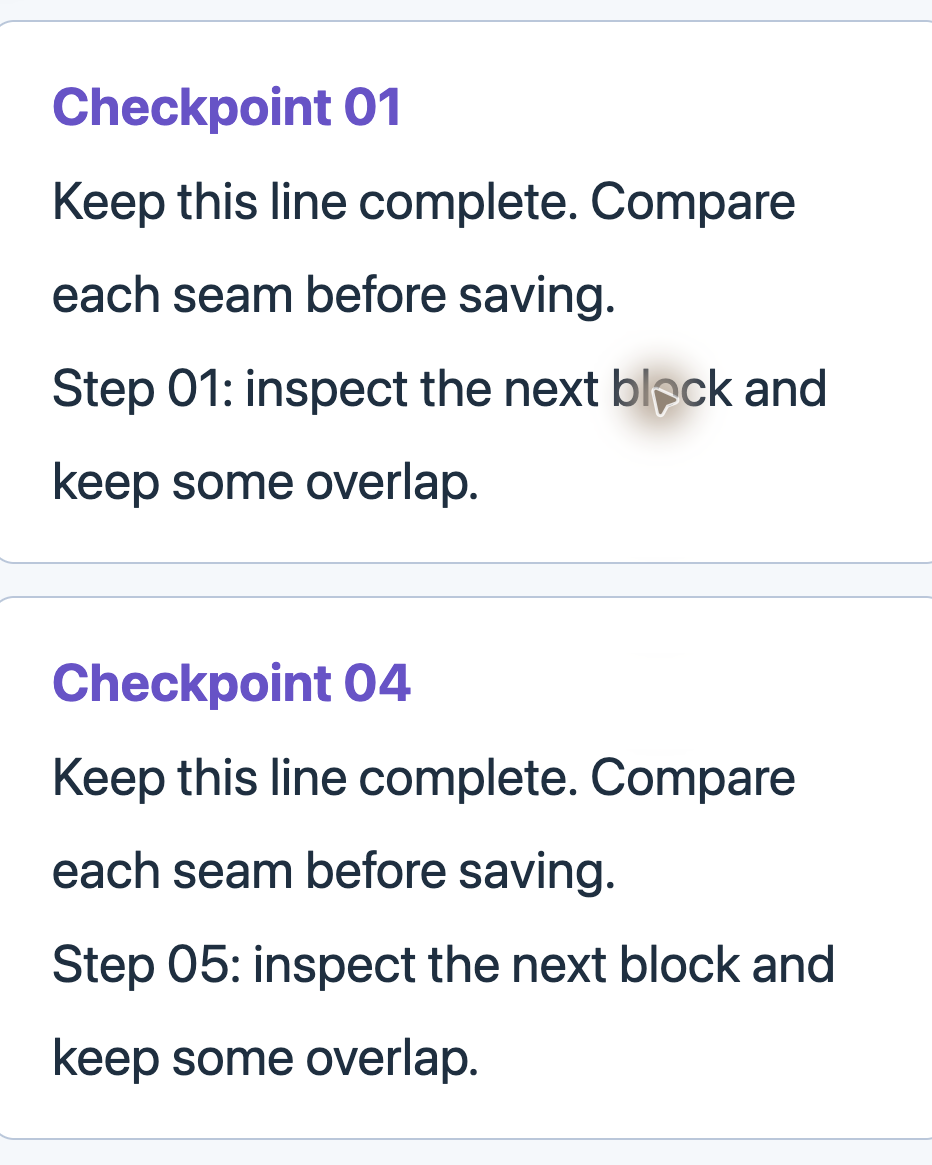
Actual failed-output detail. The jump from 01 to 04 and the mismatched step number require a retry or separate captures before sharing.
4. Review the preview before trimming its ends
Stop auto scrolling first. Browse the preview and inspect seams. Scrolling inside the preview reviews existing content; it does not capture more of the source. Drag the preview's beginning/end crop boundaries to remove excess content, then check what remains.
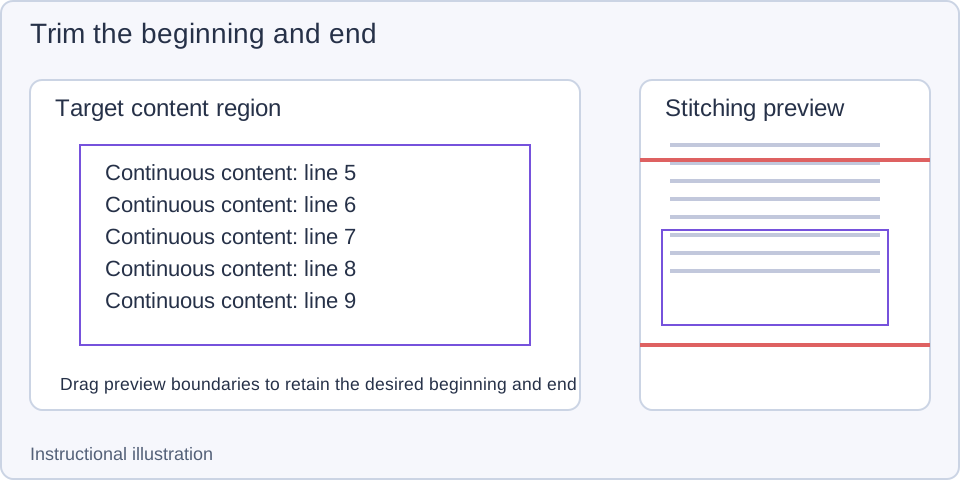
Teaching diagram. Trimming the ends cannot restore missing lines in the middle.
Keep window size, page zoom and display configuration stable. If toolbars appear in output, inspect the selection and Capture interface during scrolling screenshot in capture settings, confirm any prompt and test again.
5. Inspect the exported top, middle and bottom
Use Save as file or Copy to clipboard. Reopen the file or paste into the destination. Check the first passage, each seam and the final passage: a tall preview alone does not establish completeness. Use Image editing for annotations or Image split for smaller shareable pieces.
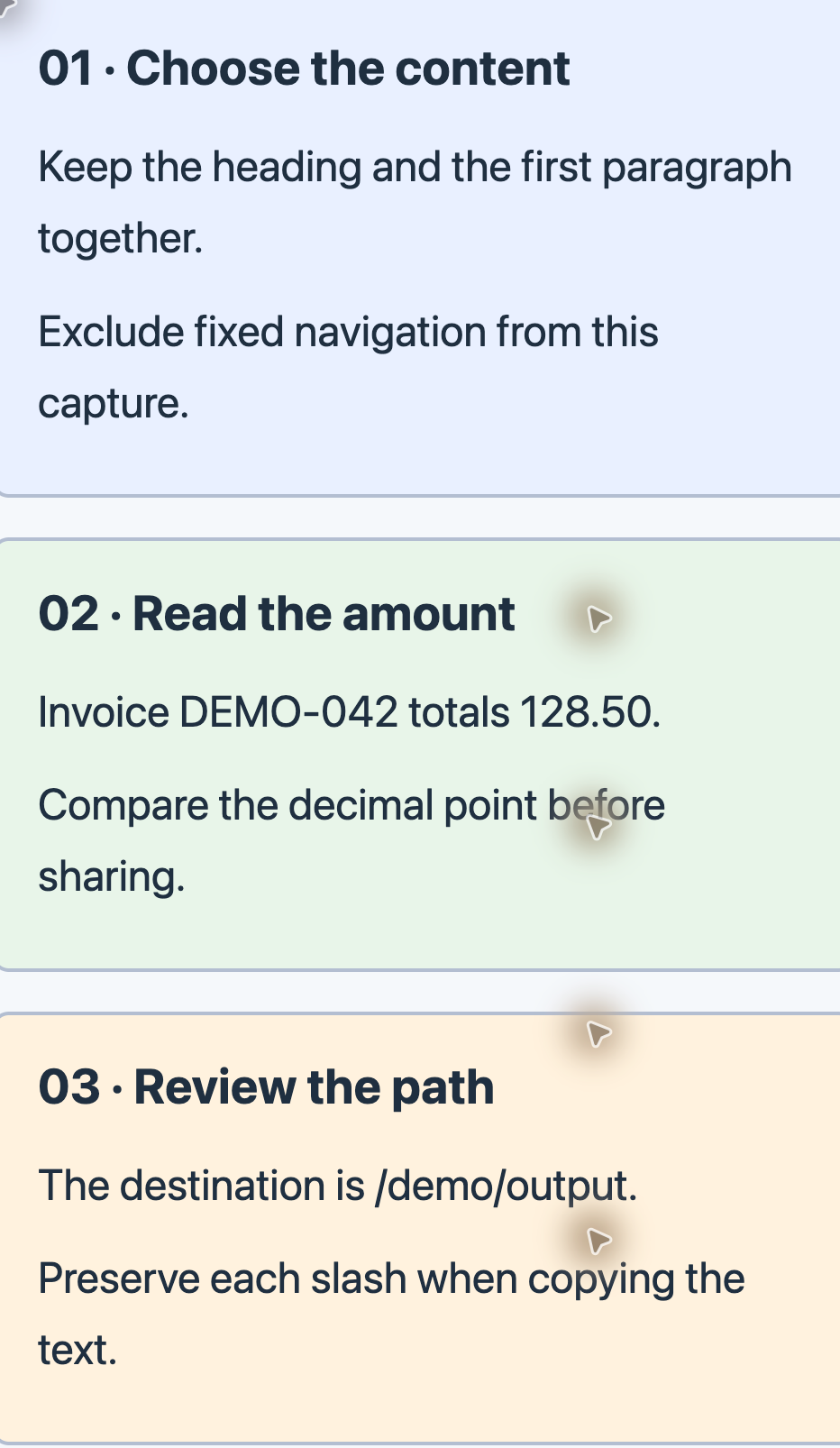
Actual output detail. Check each line after small scroll steps: the sequence is continuous, and 128.50 and /demo/output remain complete.
For a report, include OS/app version, target app and content type, direction, region, manual/auto mode, interval, page zoom and a sanitized seam example. A source/result comparison is more useful than an unsupported claim that stitching failed. Scrolling manual · Export logs · Download · Changelog.