
What changed between Snow Shot 1.5.2 and 1.6.0?
If you're upgrading from Snow Shot 1.5.2, you can spend less time fixing line breaks after copying a passage from a screenshot. When you record a walkthrough, the frame can follow your mouse to the next button. And when someone sends you a picture to mark up, you can copy it straight into the editor.
Copy a whole paragraph or keep just the lines you need
A sentence that wraps across five lines in a narrow window can take a few edits to put back together in your notes. Choose Smart typesetting in the text recognition results and Snow Shot joins lines that belong to the same paragraph. When you select just a few lines and copy them, the line breaks in your selection carry over.
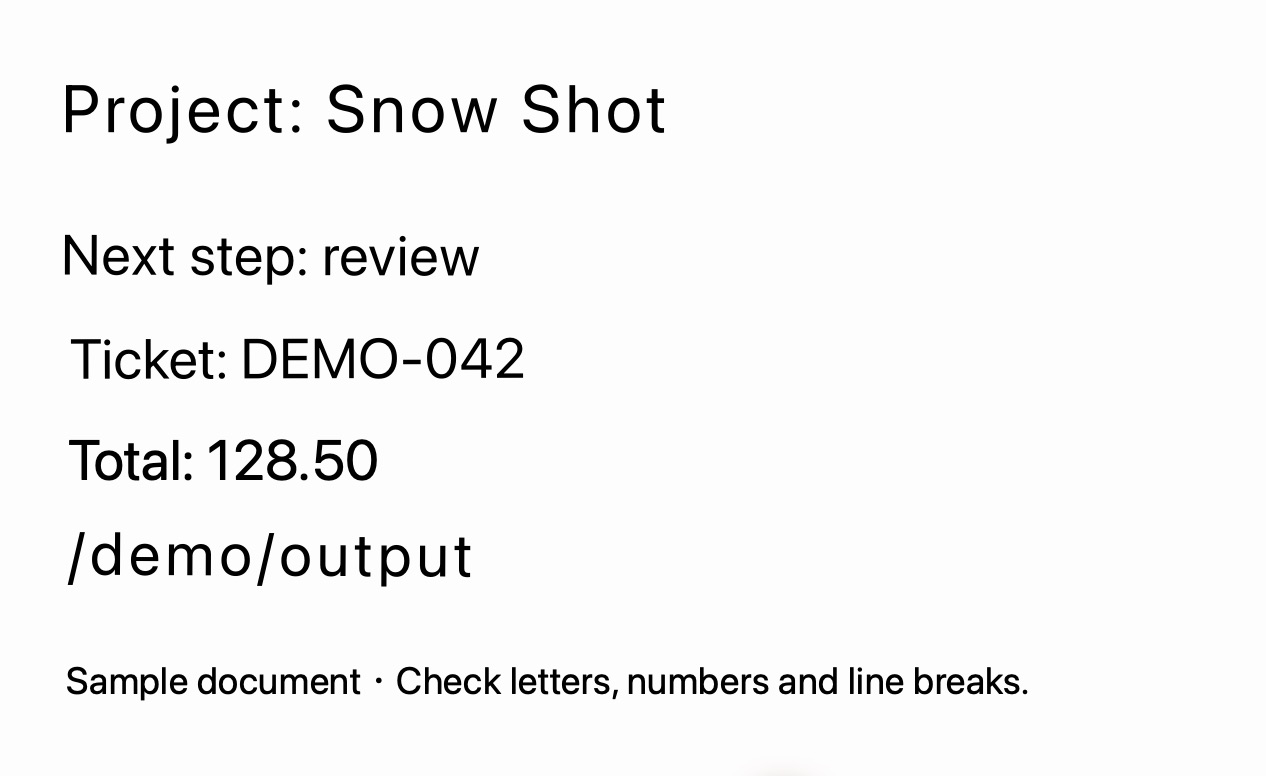
For example, select the ticket and total in the image above. You can paste those two lines into a message on separate lines and leave out the project name and file path.
In the Full edition, translated screenshots are easier to read alongside the original. Smart merge uses the position of the text to keep columns apart and list items together. Translated text also stays closer to its original position when you zoom in or reopen an older pin. Fast Translation is now available in the list of translation services.
Turn a page of text, tables and equations into one document
Suppose a lecture slide has a table at the top and an equation with a few lines of explanation below it. In the Full edition, capture the page and choose Document recognition to extract them together. This uses an online service. Export to Word to edit the table or add a comment, choose PDF to share a copy, or save as Markdown for your notes.
You can also choose a recognition model for individual tables and equations or for converting an image to Markdown or HTML. The Account page shows your available credits and usage history for online services.
Keep the next click in the recording
When recording a small part of your screen, select the area and turn on Follow mouse. As you move from a menu on the left toward a button on the right, the frame starts moving when the pointer nears its edge. You can show both clicks in one recording.
Turn on Smooth movement for a gentler pan. You can see the current recording outline as you work, and the frame catches up when you move the pointer quickly. This update also fixes an offset between the outline and the area actually recorded.
Paste an image to mark it up, or keep working on a finished collage
Copy a picture from a chat, open the image editor and press Ctrl+V (⌘V on Mac) to start annotating. You can also set Toolbar drop behavior in Settings. The next time you drop an image on the floating toolbar, Snow Shot can pin it or open it for editing, stitching or splitting, depending on the action you chose.
When you number the steps in a screenshot, the cursor shows which number comes next. Place a marker, then hold Shift and drag from it toward the detail you want to point out. The arrow stays attached to the number. When drawing connected lines, nearby endpoints snap together. You can also save your favorite highlight colors and share colors across tools for new annotations.
After stitching screenshots into one long image, you can open the result directly in the editor to label it. When exporting a collage to PDF, keep lossless quality for small print or lower the image quality for a smaller file when sharing photos.
A few changes to capture, settings and updates
- Size screenshots for sharing. For example, on a display set to 200% scaling, choose 50% under HiDPI image scaling before pasting a capture into a document. The setting applies to both copied and saved screenshots.
- Finish a smart selection with the middle mouse button. Set the middle-click action to copy, point at the window you want, then press the scroll wheel once the selection outlines it. For fullscreen presentations or games, you can also pause Snow Shot's global mouse actions or shortcuts to avoid triggering them by accident.
- Choose how Snow Shot uses power on Windows. Under Power QoS in Settings, choose Performance, Normal or Power saving. On battery, you can switch Snow Shot to Power saving independently of other apps.
- On a Mac running 1.5.2, install 1.6.0 manually once. Starting with 1.5.9, Snow Shot can download and install subsequent updates in the app. You can check manually under About. macOS may ask for permissions again after the upgrade. To open Snow Shot at login, enable the option in Settings.