
How to Annotate Screenshots with Arrows and Text
Use Snow Shot on Windows and macOS to add arrows and text directly in the screenshot window. Select the problem area, point to the relevant detail, add a short explanation, then copy or save the image. Practice with non-sensitive content first. To extract existing text rather than add a note, use text recognition.
Retain enough context
Display the relevant interface and start a capture (new configurations use F1 on Windows and Control+1 on macOS). Include the problem and nearby context. A nameless isolated button is hard to diagnose; unrelated chats, accounts and notifications add unnecessary exposure. Check the boundary before annotating so important text is not outside the image.
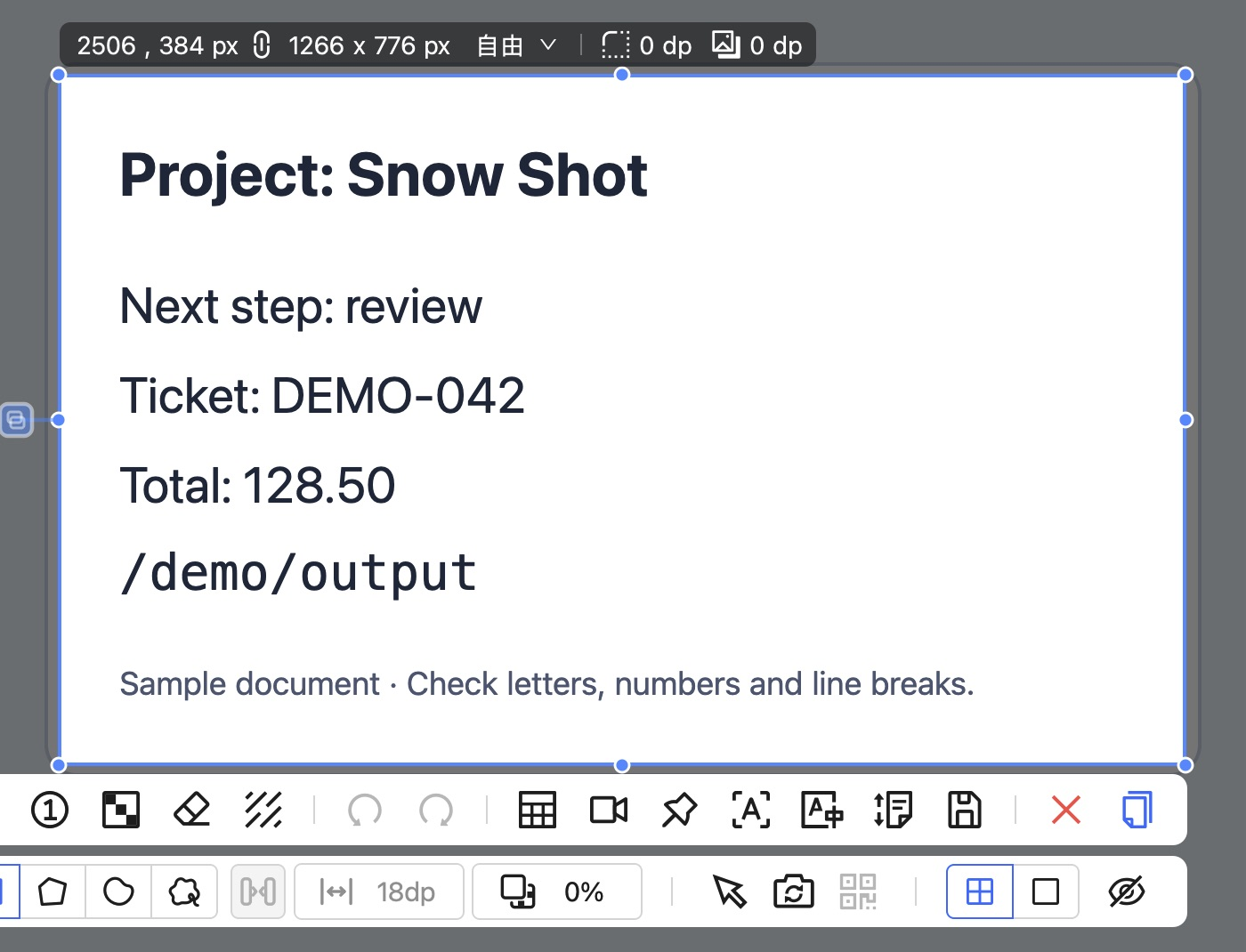
App screenshot. The toolbar provides arrows, text and output actions. Check the selection boundary first.
Draw an arrow and check its target
- Click Arrow, choose Straight arrow in the style toolbar and select a contrasting color and suitable width.
- Drag from empty space toward the target and release. Keep the endpoint near the detail without hiding text behind a thick arrow.
- Choose Select elements, click the arrow and adjust its endpoints. For arrow-specific styles, activate the arrow tool and select the object again before changing its style.
- If a straight line crosses important text, choose Curved arrow and adjust the middle control point to route around it. Finish and check one arrow before adding more.
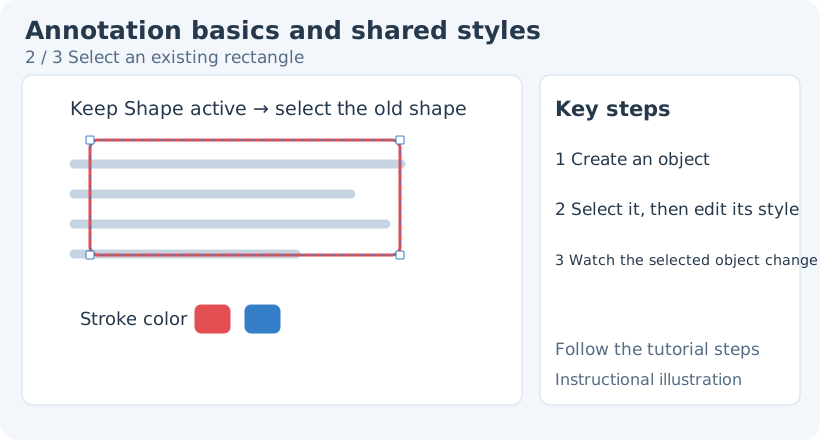
Teaching diagram. Select the existing object to change it; without a selection, style changes usually apply to the next object.
If a path follows the pointer after a click, you entered point-by-point drawing. Straight/curved arrows accept intermediate clicks and a final double-click. Press Esc to cancel an unfinished path and start again by dragging. A polyline arrow finishes on the second click instead. See the arrow manual.
Add a short explanation and finish input
Choose Text, click empty space and enter a concrete note such as “No window opens after clicking.” Describe the observed behavior rather than “wrong here.” Press Esc to finish text input, then check that the caret disappeared before switching tools.
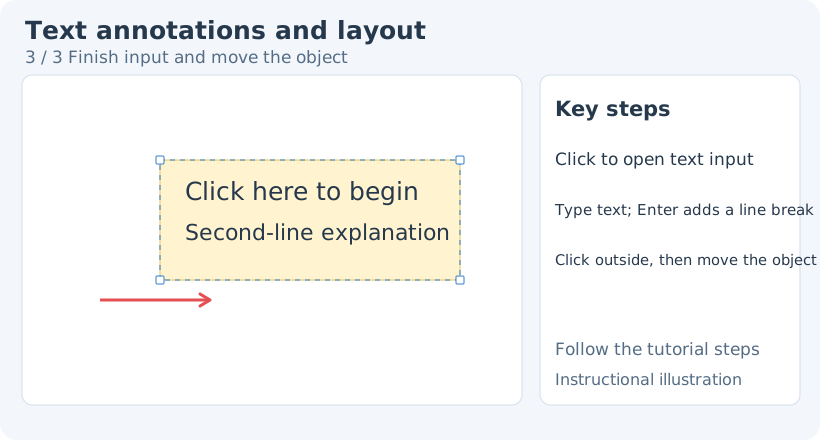
Teaching diagram. Text input and object selection are different states; arrows and deletion act differently in each.
To move text, press V for selection, click empty space to clear selection, then drag directly from an unselected label. For an already selected label, drag its boundary or padding rather than the letters or resize handles. To edit its content, select it and click again; enter text after the caret appears.
For crowded notes, shorten the sentence and reposition it before increasing size or adding a background. Keeping the original problem readable matters more than making every annotation larger. End input and select the whole object to delete it; deletion during text input changes characters.
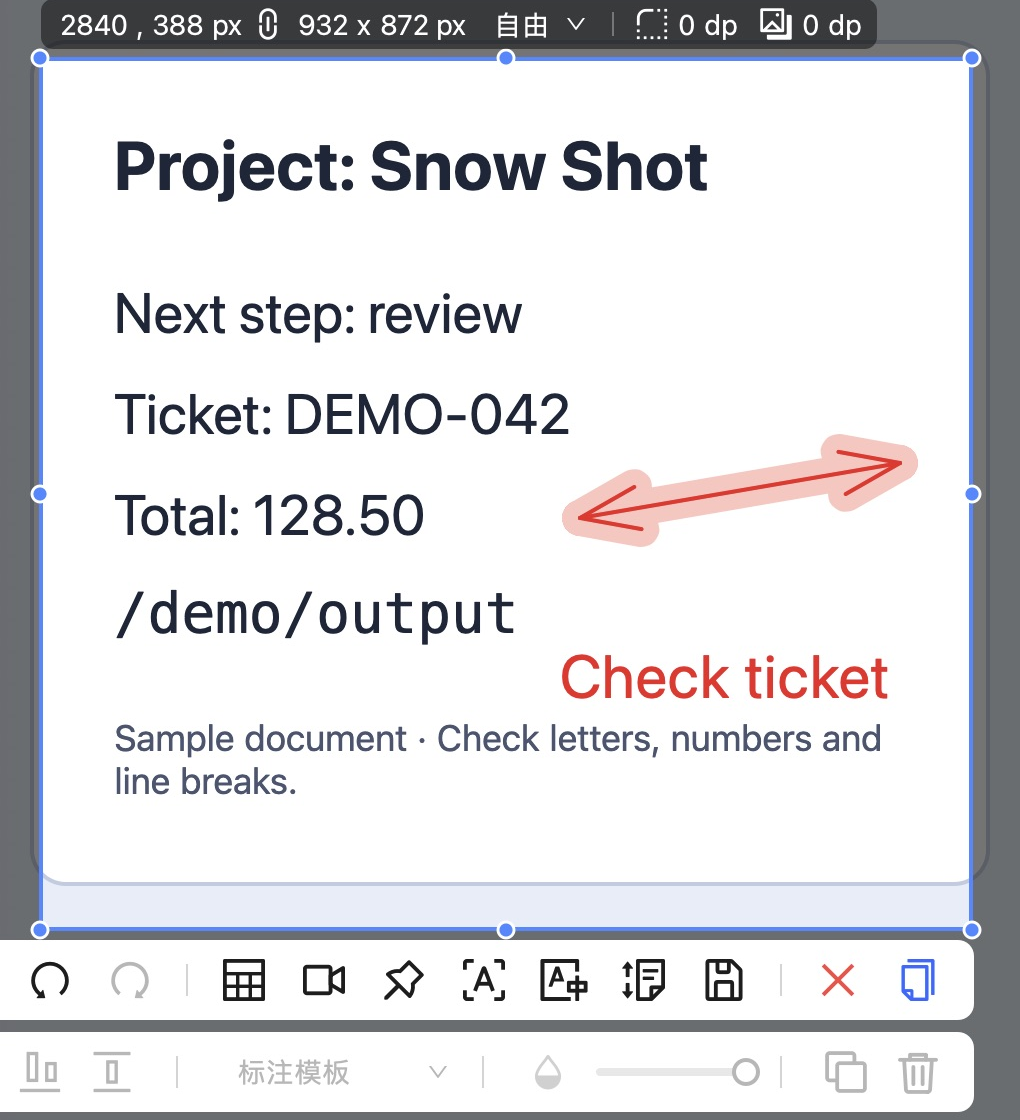
App screenshot. Move the label and arrow clear of the source text before exporting.
Verify what the recipient gets
Clear selection and inspect the result. Use Copy to clipboard and paste into the destination, or Save as file with a new PNG name and reopen it.
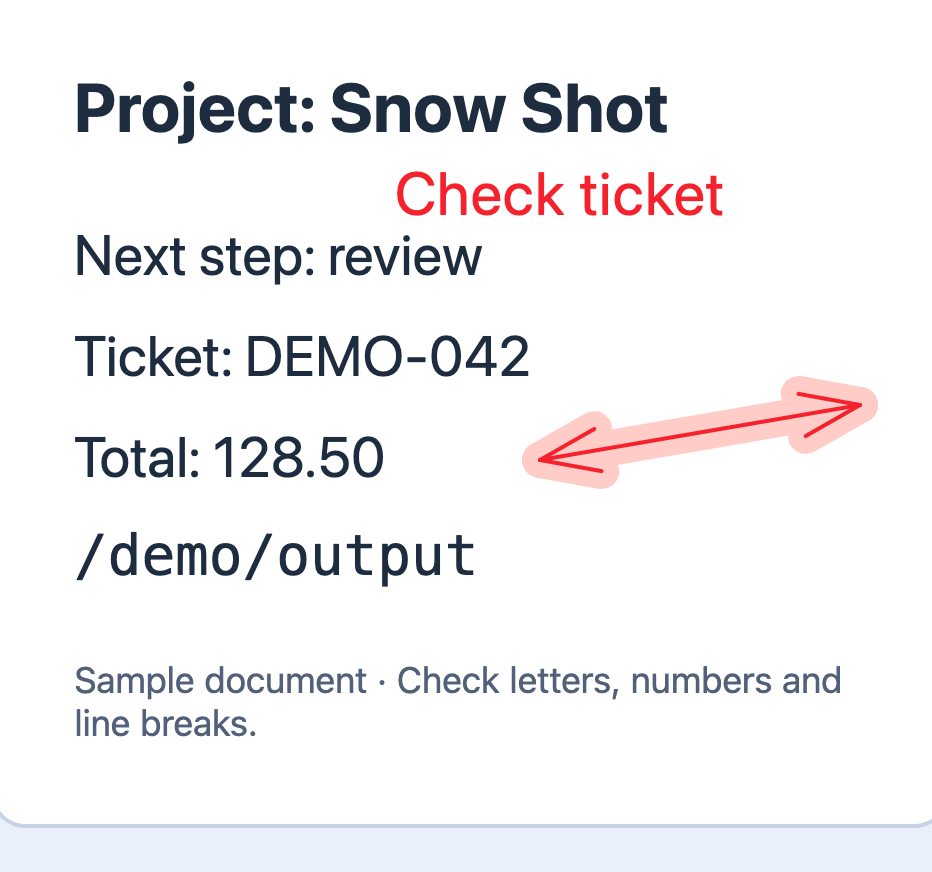
Actual exported image. The arrow points beside the amount and Check ticket adds an instruction. The ticket, amount and path remain readable.
Ask three questions: does the arrow point correctly, is the text readable in the destination, and are the boundaries complete? If the local original is correct but a chat preview is tiny, deliver it as a file attachment. A normal PNG is flattened. For later object editing, consider editable annotation handoff to pins; a flattened file does not restore original objects.
When an action behaves unexpectedly
For unresponsive tool keys, finish text input and try the button. If styling misses an old arrow, confirm it is selected. If dragging text starts editing, end input with Esc and drag from boundary padding. Use undo after a mistake before adding more annotations on top.
A useful report includes action order, tool type, whether text input was active, whether an object was selected and sanitized before/after images. Keep source and exported images to distinguish canvas problems from output problems. Annotation basics · Text layout · Download · Changelog.