
1.5.0: Keep Pinned Screenshot Annotations Editable
Keep arrows and text editable after pinning a screenshot with the setting introduced in Snow Shot 1.5.0. On Windows and macOS, enable it before making a new capture, then select and modify the original objects in the pin. This guide checks the handoff and saved output; reopening a flattened PNG cannot restore those objects.
The 1.5.0 Release was published on November 7, 2026 (UTC). It also adds a pinned-text copy button and improves pin restoration, history re-editing, number ordering and split previews.
Decide whether you need retained objects
Open Settings → Screenshot → Operation and enable Keep annotations editable after pinning to screen (固定到屏幕后保持标注可编辑). Test with a new capture after enabling it. New configurations default to off; an upgrade does not establish that your configuration has enabled it.
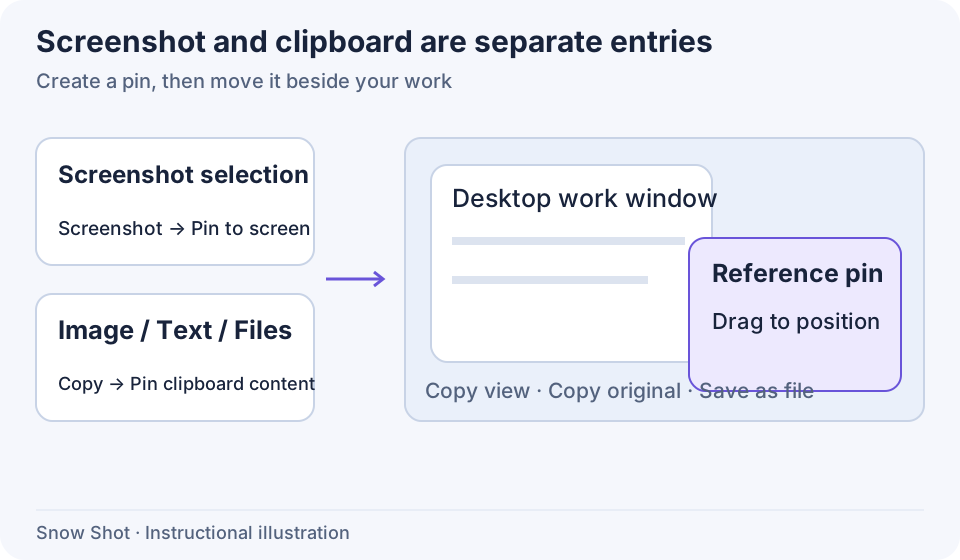
Teaching diagram. This setting controls screenshot-to-pin handoff; it does not reverse flattening in arbitrary images.

App screenshot. Test with a new capture after enabling the setting.
Run a test with an observable result
- Capture a small non-sensitive region. New configurations use F1 on Windows and Control+1 on macOS; check your actual global binding.
- Add an arrow and a label, finish text input, then click Pin to screen.
- Enter annotation mode on the pin, activate the relevant tool and select the original arrow. Look for endpoints or an object boundary, then change it. Check the original text object too.
- Use the undo and redo buttons to confirm the change. Merely seeing an image window does not verify object handoff.
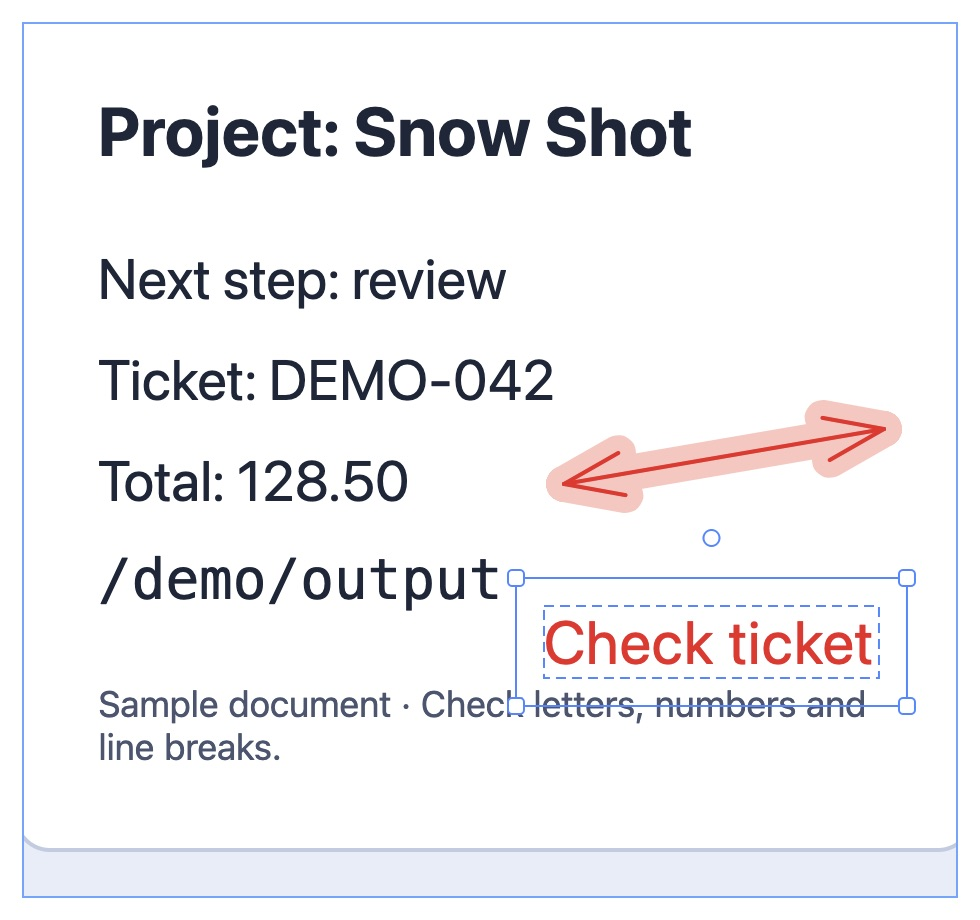
App screenshot. Look for the selected object’s boundary or control points.
Separate text input, object movement and window movement
While the caret is inside text, keys edit text. Finish input before selecting an object. Dragging an object differs from dragging the pin window: the object must change position relative to the underlying image.
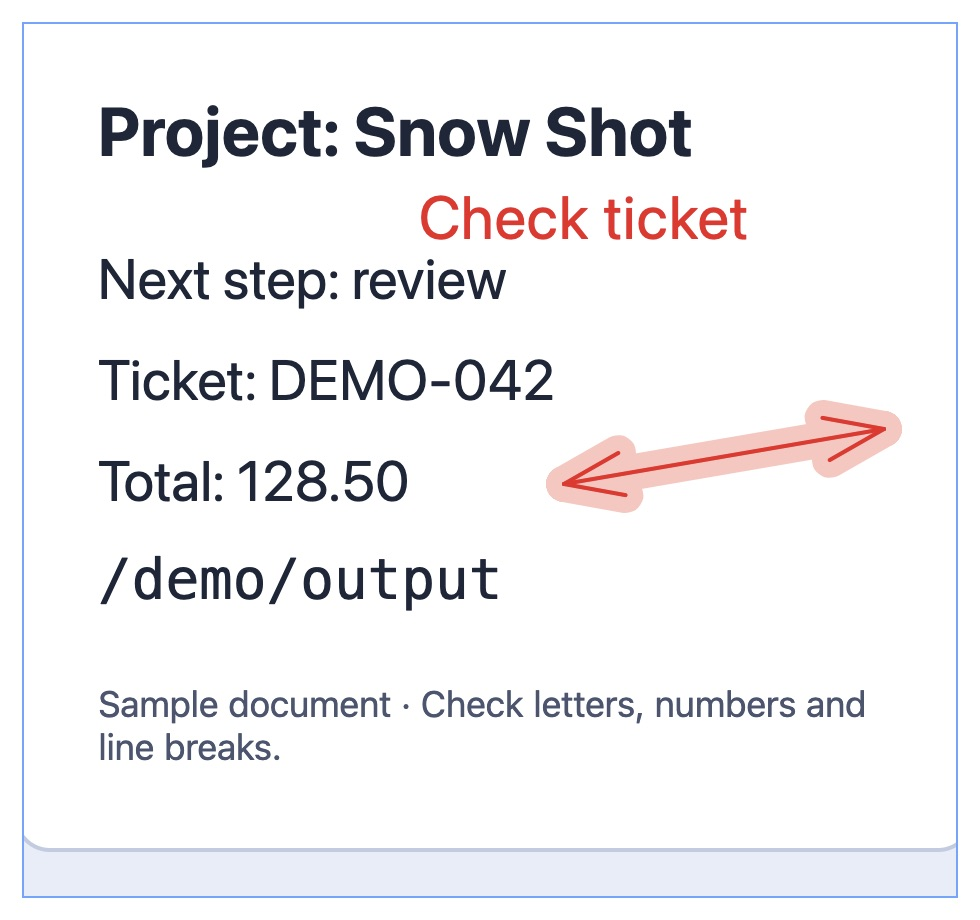
App screenshot. Compare the label’s position relative to the background.
Retaining objects preserves the original region layout and does not apply the compact multi-region layout. Decide which outcome you need and check the output rather than assuming both layouts remain identical after handoff.
Copy or save and check the received result
Copy from the pin and paste into the destination, or use Save as file to create a PNG and reopen it. A correct on-screen edit does not establish that the recipient has the latest result. A normal image file is flattened; reopening it does not restore the old objects.
For a text pin, select text and use the added copy button. This copies selected text, while an image pin may supply an image or file. Paste into a text editor to verify both content type and selection. See pinned text.
If original objects are unavailable
- Check that you are running 1.5.0 or later and that retention is enabled.
- Test a simple capture created after enabling it, excluding old PNGs and flattened pins.
- Enter annotation mode, finish text input and activate the appropriate tool before selecting.
- If everything moves together, check whether you dragged the window. If output misses an edit, check that you saved the current result.
Avoiding duplicate old annotations when re-editing history is another released fix. It does not promise complete object recovery from every history format. Restored pins apply current settings, so check borders, buttons and interaction after upgrading.
For a report, include version, platform, setting state, content origin (capture, clipboard or file), minimal steps and shareable before/after images. Collect an archive using the diagnostics guide and report through Issues. Related references: image pins, Download, Changelog.